Viewing an SD-LAN Service
Each navigation option results in slight variations on the service details provided, so choose one or more methods that best suit your needs.
Perform one or more of the steps as follows:
- View the SD-LAN Service through
Network
Control.
- Select the menu option, then click the SD-LAN tile.
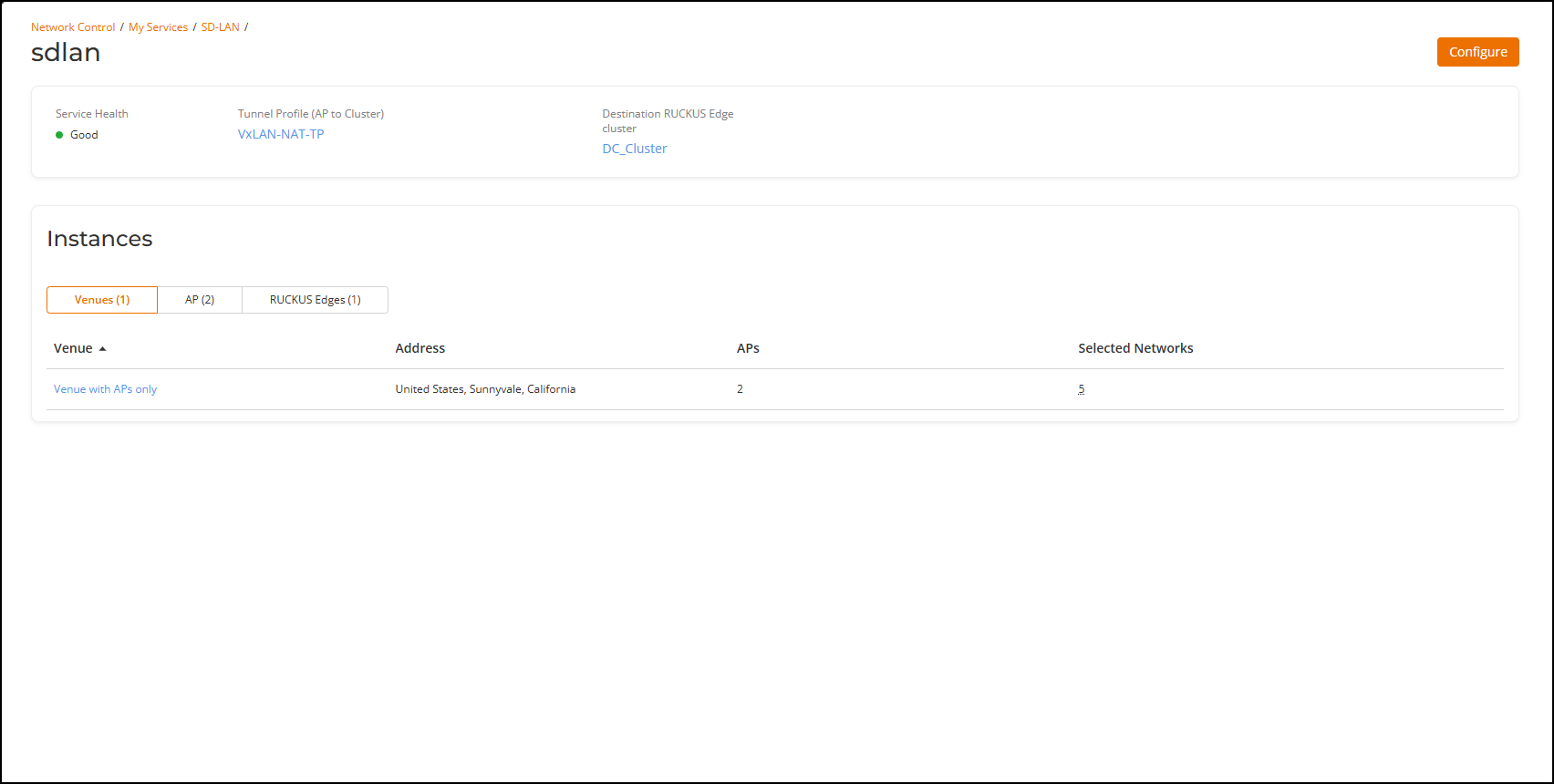
- In the list of SD-LAN services, click on the name of a specific SD-LAN service. The service details appear, reflecting the associated venues, APs, and clusters.
- View the SD-LAN Service through
the RUCKUS Edges tab on a specific SD-LAN service
page.
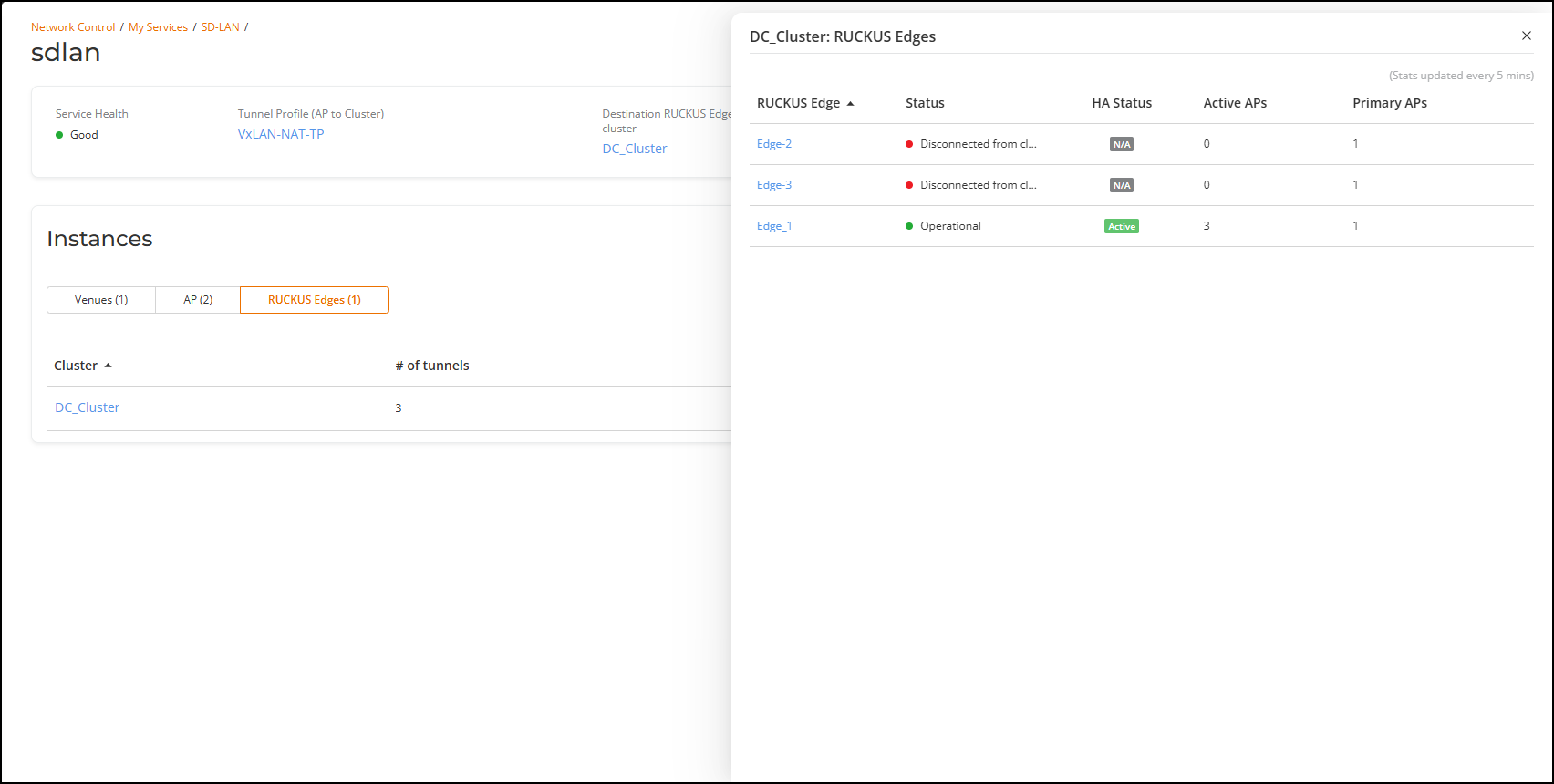
- Click on the RUCKUS Edges tab on the selected SD-LAN service page.
- Select the cluster from the list to view the associated RUCKUS Edge devices. The RUCKUS Edges sidebar displays the devices associated to the cluster.
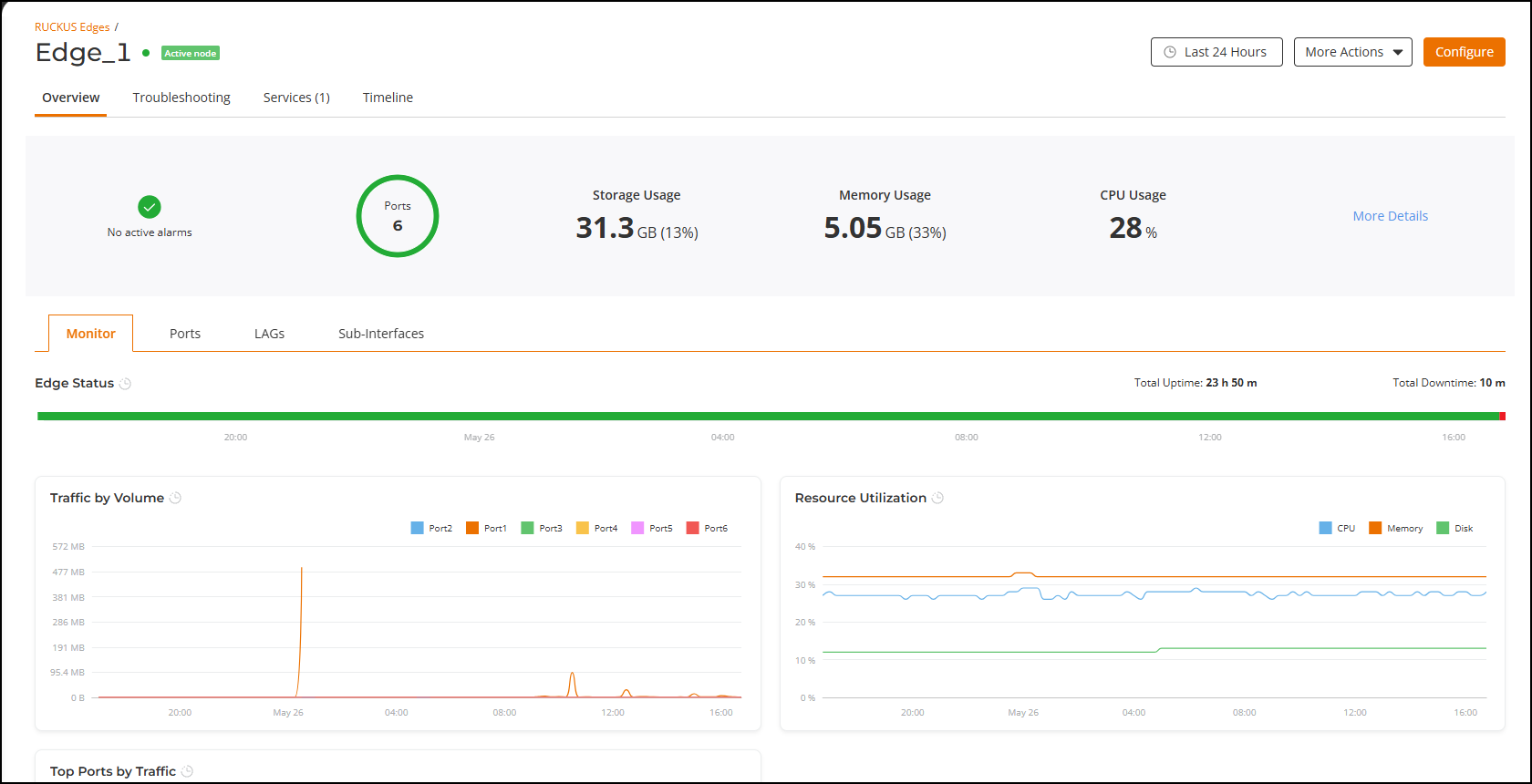
- Click on a RUCKUS Edge device on the sidebar. The device Overview tab is displayed.
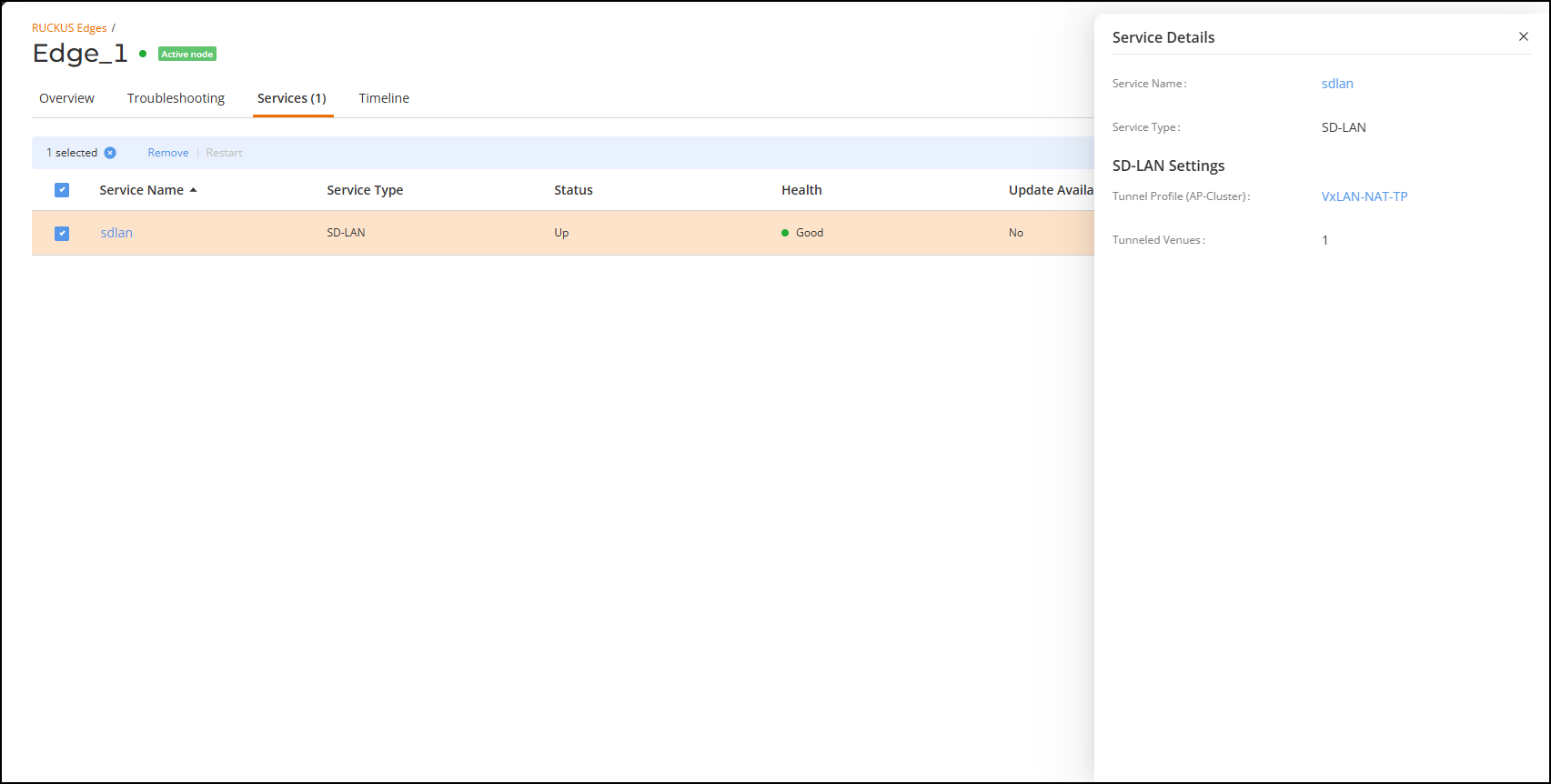
- Click the Services tab. The SD-LAN service appears in the table, reflecting basic information such as status, health, service version, and whether an update is available.
- Click on the name of the SD-LAN service to view the Service Details sidebar containing additional information.
- View the SD-LAN Service through
Venues.
- On the navigation bar, select the Venues menu option, then click the name of the venue you want to view. The venue Overview tab is displayed.
- Click .
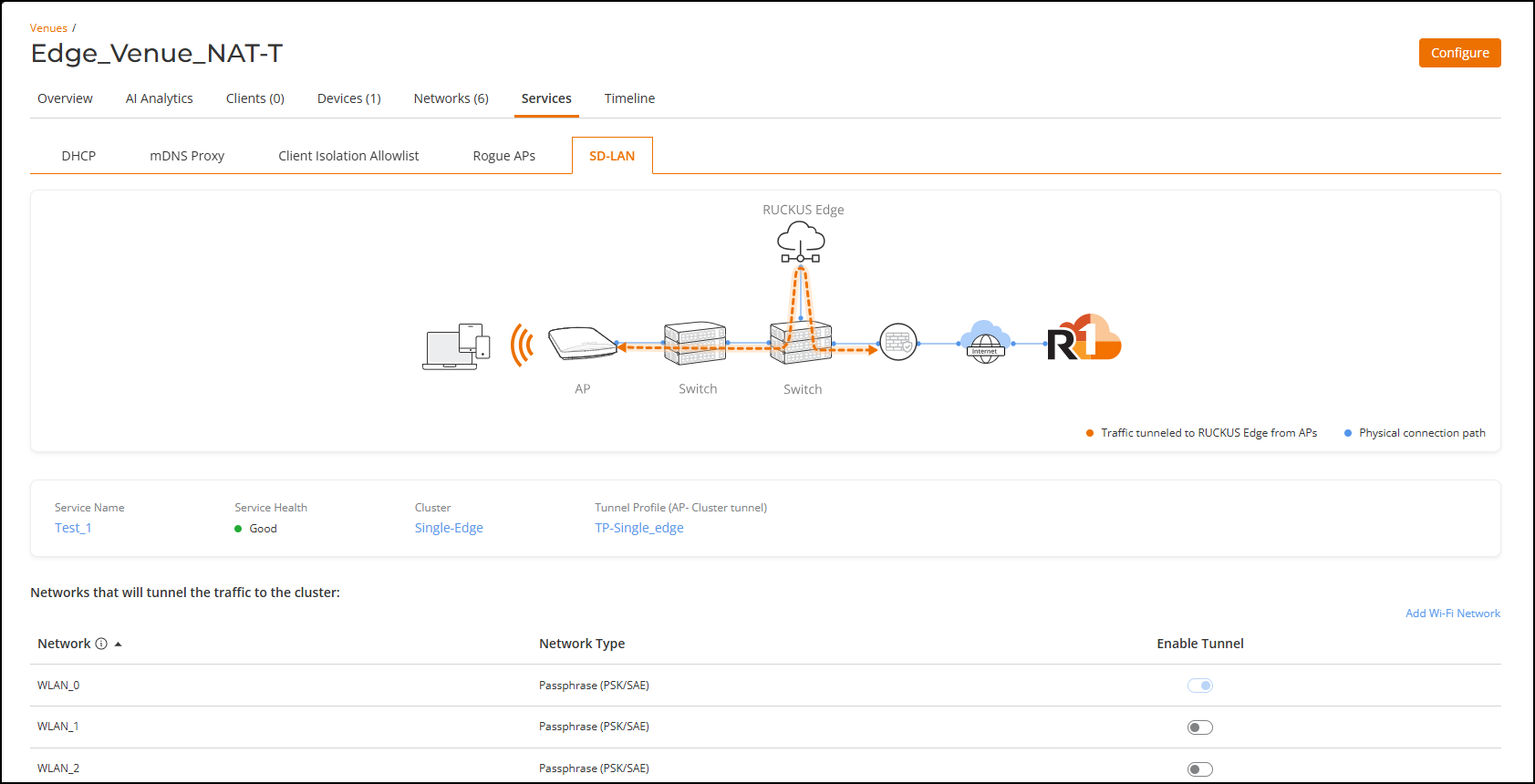
The service details appear, reflecting the end-to-end system architecture map, the service name, service health, cluster, and tunnel profile, as well as networks that will tunnel the traffic to the cluster.