Editing a Venue
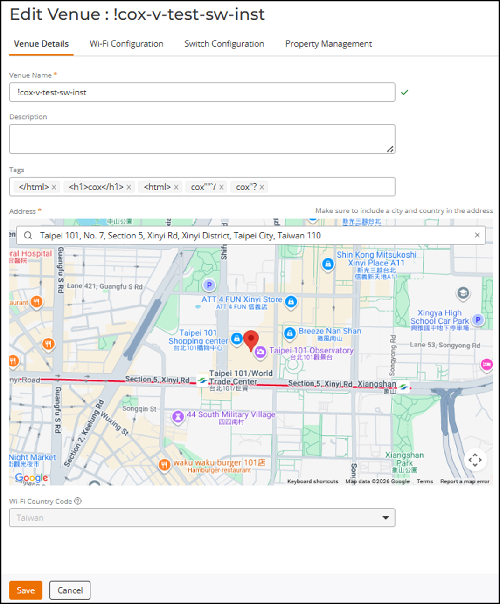
You can edit basic venue details
information (such as the venue name, address, and description) as well as Wi-Fi,
switch, and
property management configurations.
- On the navigation bar, click
Venues.The Venues page is displayed.
- Select the Venue Name and click Edit. Alternatively, click .
- Update the Venue Details settings as required.
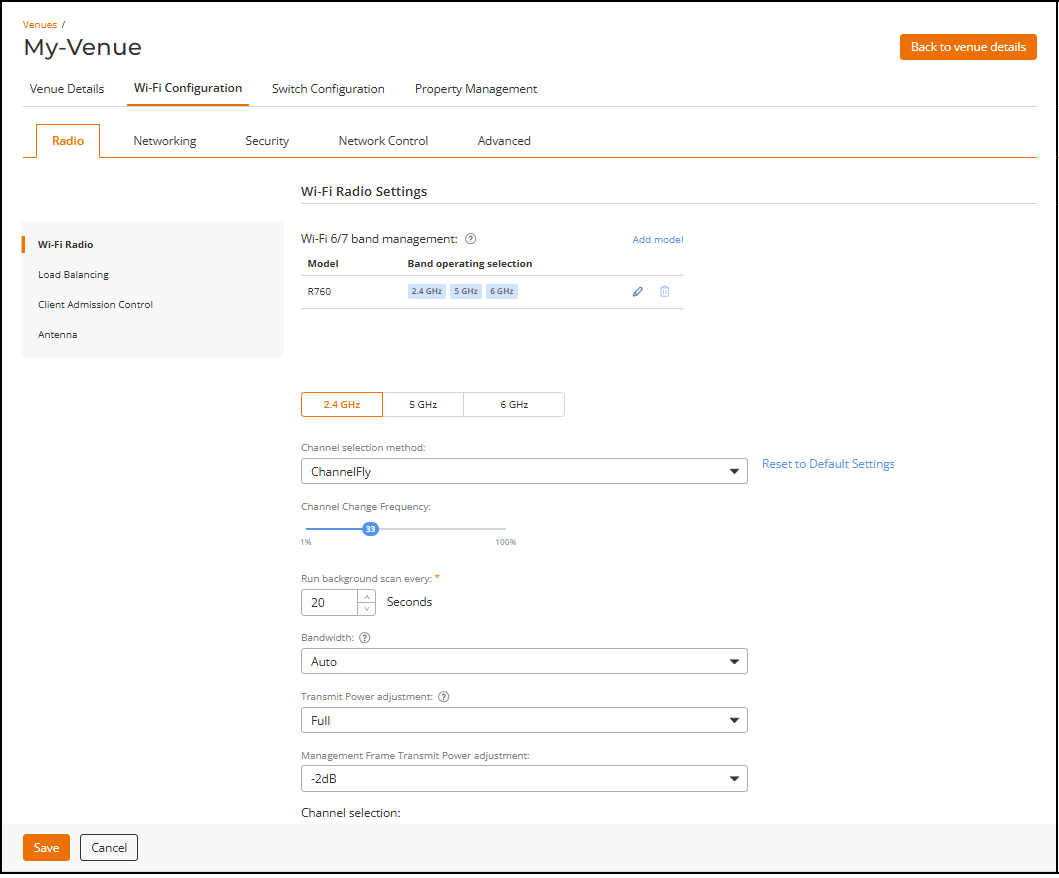
- Click the Wi-Fi
Configuration tab.The Wi-Fi Configuration tab displays the following sub-tabs.
- Radio: Update the Radio settings as required. Refer to Radio Settings.
- Networking: Update the Networking settings as required. Refer to Configuring Wi-Fi Networking Settings.
- Security: Update the Security settings as required. Refer to Security Settings.
- Network Controls: Update the Network Controls settings as required. Refer to Network Control Settings.
- Advanced Settings: Update the Advanced Settings as required. Refer to Advanced Settings.
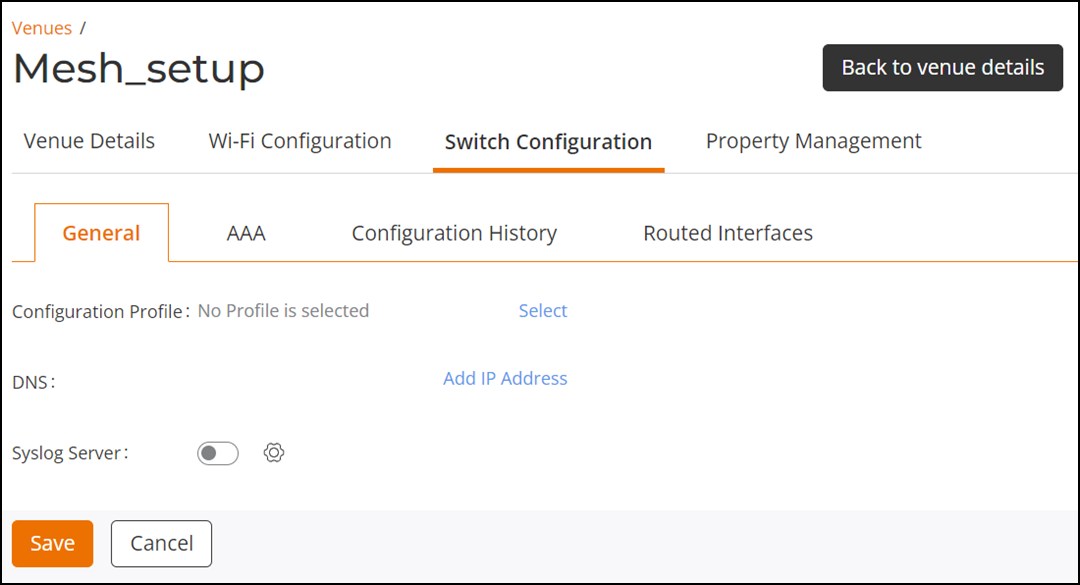
- Click the Switch
Configuration tab.The Switch Configuration tab displays the following sub-tabs.
- General: Update the General settings as required. Refer to Switch Settings: General
- AAA: Update the AAA settings as required. Refer to Switch Settings: AAA.
- Configuration History: View the Configuration History. Refer to Switch Settings: Configuration History.
- Routed Interfaces: Update the Routed Interfaces settings as required. Refer to Switch Settings: Routed Interfaces.
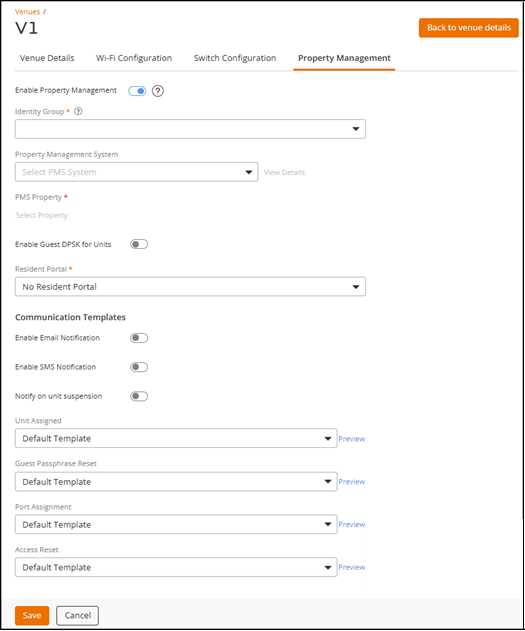
- (Optional) Click the Property
Management tab.The Property Management tab is displayed.
Toggle the Enable Property Management switch on to enable Property Management. Refer to Enabling and Configuring Property Management for more details.
- Click Save.