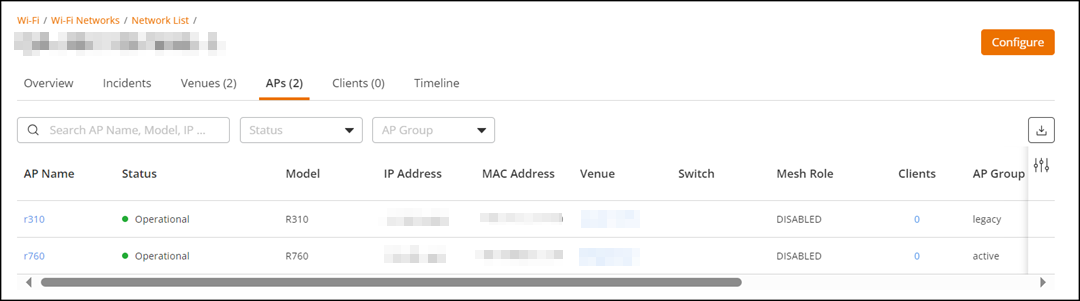
Viewing APs that are Providing a Network
- On the navigation bar, click .
- Click the AP count number for a
specific network name in the APs column. Alternatively,
click a specific network name, then click the APs
tab.The APs tab is displayed.The APs tab displays a list of APs that are currently advertising the network service, including the following information:
- AP Name: Displays the name of the AP.
- Status: Displays the status of AP. If everything is operating normally, the Status column shows Operational.
- Model: Displays the hardware model of the AP.
- IP Address: Displays the IP address or the serial number of the AP.
- MAC Address: Displays the MAC address of the AP.
- Venue: Displays the name of the venue in which the AP is physically deployed.
- Switch: Displays the name of the switch to which the AP is connected.
- Mesh Role: Display the mesh role to which the AP is connected.
- Clients: Displays the length of time that the wireless client has been associated with the network.
- AP Group: Displays the name of the AP Group.
- RF Channel: The RF 2.4 GHz channel and 5 GHz channel.
- Serial Number: Displays the serial number of the AP.
- Version: Displays the software version of the AP.
- PoE Port: Displays the PoE port of the AP.
- Feature Compatibility: Displays the AP
compatibility with the Wi-Fi features available on the network
(Partially incompatible, Fully compatible, or Unknown). You can click
Partially
incompatible to view the incompatibility details for the
specific AP. The Incompatibility
Details sidebar displays information such as the AP
model, the current AP version, the name of the feature for which
incompatibility exists between the AP and the network configuration, and
the minimum required AP firmware version for the listed feature. Pause
the pointer on the Min. Required
Versions column entry to view the AP model families
(denoted by their applicable IEEE 802.11 standard) supporting the listed
feature.
ACX-67432
- Secure Boot: Displays whether the AP is secure boot enabled or disabled. If enabled, a check mark is displayed, else appears blank.
- AFC Status: Displays the AFC status (Passed or failed).
- AFC Power State: Displays the AFC power state (Standard or Low).
- AP BSSID: Displays a unique MAC address assigned to an access point radio for a specific frequency band. Each AP typically has one BSSID for 2.4 GHz and one for 5 GHz.
You can search the results using the Search field. Enter the AP name, model, IP address, MAC address, tags, and serial number in the Search field. Any matching APs are displayed.
You can sort and filter the APs using the Status (Requires Attention, Transient issue, In Setup Phase, Offline, Operational) and the AP Group (active, legacy) filters. You can make multiple selections to filter the APs table.
Click the
 icon on the upper-right hand corner and select the required column check
box. The selected columns are displayed in the APs table.
icon on the upper-right hand corner and select the required column check
box. The selected columns are displayed in the APs table.Click the
 icon on the upper-right hand corner to export and download the AP device
inventory list in csv format.
icon on the upper-right hand corner to export and download the AP device
inventory list in csv format.
 icon in the