Enabling Multi-Factor Authentication and Viewing Audit Events
- On the navigation bar, click .
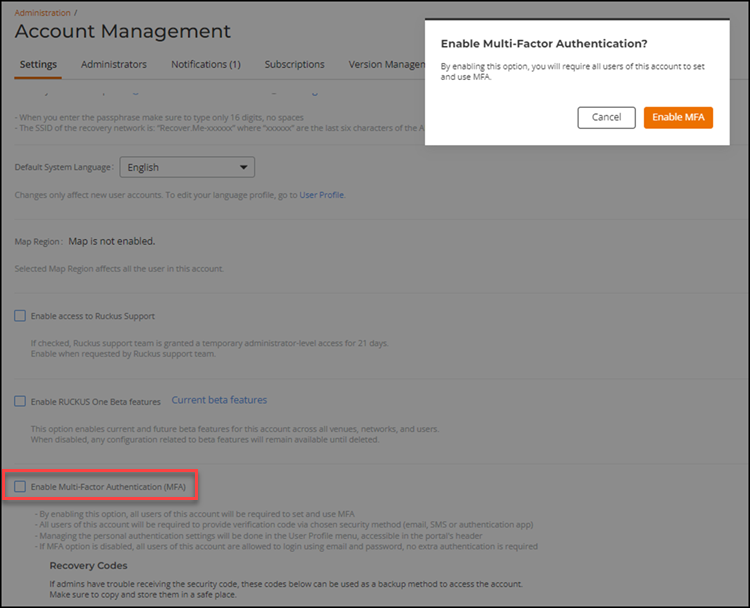
- In the Settings page, check the Enable Multi-Factor
Authentication (MFA) option, then click Enable MFA
in the pop-up confirmation box.RUCKUS One generates recovery codes which can be used as a backup method to access the account if the administrators have trouble receiving the security code. Make sure that you copy the codes and store them safely. Click Copy Codes next to Recovery Codes.After enabling the MFA feature and configuring your authorization methods, you must log out of RUCKUS One and log back in. When you log in to RUCKUS One, you will be asked to authenticate with a one-time password (OTP) sent through SMS or email or a passcode generated via the Authentication App. You must enter the OTP or passcode and then click Verify to log in to RUCKUS One.
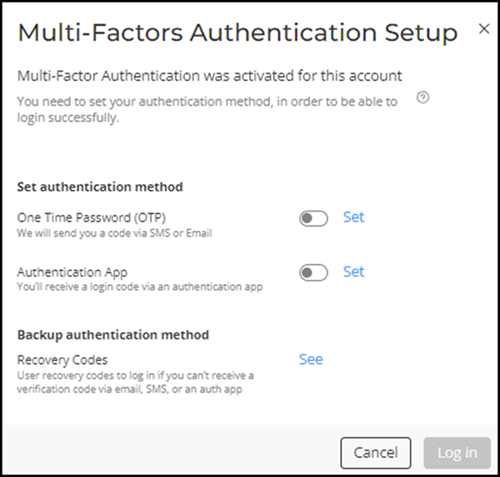
- Select one of the following authentication methods:
- One Time Password
(OTP) switch to display the OTP
Authentication sidebar.
To receive an OTP via SMS on your mobile device, select Text Messages (SMS), enter your valid mobile number in the mobile number field and click Verify. When prompted, enter the OTP received on your mobile phone, and click Verify.
To receive an OTP via Email, select Email, enter your email address in the Email field, and click Verify. When prompted, enter the OTP received in your email address and click Verify.
- Authentication App: You will get a login code through an Authentication App. Toggle the Authentication App switch to display instructions for authentication using an authentication app. Follow the on-screen instructions to obtain a verification code. Enter the verification code generated by the Authentication App in the verification code text box and click Confirm.
- Under Backup authentication method, click See to display the Recovery Codes that you can use to access your account if you have trouble receiving the security code through email, SMS, or your authentication app. Make sure you copy these codes and store them in a safe place.
- One Time Password
(OTP) switch to display the OTP
Authentication sidebar.
-
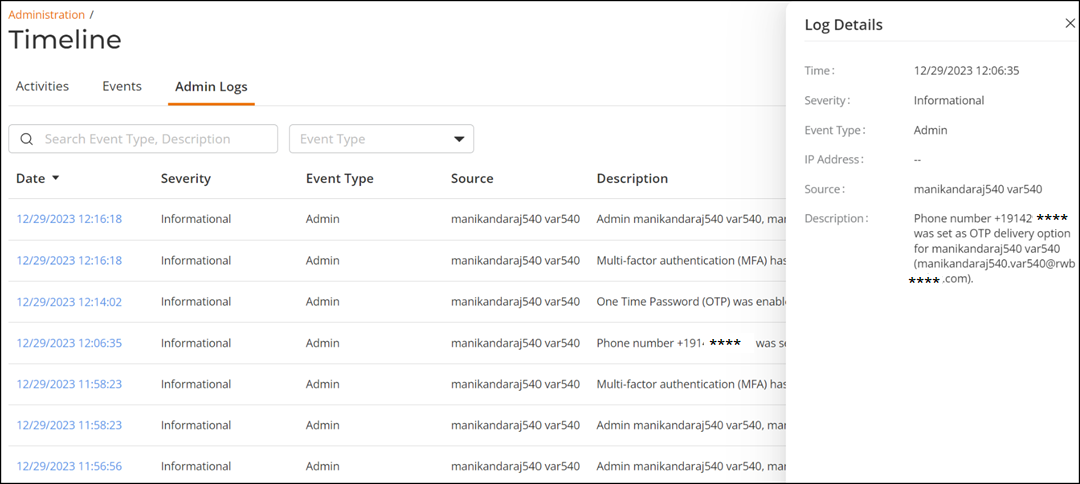
MFA audit events helps administrators monitor events pertaining to the MFA feature, such as, enabling MFA, disabling MFA, enabling One Time Password (OTP) for authentication, adding mobile numbers and email addresses for receiving OTP, and enabling Authentication App as an MFA authentication method.
Complete the following steps to view the MFA audit events:
- On the navigation bar, click
. The Admin Logs page is displayed.
- In the Admin Logs page, click a time under the Date column.
- Any time after the MFA feature has been enabled, you can do any of the following:
- (Optional) Modify your personal authentication method on the . Do this if your email or phone number has changed, or when you want to select a different authentication method.
- (Optional) Confirm the setting for the Multi-Factor Authentication (MFA) option on the page.
- (Optional) Copy the Recovery Codes on the page. Do this to ensure you have a backup method to access the account.
- (Optional, Prime Admin only) Disable the Multi-Factor Authentication (MFA) option on the page. Do this if you no longer want the extra layer of secure authentication for users accessing the account.
- (Optional) Disable the MFA option. Click the checked box next to the Multi-Factor Authentication (MFA) option, then click Disable MFA in the pop-up confirmation box.