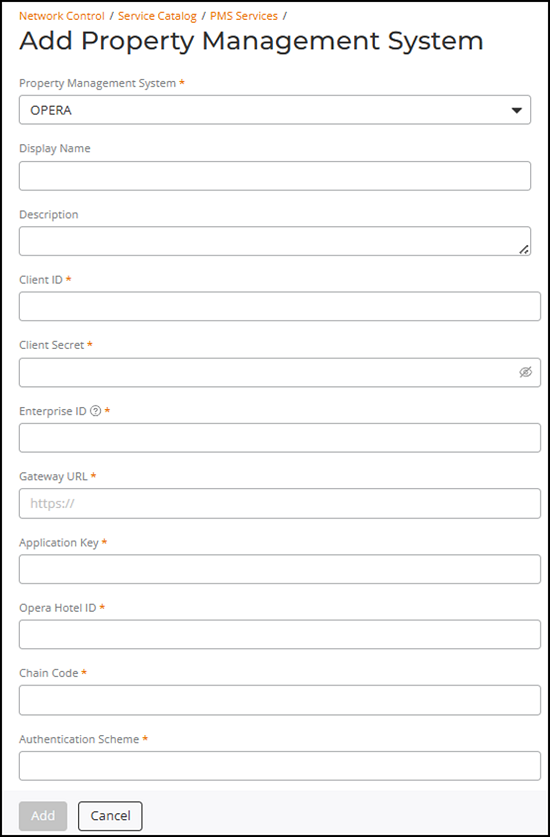
Adding a Property Management System Service
You can add a Property Management
System (PMS) service in RUCKUS One to integrate with a supported
PMS and enable the secure exchange of property, room, and guest information.
Note: Before entering PMS configuration values, collect the
required OPERA OHIP credentials. Refer to Collecting PMS Credentials from
OHIP for more
details.
- Add the Property Management System service to your tenant account. From the navigation bar, select .
- Find the Property Management System tile (widget) and click Add.
- Select the Property Management System from the drop-down list.
- (Optional) Enter a Display Name.
- (Optional) Enter a Description.
- Enter the Client ID provided by the Property Management System.
- Enter the Client Secret provided by the Property Management System.
- Enter the Enterprise ID associated with your Property Management System account.
- Enter the Gateway URL used for PMS API communication.
- Enter the Application Key required to access PMS APIs.
- Enter the Hotel ID assigned in the PMS system.
- Enter the Chain Code that identifies the hotel chain.
- Select the Authentication Scheme used for API authentication.
- Enter the Authentication Scope to define the access level.
- Enter the WebSocket URL for receiving real-time PMS events.
- Click Test Connection to verify the connection
details.The system validates the PMS configuration. If the test succeeds, a toast notification confirms the connection; if it fails, an error dialog instructs you to contact Support.
- Click Add.The Property Management System service is created and added to your account.