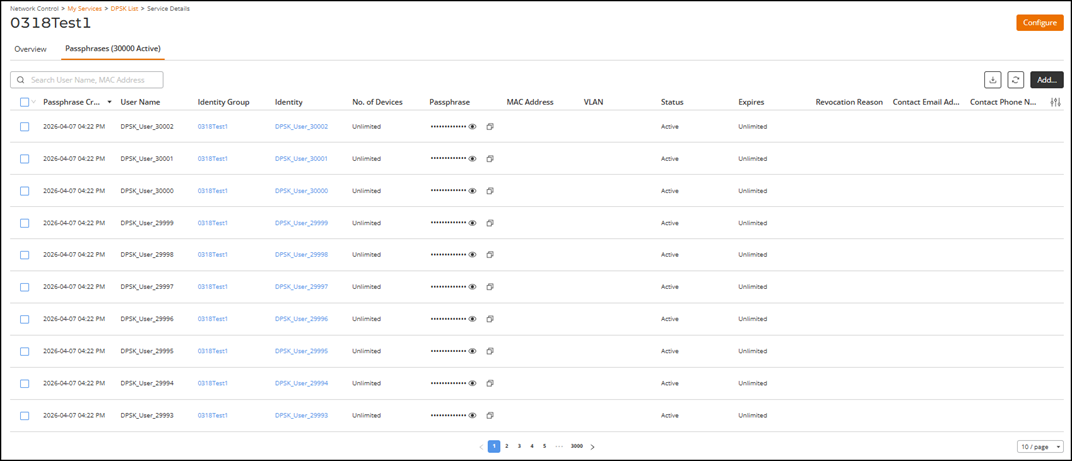
Adding a Passphrase for a DPSK User
You can generate a passphrase for an
individual DPSK user device by specifying the passphrase and device-related configuration
options.
- From the navigation bar, select
.The My Services page is displayed.
- Select DPSK. The DPSK page is displayed.
- Click on the specific DPSK service name.
- Click the Passphrases tab.
- Click Add Passphrases.
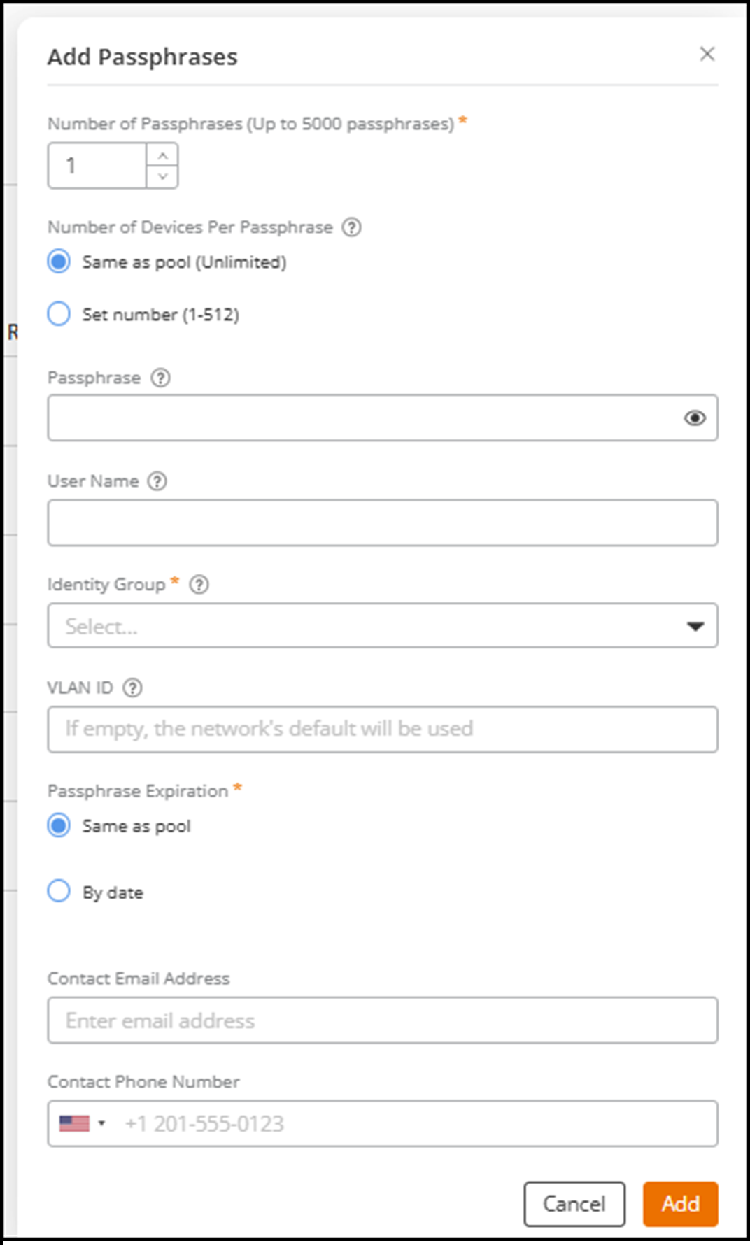
- Enter the number of passphrases
in the Number of
Passphrases (up to 5000 passphrases) field. You can create up to
5,000 DPSK passphrases in a single operation. ACX-107460- Update DPSK individual creation documentation to reflect default inheritance behavior
- (Optional) Select the number of
devices per passphrases in the Number of Devices Per
Passphrase field from the following options:When enabled, multiple devices are allowed to use the same passphrase, up to the specified limit.
- (Optional) Enter a value in the
Passphrase field that users must provide to access the
network.If this field is left empty, the system generates the passphrase automatically. The valid range is 8 to 63 characters.
- (Optional) Enter a name in the
User
Name field.The name is displayed in the DPSK User table to help associate devices with users.
- (Optional) Enter a MAC address
in the MAC
Address field.
This field appears only when Set number (1-512) is selected with a value of 1. Only the device with this MAC address will be allowed into the Wi-Fi network with that passphrase.
Leave the field blank to allow the first device that uses the passphrase to bond to it.
Note: Leave blank to allow the first device using the passphrase to bond to it. - Select an Identity group from the drop-down list. The user name created manually or automatically generated by the system for the passphrase will be associated with the selected Identity group.
- (Optional) Enter a VLAN ID in the VLAN ID field.
- Select a passphrase expiration option from the following options:
- Select a date from the calendar drop-down if By date is selected.
- (Optional) Enter the DPSK user’s email address in the Contact Email Address field.
- (Optional) Enter the DPSK user’s
phone number in the Contact Phone Number field.Note: The GUI automatically inserts the + character; you must enter the remaining digits comprising the country code and full subscriber number. The country code drop-down provides both interactive and visual assistance to help you prepend the correct country code.
- Click Add.The new DPSK passphrase is generated and the Passphrases table is updated with the new passphrase entry.