Generating a Certificate
- From the navigation bar, select
. Alternatively, you can select , then click Add Service.The Service Catalog page is displayed.
- Find the Certificate Management tile and click
Add.The Add Certificate Instance page is displayed. Refer to Add Certificate Instance for more details.
- Select Device Certificate from the Template Instance Type and Certificate from the Device Certificate Type.
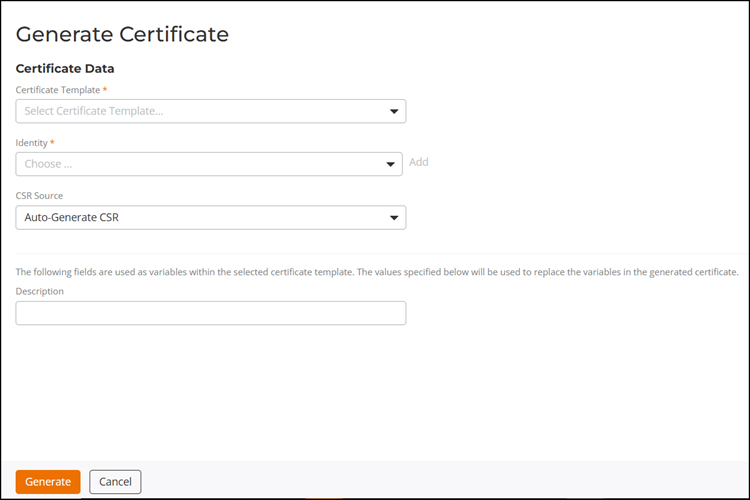
- In the Generate Certificate page, complete the
following:The selected certificate template defines the certificate authority (CA), certificate attributes, and certificate properties. Values specified in the certificate request fields are used to replace variables in the template when the certificate is generated.
- Certificate Template: Select a certificate template from the drop-down.
- Identity: Select an identity from the drop-down. Alternatively, click Add to access the Create Identity sidebar and create an identity. For more information on creating an identity, refer to:
- CSR Source: Select one of the following from the drop-down:
- Certificate Signing Request: Enter or paste the certificate signing request (CSR), if applicable.
- Description: Enter a description.
- Click Generate. The certificate is generated and displayed on the Certificates sub-tab of the Device Certificates tab.
The Certificates sub-tab displays the following information:
- Common Name: Displays the common name of the certificate holder.
- Status: Displays the status of the certificate: Valid, Revoked, or Expired.
- Expiration Date: Displays the expiration date.
- CA Name: Displays the name of the certification authority.
- Template: Displays the name of the certificate template.
- Revocation Date: Displays the revocation date.
- Identity: Displays the name of the identity group. Click on the hyperlink to view the detail page of the identity.
- Issued by: Displays issuer information.
- Timestamp: Displays the timestamp.
- Serial Number: Displays the serial number.
- Thumbprint: Displays the certificate thumbprint.
- Email: Displays the email address of the organization.
- (Optional) On the
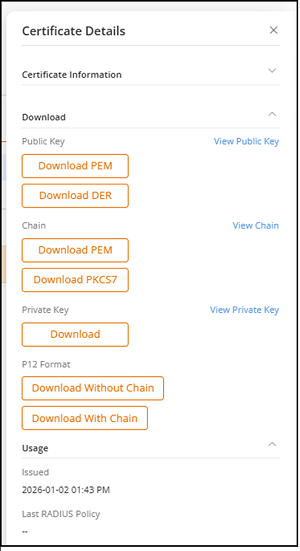
Certificates page, click a certificate name.The Certificate Details sidebar is displayed.The Certificate Details sidebar displays the following options:
- Certificate
Information: Displays certificate details, including
Common Name, Status, Valid Not Before, Valid
Not After, Organization, Organizational Unit,
Locality, State, Country, Serial Number,
Key Length, Key Usage, SHA Fingerprint,
Certificate Template, Certificate Authority,
Identity, and Description.
Click the identity name to view the details page of the identity.
You can also click View Certificate to view the corresponding certificate information.
- Download: This section provides the
following options:
- Public Key: Allows you to download the certificate public key by using Download PEM or Download DER.
- Chain: Allows you to download the certificate
chain by using Download
PEM or Download
PKCS7.
A certificate chain PEM file contains the complete chain of trust, including the end-entity certificate, intermediate certificates, and the root certificate.
Note: For an AAA Authentication RadSec profile, ensure that the certificate chain includes all intermediate certificates up to the trusted root CA. The server certificate must be signed by a CA in the configured trust chain to successfully establish a TLS session. - Private Key: Allows you to download the private key by using Download. Enter a password to encrypt the downloaded file.
- P12 Format: Allows you to download the certificate package by using Download Without Chain or Download With Chain. The Download With Chain option is commonly used for client devices. Enter a password to encrypt the downloaded file.
- Usage: Displays certificate usage
information, including the Issued date and the
last RADIUS Policy used.
Note: For EAP-based authentication, clients can use the Domain Suffix Match setting to validate the DNS name contained in the server certificate.
- Value:
ruckus.cloud - Purpose: Validates the EAP server certificate by its DNS name during EAP authentication.
- Validation Rule: The configured value must match a dNSName entry in the certificate's subjectAltName extension. Multiple values can be specified by separating them with semicolons (;). The certificate is considered valid if at least one value matches.
- Limitation: Wildcards are not supported. For example,
example.commatchesserver.example.combut does not matchserver-example.com. - Availability: This setting is available only for EAP connections.
- Value:
- Certificate
Information: Displays certificate details, including
Common Name, Status, Valid Not Before, Valid
Not After, Organization, Organizational Unit,
Locality, State, Country, Serial Number,
Key Length, Key Usage, SHA Fingerprint,
Certificate Template, Certificate Authority,
Identity, and Description.
- (Optional) Select the checkbox
alongside a certificate name to display the following management options:
- Revoke: Blocks a certificate from being used for authentication.
- Unrevoke: Restores a certificate to an active state.
- Delete: Permanently removes a certificate
record.
You can delete one or more device certificates to remove expired, revoked, or unused certificates. Select the checkbox next to one or more certificate names, and then click Delete.