Adding and Managing Configuration Templates
- In the navigation bar, select
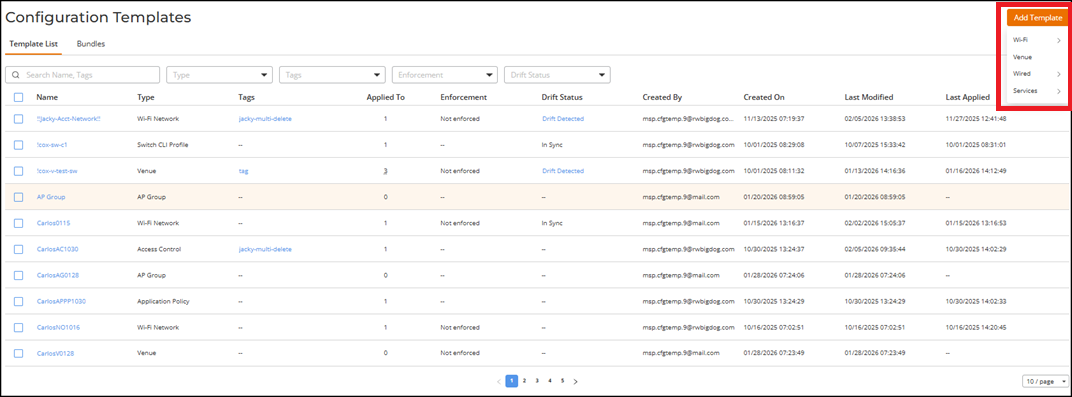
.The Configuration Templates page is displayed with the following information:
- Name: Displays
the template name as a hyperlink. Clicking the hyperlink opens the Template
Details sidebar.
The Template Details sidebar displays the following information: Template Name, Type, Drift Status, Enforcement, Created By, Created On, Last Modified, Last Applied, and Configuration Details.
- Drift Status: Displays the current drift status. If a drift is detected, a Drift Detected hyperlink appears. Clicking the hyperlink opens the Drifts Report sidebar. Refer to Viewing and Syncing Configuration Template Drifts for more information.
- Configuration Details: The View Configuration hyperlink opens the configuration details page for the selected template and displays all defined parameters and values. When a template is enforced, all fields appear in read-only mode. For non-enforced templates, click Configure to modify editable fields. The View Configuration hyperlink appears only for templates that contain saved configuration data; the hyperlink is inactive when no configuration is available.
- Type: Displays the template category, such as Wi-Fi Network, Venue, or Service.
- Tags: Displays the tags
associated with the template as a hyperlink. Clicking the hyperlink opens the
Manage Tags sidebar. Refer to Adding and Managing Tags for more
information. If -- is displayed,
the template has no tags assigned.
ACX-103139: Config Template 5 - Tagging
- Applied To: Displays the number of venues, networks, or devices where the template is applied.
- Enforcement: Displays whether the template is enforced or not enforced. If -- is displayed, the template is not enforced and the Enforcement template configuration option is not supported by the template type.
- Drift Status: Displays the current drift status. If In Sync is displayed, there is no drift between the template and its instances, indicating that all changes have been successfully synchronized. If a drift is detected, a Drift Detected hyperlink appears; clicking the hyperlink opens the Drifts Report sidebar. If -- is displayed, the template has never experienced drift. Once drift is detected, the status changes to Drift Detected. After a successful synchronization, it updates to In Sync. Thereafter, the status alternates between Drift Detected and In Sync, and does not revert to --.
- Created By: Displays the username of the administrator who created the template.
- Created On: Displays the date and time when the template was created.
- Last Modified: Displays the date and time when the template was last modified.
- Last Applied:
Displays the date and time when the template was last applied. If -- is displayed, the template has
never been applied to any device.
You can use the Search option to display only the table entries matching the specified Name or Tags; enter a minimum of two characters. Additionally, you can filter the list of configuration templates by selecting options from the drop-down menus of the Type, Tags, Enforcement, and Drift Status fields. The type menu supports multiple selections, including Access Control, AP Group, Application Policy, Device Policy, DHCP for Wi-Fi, DPSK, Guest Portal, Layer 2 Policy, Layer 3 Policy, RADIUS Server, Rogue AP Detection, Switch CLI Profile, Switch Regular Profile, Syslog Server, Venue, VLAN Pool, Wi-Fi Calling, and Wi-Fi Network. The tags drop‑down displays all tags currently available in the account. The enforcement options are Enforced and Not Enforced. The drift status options are Drift Detected and In Sync. Use the Clear Filters option to remove the applied filters.
ACX-103139: Config Template 5 - Tagging
- Name: Displays
the template name as a hyperlink. Clicking the hyperlink opens the Template
Details sidebar.
- On the Configuration Templates page, click Add Template.
- Select a template type and follow the
on-screen instructions to complete the configuration.
- Wi-Fi: Select this option
to create a Wi-Fi network or AP Group configuration template. The following options
are available:
- Wi-Fi Network: Select this option to create a Wi-Fi network configuration template. Refer to Wireless Networks Overview for configuration details. The Enforce template configuration option appears on the configuration page. Toggle it on to ensure that all direct changes on template-activated elements are blocked to enforce compliance with the template configuration.
- AP Group: Select this option to create an AP group configuration template. Refer to Adding an AP Group for configuration details.
- Venue: Select this option to create a venue configuration template. Refer to Adding a Venue for configuration details. The Enforce template configuration option appears on the configuration page. Toggle it on to ensure that all direct changes on template-activated elements are blocked to enforce compliance with the template configuration.
- Wired: Select this option
to create a configuration template for RUCKUS ICX switches. The following options
are
available:
- Switch Regular Profile: Select this option to create a regular switch profile configuration template. Refer to Adding and Managing a Regular Switch Configuration Profile for configuration details.
- Switch CLI Profile: Select this option to create a switch CLI profile configuration template. Refer to Adding a CLI Configuration Profile for configuration details.
- Services: Select this
option to create a service configuration template. The following options are
available:
- Access Control: Select this option to create an access control configuration template. Refer to Creating an Access Control Policy for configuration details.
- DHCP for Wi-Fi: Select this option to create a DHCP service configuration template for Wi-Fi. Refer to Adding and Managing a DHCP Service Profile for Wi-Fi for configuration details.
- DPSK: Select this option to create a DPSK service configuration template. Refer to Adding a DPSK Service for configuration details. The Enforce template configuration option appears on the configuration page. Toggle it on to ensure that all direct changes on template-activated elements are blocked to enforce compliance with the template configuration.
- Guest Portal: Select this option to create a guest portal configuration. Refer to Adding a Guest Portal Service for configuration details.
- RADIUS Server: Select this option to create a RADIUS server configuration template. Refer to Adding and Managing a Radius Server Profile for configuration details. The Enforce template configuration option appears on the configuration page. Toggle it on to ensure that all direct changes on template-activated elements are blocked to enforce compliance with the template configuration.
- Rogue AP Detection: Select this option to create a rogue AP detection configuration template. Refer to Creating a Rogue AP Detection Policy for configuration details.
- Syslog Server: Select this option to create a syslog server configuration template. Refer to Creating a Syslog Server Policy for configuration details.
- VLAN Pools: Select this option to create a VLAN pool configuration template. Refer to Creating a VLAN Pool for configuration details.
- Wi-Fi Calling: Select
this option to create a Wi-Fi calling configuration template. Refer to Adding the Wi-Fi
Calling Service for configuration details. The Enforce template
configuration option appears on the configuration page. Toggle it on
to ensure that all direct changes on template-activated elements are blocked to
enforce compliance with the template configuration.Note: When the Enforce template configuration toggle is turned on, enforcement applies only to instances created from the template, excluding the template details page. Instances created from the template become read-only and cannot be edited or deleted. You can open the Edit page, but the system prevents you from saving any changes.
- Wi-Fi: Select this option
to create a Wi-Fi network or AP Group configuration template. The following options
are available:
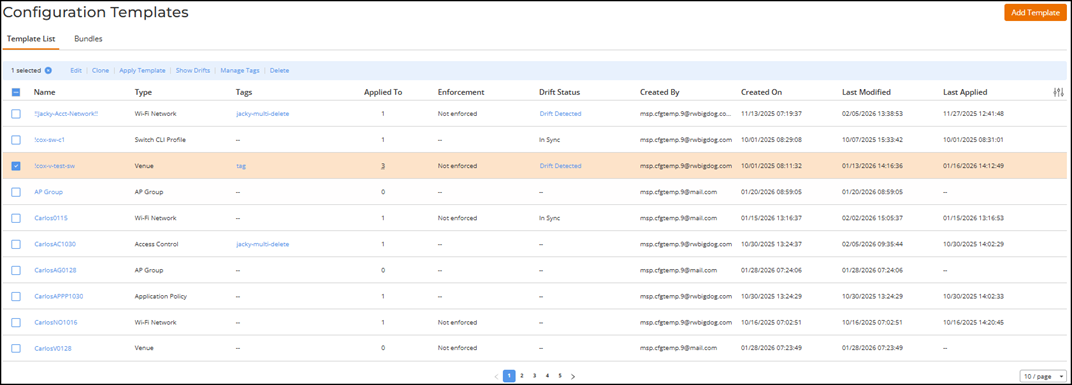
- (Optional) You can manage configuration
templates from the Configuration Templates page using the following
options:Note: Available options differ based on the type of template selected and whether drift is detected.
- Edit: Click the checkbox
alongside the template name and click Edit.
The selected template page is displayed, showing fields and tabs specific to the template type. You can view or modify configuration details and click Save to apply changes.
- Clone: Click the checkbox
alongside the template name and click Clone.
A Clone Template dialog box appears where you can enter the new Name (up to 32 characters) and click Save.
Note: The Clone operation is supported only for Wi-Fi Network, Venue, DPSK, and Wi-Fi Calling configuration templates.Note: AP Group cloning is triggered by the venue clone process. When you clone a venue instance, all its non-default AP Groups are automatically cloned as part of the venue cloning workflow. AP Group configuration templates cannot be directly, manually cloned.ACX-102797 - [UG]Update User Guide for Upcoming Feature: Config Template 5 - Clone Venue in R1 - Apply Template: Click the
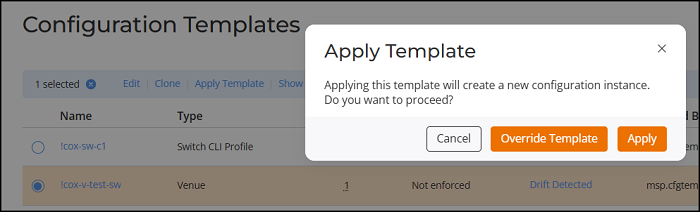
checkbox alongside the template name and click Apply Template.
In the Apply Template dialog box, click Override Template to replace the existing configuration or Apply to create a new configuration.
- Show Drifts: Click the
checkbox alongside the template name and click Show Drifts to view and
synchronize configuration differences between the applied configuration and the
template. Refer to Viewing and Syncing Configuration Template
Drifts.
- Manage Tags: Click the
checkbox alongside the template name and click Manage Tags. Refer to
Adding and Managing Tags for more
information.
ACX-103139: Config Template 5 - Tagging
- Delete: Click the
checkbox alongside the template name and click Delete.
A delete configuration confirmation dialog box appears. Click Delete Config Template to confirm deletion.
- Edit: Click the checkbox
alongside the template name and click Edit.