Upgrading Switch Firmware at the Switch Level
Successful update of switch firmware, whether scheduled or through Update Now, requires the RUCKUS ICX switch to be onboarded to RUCKUS One, associated with a venue, in the Operational state, and running a different firmware version than the selected firmware version. At the venue level, the user cannot select the current firmware version, and at the switch level, the user cannot select the firmware version running on the switch.
- From the navigation bar, select
- Select the Switch Firmware sub-tab.
- To update switches associated
with one or more venues, in the Switch Firmware table,
select the desired Venue checkbox for one or more venues, and click Update Now. To
manually initiate a firmware update:
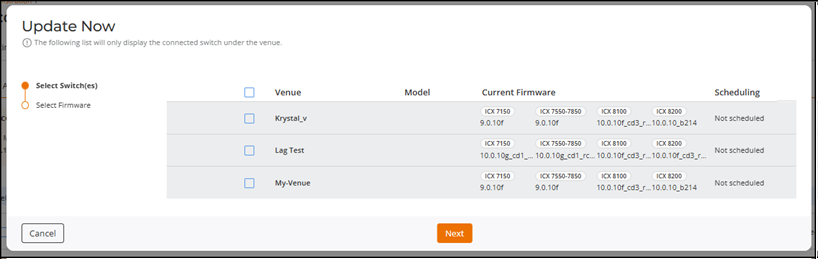
- Select the checkbox for one or more venues, then click Update Now.
- Click a specific
Venue checkbox and click the
 icon for each venue to expand the list of
associated switches. You can also search for a specific venue by
entering the switch name or switch model number in the Search
field.
icon for each venue to expand the list of
associated switches. You can also search for a specific venue by
entering the switch name or switch model number in the Search
field. - Select the checkbox for
each switch you want to update, click Next,
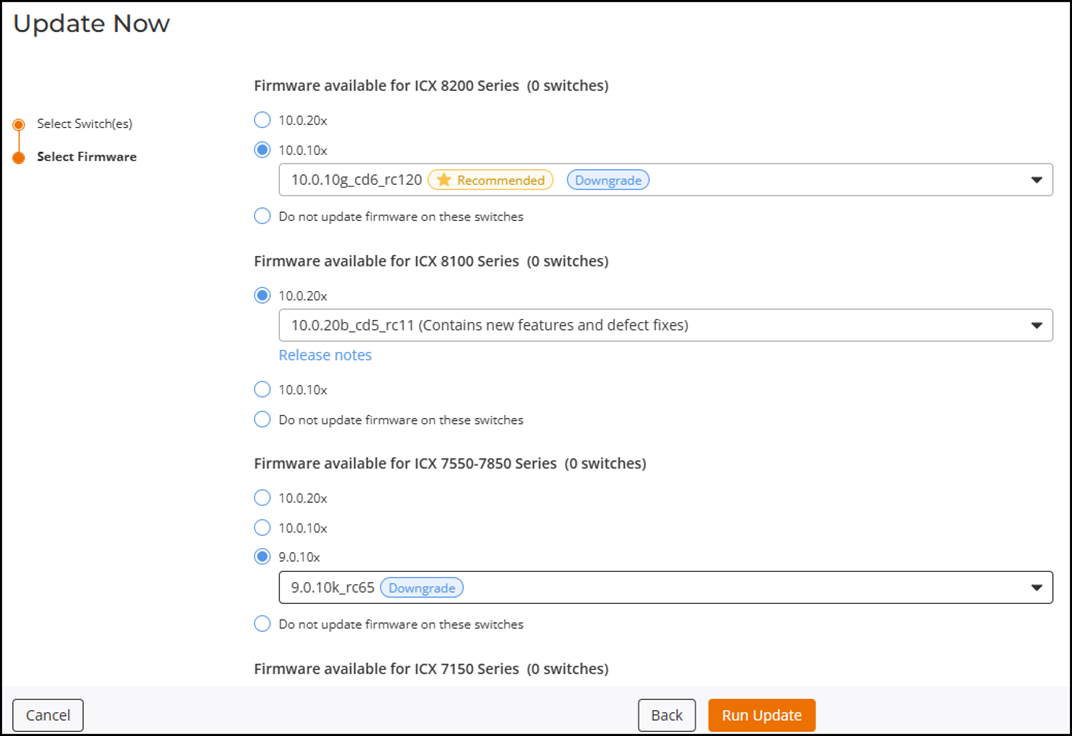
select the desired firmware version, then click Run
Update. Note: RUCKUS ICX 8200-24PV and ICX 8200-C08PFV AV switches are supported in FastIron release 10.0.10 (versions 10.0.10f and later), release 10.0.20 (versions 10.0.20b and later), and future FastIron releases. These AV switches cannot be downgraded to earlier releases (such as 08.0.95x, 09.0.10x, or 10.0.00x) or earlier versions (such as 10.0.10, 10.0.10a, 10.0.10b, 10.0.10c, 10.0.10d, 10.0.10e, 10.0.20, or 10.0.20a).Note: RUCKUS ICX 7550-24XZP switch is supported in FastIron release 10.0.20b-cd1 or later versions; it is not supported in FastIron 09.0.10 and 10.0.10 releases.Note: RUCKUS ICX 8100 10G switches are supported in FastIron firmware versions 10.0.10g-cd1 and 10.0.20c and later. Supported models include ICX 8100-24-X, ICX 8100-24P-X, ICX 8100-48-X, ICX 8100-48P-X, and ICX 8100-C08PF-X. They are not supported in FastIron release 09.0.10 or earlier versions of 10.0.10 release (such as 10.0.10, 10.0.10a, 10.0.10b, 10.0.10c, 10.0.10d, 10.0.10e, 10.0.10f, 10.0.20, 10.0.20a, or 10.0.20b).
Note: When selecting the firmware version, you are given options for the recommended release as well as other available versions (including earlier versions for downgrade). Remember that the recommended release may not be the latest available release.
After clicking Run Update, you will see pop-up success messages, and the Status column of the Venues table reflects the update status.
- You can click Check Status (found in the Status column of the Venues table) to open the Firmware update status sidebar, which displays details such as the switch name, status of the upgrade, the target firmware, and the time stamp of the last update.
- (Optional) To change the update
schedule for switches on a venue, select Change Update
Schedule and complete the following steps:
- In the Update
Schedule dialog box, select the desired Venue
checkbox for one or more venues and click the icon for each venue to expand the list of
associated switches. You can also search for a specific venue by
entering the switch model in the Search
field.
- Select the checkbox for each switch for which you want to change the update schedule and click Next.
- For Select
Firmware, select the firmware version for the switch
that you want to update and click Save.
- Note:
- Firmware versions are grouped by switch family; only families matching the selected switches are shown.
- Some versions display a Recommended label to indicate the preferred release for that family.
- If a selected version requires conversion from Switch image to Router image, an informational banner appears under that option.
- Each family section includes a Do not update firmware on these switches option.
- When the
selection includes ICX8200‑AV switches and a firmware below
the AV‑supported baseline is chosen, a message appears
showing the venue and switch(es) that will not be upgraded.
The message explains that ICX8200‑AV models support firmware
10.0.10f and later, and you can upgrade those switches
separately using a supported version.
ACX-108409- [Documentation] R1 support for Phase 1 AV Switches
- Select the update date
and time.The update time selections are displayed after the date is selected, and are available in two-hour intervals, starting from midnight.
- For Pre-download the
firmware, select the toggle switch to ON to download the
firmware in the background.The selected switches are downloaded six hours prior to the scheduled update time, thereby shortening the time required to complete the firmware update once the scheduled update process begins.
- Click Save.
- Click View schedule. The Scheduled update sidebar will display the schedule update details for the venue and associated switch, such as the venue name, status of the venue schedule update, the target firmware for the venue update, switch name, status of the switch schedule update, and the target firmware for the switch update.
- In the Update
Schedule dialog box, select the desired Venue
checkbox for one or more venues and click the
- (Optional) Click Skip Update to skip the update and
complete the following steps.
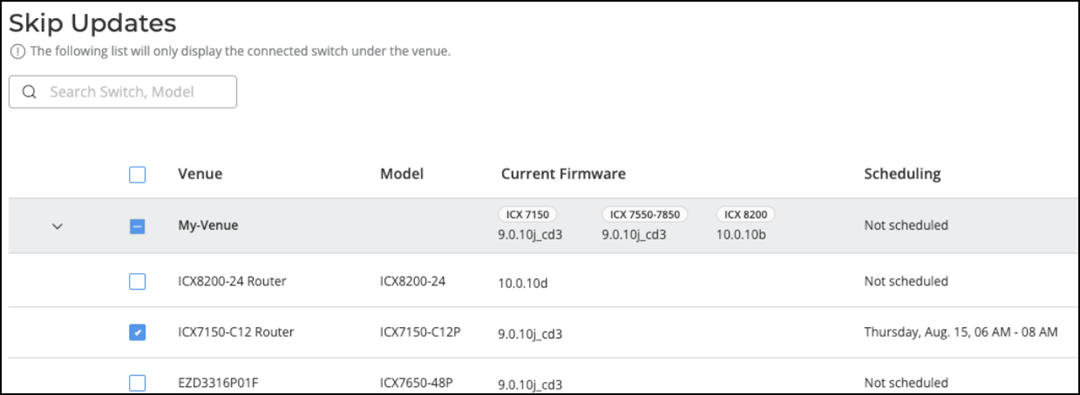
- In the Skip
Updates dialog box, select the desired Venue
checkbox for one or more venues, click the icon for each venue to expand the list of
associated switches, and click Skip. You
can also search for a specific switch by entering the switch name or
model in the Search field.
- In the Skip This Update confirmation message, click Skip.
- In the Skip
Updates dialog box, select the desired Venue
checkbox for one or more venues, click the

To receive email or SMS notifications regarding initial scheduling of a firmware update, modifications to the firmware update schedule, reminders of upcoming firmware updates, and skipped (cancelled) updates, you must ensure that you have your name and contact information provisioned in . Refer to Adding a Recipient for System Notifications for provisioning instructions.
To view Activity log entries related
to all switch firmware update operations, click the  icon
in the upper-right corner of the UI header, then click the related switch upgrade
activity to view the Activity Details. Alternatively, from the navigation bar, click , select Switch in the
Product filter drop-down menu, and view all
switch-related activities.
icon
in the upper-right corner of the UI header, then click the related switch upgrade
activity to view the Activity Details. Alternatively, from the navigation bar, click , select Switch in the
Product filter drop-down menu, and view all
switch-related activities.