Viewing Client Details
You can view details about wireless and
wired clients to determine its properties, including its MAC address, IP address,
and the
user name used to associate it with the AP or switch. You can also view information
about
its host name, OS, health, venue, AP or switch, network, and time connected.
Note: References to the name of an object
managed by the RUCKUS One portal (Venue, AP or switch, Network, Client) is displayed
in blue to represent a link to the detail page of the object. For example, the
AP
name in the Clients page links to the AP page.
- Open Clients using one of the following methods:
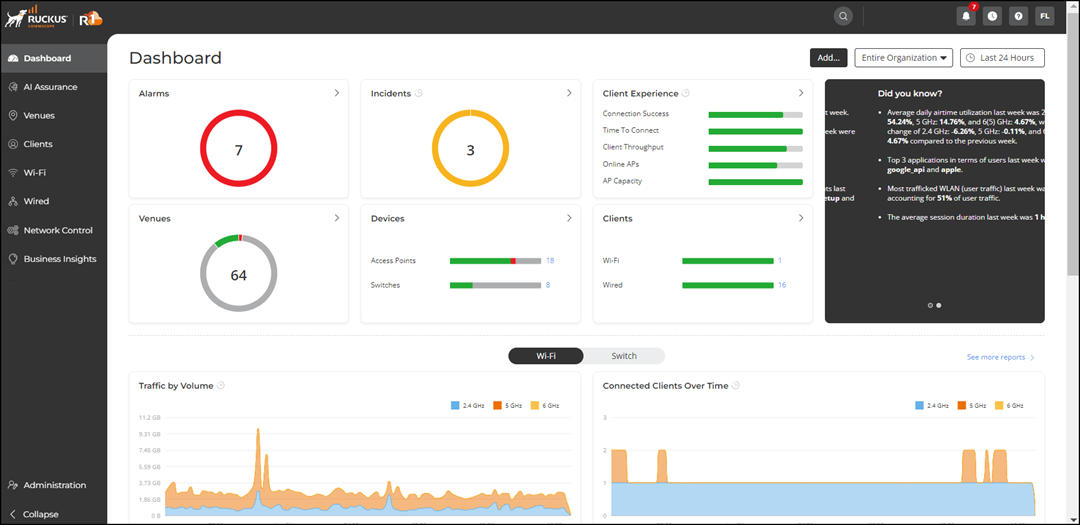
- From the navigation bar, click Dashboard.
In the Dashboard window, locate the Clients section. It displays the number of Wi-Fi and wired connected clients and its signal strenth indicated in red (poor), green (good), and orange (moderate) colors. Click on the number of clients (Wi-Fi and Wired) highlighted in blue to view more information about the clients.
- From the navigation bar, select
Clients to expand the menu and select one of the
following.
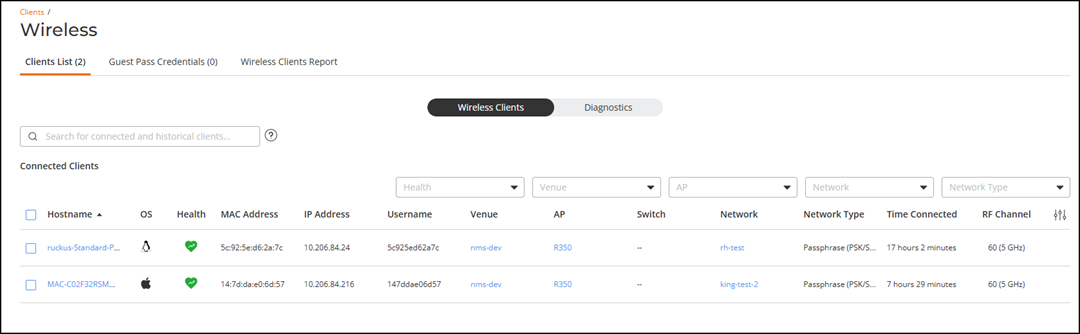
- Wireless
- Wireless Clients List: The Wi-Fi page displays the following two tabs: Clients and Guest Pass Credentials. The Clients displays both connected and disconnected (historical) wireless clients with search options. When searching for disconnected (historical) clients, you can only search by MAC address, hostname or username. For more information, refer to Viewing and Managing Wireless Clients.
- Guest Pass Credentials: You can configure and manage your guest passes. For more information, refer to Wireless Client Management.
- Wireless Client Insights: You can view information about the traffic and trends of the wireless clients over a period of time. For more information, refer to Wireless Clients Report.
- Wired
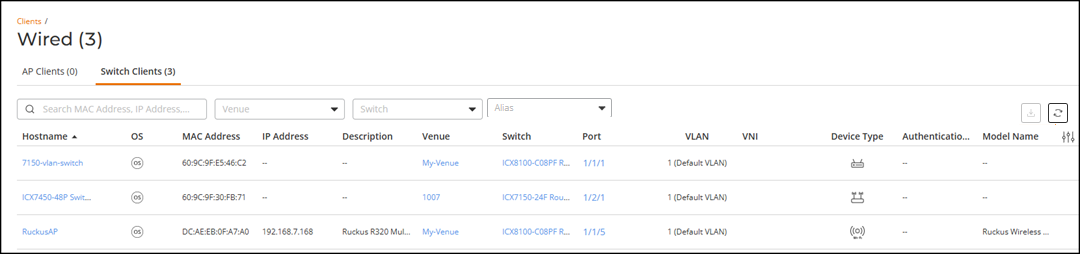
- Wired Clients List: You can view information about your managed wired devices (switches). For more information, refer to Viewing Switch Client Lists.
- Identity Management: You can configure and manage your identity groups and identities. For more information, refer to Managing Identity Groups and Viewing and Managing Identities.
- Wireless
- From the navigation bar, click Dashboard.
- From the list of currently associated clients, locate the wireless client (connected or disconnected) for which you want to view details, and then click its host name.
- In the Last 7 Days (Date-start-to-date-finish) section, you can choose
to display the information for a time duration of 24 hours, 7 days, or 30 days.
For more information, refer to Viewing Wi-Fi Clients Details.Review the information for any patterns or trends.
- To view the switch clients, from the navigation bar, click Clients.
- Under Wired, select Wired Clients List.
- Click on a host name to view its
properties. The Switch Users page displays information about the switch status, client, and connection.