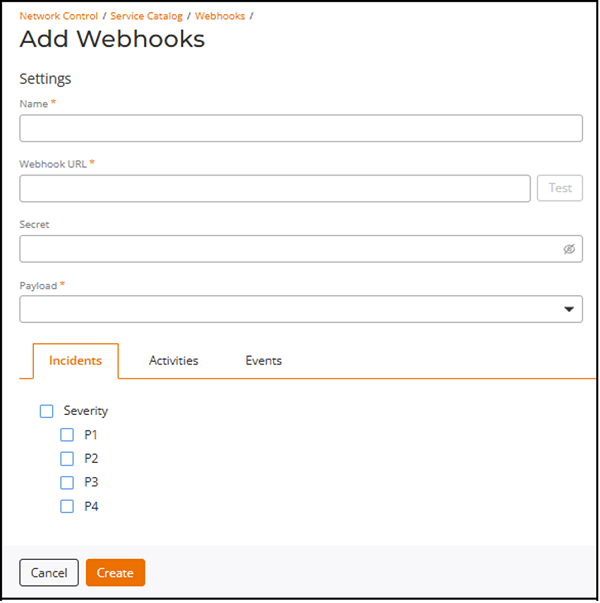
Adding a Webhook
- Add the Webhook service to your tenant account. From the navigation bar, select . Alternatively, you can select , then click Add Service.
- Find the Webhooks tile (widget) and click Add.
- Enter a unique name in the Name field.
- Enter the destination endpoint in the Webhook URL field.Note: The Webhook URL field supports URLs up to 4096 characters. If the entered URL exceeds this limit, an error message is displayed and the webhook cannot be created until the URL is corrected.ACX-114808
Configuring the Webhook URL in Different Platforms
Tool Reference to Create Incoming Webhook ServiceNow ServiceNow payload the same as Ruckus payload (incident, activity, event), but for backward compatibility the secretremains inside the payload body and is validated by the ServiceNow script (data.secret).https://dev187130.service-now.com/api/1602381/ruckuswebhook/notificationPayload: Refer to Configuring a ServiceNow Scripted REST API Endpoint for Webhook Integration for more details.
Microsoft Teams https://commscope.webhook.office.com/webhookb2/9ee5a30e-38f5-4d17-8bb7-1c4af721b2fe@31471f81-8fe4-49ec-8bc3-fa1c295640d7/IncomingWebhook/30dbf8413ea2421890d1a5d1e45481b4/e36aca5e-5c9e-4549-9a29-761977b3798a/V2wg7zMjjRZmGM3DTJB2rQ9A5ynttxrH1qJOaxzjUyn141Note: Microsoft Teams incoming webhook URLs can be longer than 255 characters and are fully supported up to 4096 characters.Slack https://api.slack.com/messaging/webhooks
https:// hooks.slack.com/services/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Payload: Forward the RUCKUS payload body as JSON in
"text"or as structured JSON per your Slack app needsSplunk https://${splunk cloud instance hostname}:8088/services/collector/eventDataDog https://docs.datadoghq.com/api/latest/events/?code-lang=curl&site=us5
https://${Datadog cloud
                                       instance hostname}/api/v1/events
Webhook Secret for Authentication:
curl -X POST " " \\ -H "Accept: application/json" \\ -H "Content-Type: application/json" \\ -H "DD API KEY: df4adc98f49abb3659715f7d15d4be48" \\ -d '{ "title": "$WEBHOOK_CONFIGURATION_NAME", "text": "$RUCKUS_PAYLOAD", "tags": ["$WEBHOOK_CONFIGURATION_ID", "$WEBHOOK_CONFIGURATION_TYPE", "$WEBHOOK_CONFIGURATION_NAME"], "alert_type": "info", "source_type_name": "ruckus" }'PagerDuty Documentation URL: Refer to Change section in https://developer.pagerduty.com/docs/events-api-v2-overview
https://events.pagerduty.com/v2/change/enqueue
Use the Integration Key (from Events API V2 integration) as the
routing_keyin the JSON body.{"routing_key":"25c24b83f4a6490bc015aa8c2731ca76","payload":{"summary":"Ruckus event","source":"Ruckus Cloud","custom_details":{ $RUCKUS_PAYLOAD }}}RUCKUS One Ruckus payloads differ by type - incident, activity, or event. If a secret is configured, it is sent in the HTTP Authorizationheader.After you select RUCKUS as the payload in the webhook configuration, the system delivers payloads in the formats shown below.
Ruckus Analyst incidents
example:

{
  "id": "1400136c41dc4095b70e9e38d8838d46",
  "name": "webhook-1",
  "type": "incident",
  "secret": "12345678",
   "tenantId", "327fc706f28a48de9bbf3c6bcac657a2",
  "payload": {
    "id": "38d4a8eb-2dd2-44dd-beaa-70a96b657576",
    "status": "new",
    "severity": "P3",
    "link": "https://dev.alto.mlisa.io/api/a4rc/incidents/38d4a8eb-2dd2-44dd-beaa-70a96b657576?selectedTenants=WyIzMjdmYzcwNmYyOGE0OGRlOWJiZjNjNmJjYWM2NTdhMiJd",
    "title": "Sample incident in Access Point: AP Name (AA:AA:AA:AA:AA:AA)",
    "category": "Connection",
    "subCategory": "EAP",
    "startTime": "2020-10-27T21:15:00.000Z",
    "endTime": "2020-11-01T08:00:00.000Z",
    "duration": "4d 10h",
    "impactedAreaType": "Access Point",
    "impactedAreaName": "AP Name (AA:AA:AA:AA:AA:AA)",
    "impactedAreaHierarchy": "Venue Name (Venue) > AP Group Name (AP Group) > AP Name (AA:AA:AA:AA:AA:AA) (Access Point)",
    "clientCount": 28,
    "impactedClientCount": 6,
    "impactedClientPercentage": "21.43%",
    "rootCauses": "Sample incident root causes:\n  1. Root cause 1\n  2. Root cause 2",
    "recommendations": "Sample recommended actions to address incident:\n  1. Action 1\n  2. Action 2\n  3. Action 3"
  }
}

Ruckus Activities
{
  "id": "6bb5cf0c193d4dca860eab45dc328a73",
  "name": "webhook-1",
  "type": "activity",
  "payload": {
    "id": "38d4a8eb-2dd2-44dd-beaa-70a96b657576",
    "requestId": "d9b509d0-82b8-44fa-aae1-ebbce86a5044",
    "tenantId": "327fc706f28a48de9bbf3c6bcac657a2",
    "adminName": "Melvin Wu",
    "adminEmail": "mwu100@email.com",
    "product": "WEBHOOK_PRODUCT_GENERAL",
    "status": "SUCCESS",
    "message": "Venue Sunnyvale Ruckus was added",
    "useCase": "AddVenue",
    "entityId": "718da5495f204f6ebc19fd52ea7d9ed7",
    "startDatetime": "2025-01-13T23:32:20Z",
    "endDatetime": "2025-01-13T23:32:20Z",
    "steps": [
      {"message": "AddVenue", "status": "SUCCESS", "startDatetime": "2025-01-13T23:32:20Z", "endDatetime": "2025-01-13T23:32:20Z"}
    ]
  }
}

Ruckus Events
{
  "id": "7ed9d4c2567e483e8aecba5478868128",
  "name": "webhook-1",
  "type": "event",
  "payload": {
    "id": "38d4a8eb-2dd2-44dd-beaa-70a96b657576",
    "eventCode": "101",
    "eventName": "ApDiscoveredCloudController",
    "tenantId": "6ea7a69c59e24fd9913d17b7960d7a7a",
    "timestamp": "1736822049",
    "datetime": "2025-01-14T02:34:09Z",
    "severity": "WEBHOOK_SEVERITY_INFO",
    "entityType": "WEBHOOK_EVENT_AP",
    "product": "WEBHOOK_PRODUCT_WIFI",
    "attributes": [
      {"name": "serialNumber", "value": "312339001086"},
      {"name": "zoneName", "value": "805543a84bbf4dd78e338a0166f2246e"},
      {"name": "apGroupName", "value": "7a9af2715f2a466a93ad1d72a6ca4e13"},
      {"name": "venueId", "value": "805543a84bbf4dd78e338a0166f2246e"},
      {"name": "apName", "value": "R770-312339001086"},
      {"name": "apMac", "value": "A8:0B:FB:0F:9A:90"},
      {"name": "domainName", "value": "6ea7a69c59e24fd9913d17b7960d7a7a"},
      {"name": "macAddress", "value": "A8:0B:FB:0F:9A:90"},
      {"name": "deviceGroupId", "value": "7a9af2715f2a466a93ad1d72a6ca4e13"}
    ]
  }
}

Ruckus Admin Events
{
  "id": "6bb5cf0c193d4dca860eab45dc328a73",
  "name": "webhook-1",
  "type": "event",
  "payload": {
    "eventCode": "login-001",
    "tenantId": "327fc706f28a48de9bbf3c6bcac657a2",
    "timestamp": "1736818174",
    "datetime": "2025-01-14T01:29:34.481Z",
    "severity": "WEBHOOK_SEVERITY_INFO",
    "entityType": "WEBHOOK_EVENT_ADMIN",
    "attributes": [
        {"name": "tenantType", "value": "REC" },
        {"name": "adminName", "value": "Melvin Wu"},
        {"name": "ipAddress", "value": "134.242.136.12"},
        {"name": "userName", "value": "mwu100@email.com"},
        {"name": "eventDescription", "value": "Admin Melvin Wu, mwu100@email.com logged into the cloud controller"}
    ]
  }
}
RUCKUS One outbound webhooks are delivered to the destination URL that the user configures in the webhook settings. - Click Test to send a sample payload to the configured webhook URL and verify connectivity.
- (Optional) Enter a value in the Secret field if required by the receiving system.
- Select a payload format from the Payload list. The options are RUCKUS One, DataDog, Microsoft Teams, PagerDuty, ServiceNow, Slack, and Splunk.
- Configure notification categories on the
tabs, as needed:Note: Use the parent checkbox on any tab to select all sub‑options in that group, or select individual sub‑options as needed.
- Click the Incidents tab and choose severities as needed. The options are P1, P2, P3, and P4.
- Click the Activities tab and choose products as needed. The options are General, Wi-Fi, Switch, or RUCKUS Edge.
- Click the Events tab and choose event criteria as needed. The options are:
- Toggle the Enabled switch on to activate the webhook.
- Click Create.