Network Control Settings
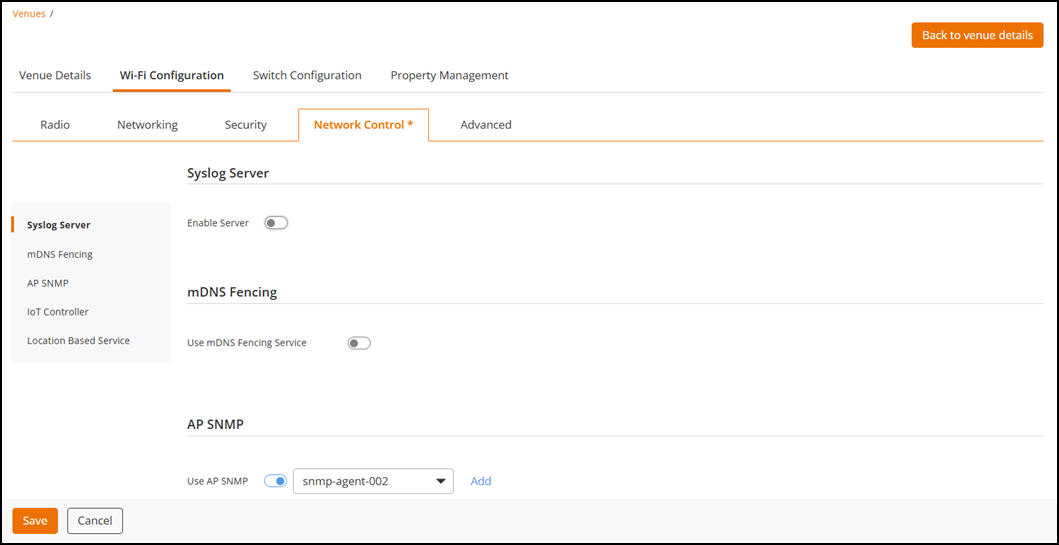
In the Wi-Fi
Configuration page, you can configure the Network Control services such as
Syslog Server, mDNS Fencing, AP SNMP, IoT Controller, and Location Based Service
that you
want to provide in a venue.
- On the navigation bar, click
Venues.The Venues page is displayed.
- Click the checkbox for a specific venue and click Edit. Alternatively, click on a specific venue name then click the Configure button.
- Select the Wi-Fi
Configuration tab and Network Control
sub-tab.The Network Control sub-tab is displayed. Within the Network Control sub-tab, customize the services of your preference and click Save. Refer to the following instructions to configure each of the available network control services:
- Syslog Server
- Configuring an mDNS Fencing Profile
- Configuring an SNMP Agent Profile
- Configuring an IoT Controller
- Configuring Location Based Service
Configuring a Syslog Server Policy
- To customize the Syslog Server, you must first toggle the Enable Server switch to enable the server. By default, Syslog Server is disabled.
- Select a Syslog Server profile from the drop-down list or click Add Server Profile to add a new Syslog Server profile. Refer to Creating a Syslog Server Policy to create a profile.
Configuring an mDNS Fencing Profile
- Toggle the mDNS Fencing switch to enable mDNS Fencing. By default, mDNS Fencing is disabled.
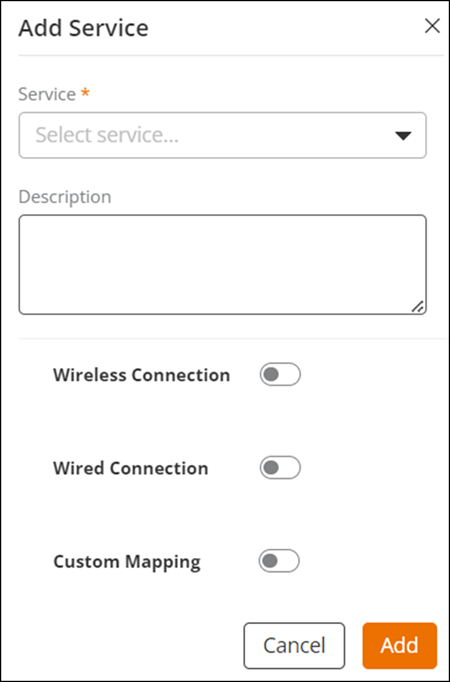
- Click Add Service to add a new mDNS Fencing Profile.
- Complete the following
fields:
- Service: Select a service from the drop-down list.
- Description (Optional): Enter the description about the server.
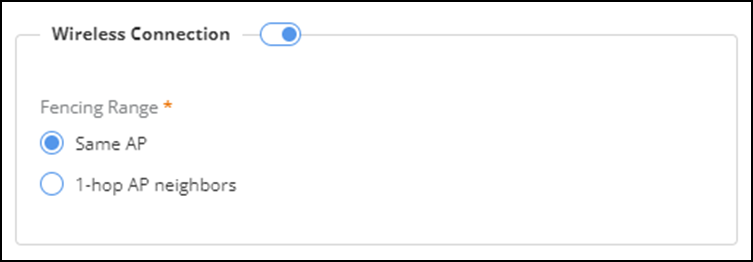
- Wireless Connection: Toggle the button to enable the wireless connection fencing range. By default, Wireless Connection is disabled.
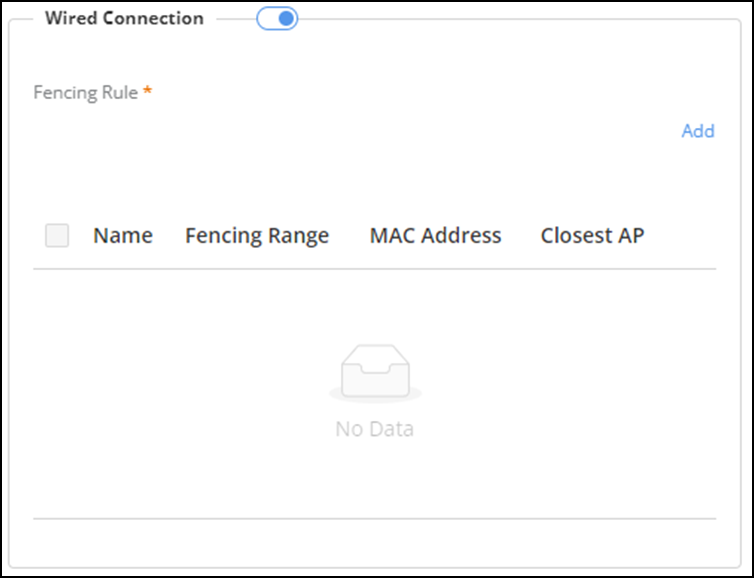
- Wired Connection: Toggle the button to enable the wired connection fencing range. By default, Wired Connection is disabled.
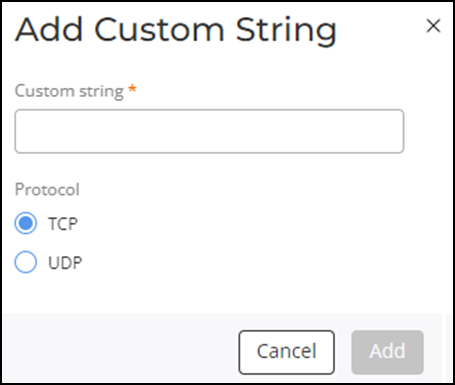
- Click Add to add a fencing rule for wired connections.
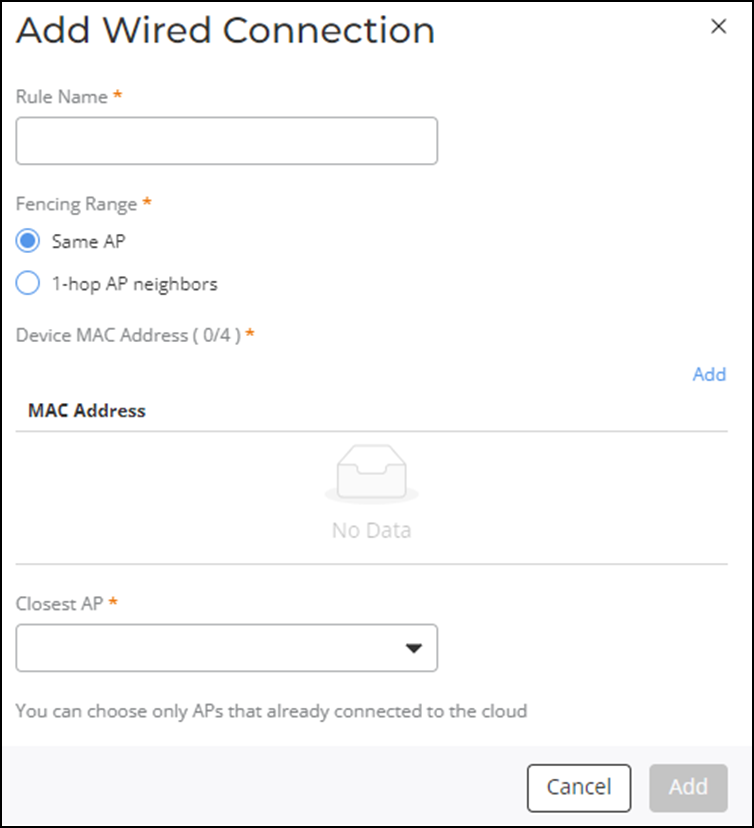
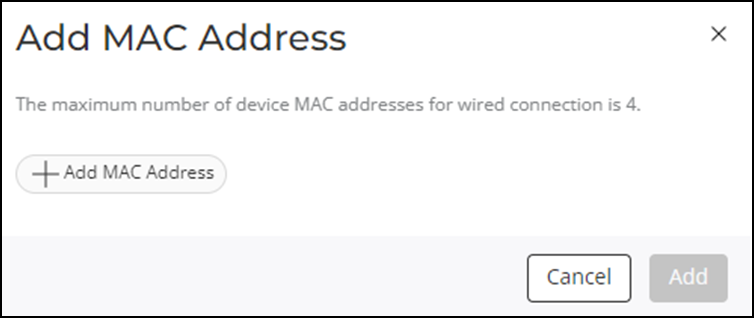
- The Add Wired Connection dialog box is displayed; complete the following fields:
- Closest AP: Select an AP from the drop-down list.
- Click Add.
- Click Add.
Configuring an SNMP Agent Profile
- Toggle the Use AP SNMP switch to enable AP SNMP. By default, Use AP SNMP is disabled.
- Select an SNMP Agent profile from the drop-down list or click Add to add an SNMP Agent profile. Refer to Creating an SNMP Agent Profile to create an SNMP profile.
Configuring an IoT Controller
This task allows you to associate an IoT controller with the venue.
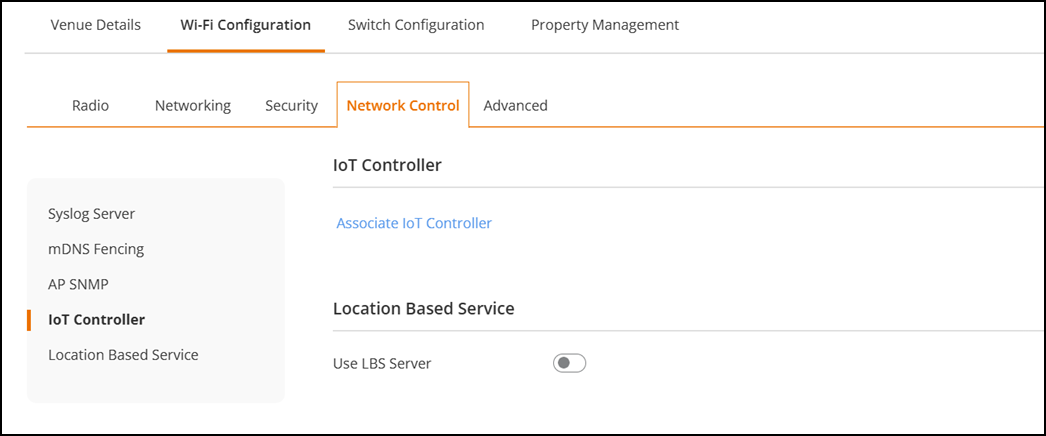
- In the IoT
Controller section, click Associate IoT
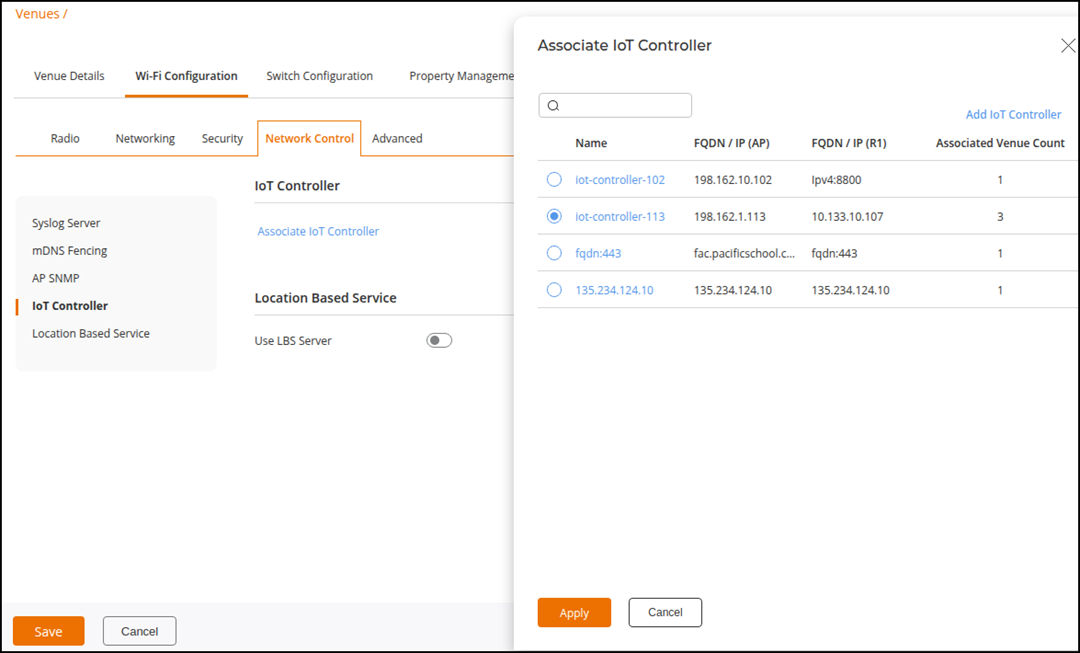
Controller.A sidebar appears, displaying a list of available IoT Controllers.
- Select an IoT Controller
from the Associate IoT Controller list. You can also
click the Add IoT
Controller option at the top-right corner to add a new IoT
Controller if it is not listed. Refer to Adding a RUCKUS IoT Controller for
more details.Click Apply. Click Save to apply
and save the association.
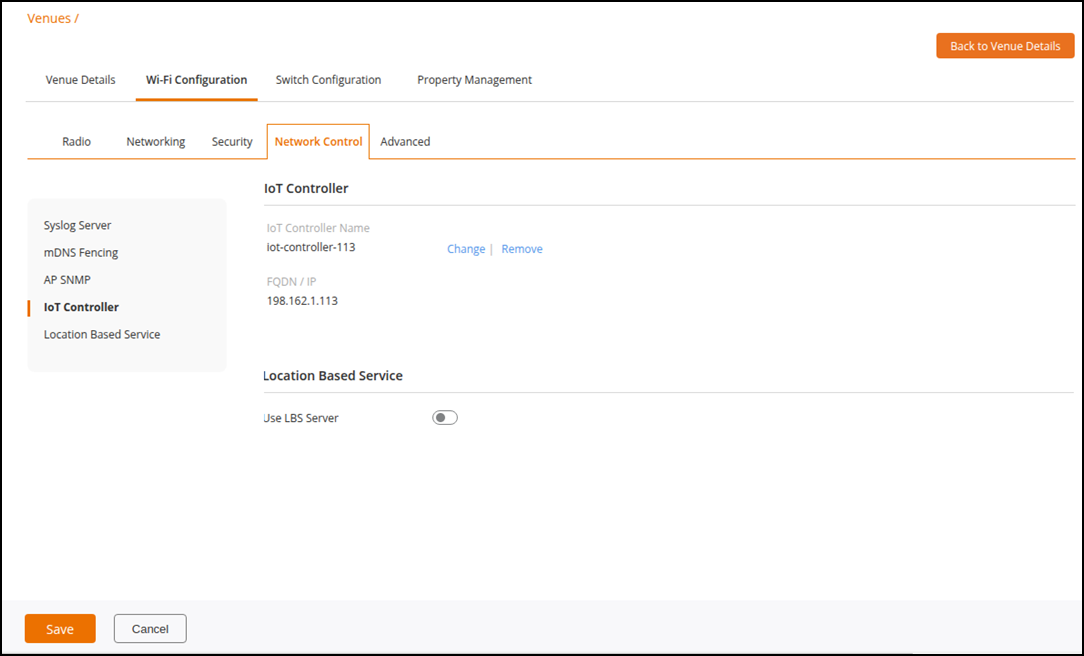
A message appears at the bottom right of the screen to indicate whether the IoT Controller was successfully associated with the venue or not.
- (Optional) Click Change to
select a different IoT Controller from the list of available controllers.
Repeat Step (2) to apply and save the new selection.Note: The newly selected controller will override the previously associated IoT Controller.
- (Optional) Click Remove to disassociate the currently linked controller from the venue. Click Save.
Configuring Location Based Service
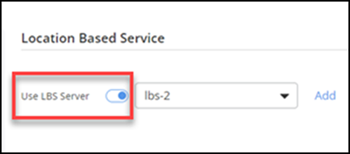
- In the Location Based Service section, toggle the Use LBS Server switch to enable the service. By default, Use LBS Server is disabled.
- Select an LBS server profile from the list or click Add to add an LBS server profile. You can also configure an LBS server profile from . Refer to Adding and Managing an LBS Server Profile for more information.