Adding an Existing Workflow to a New Workflow
You can add an existing workflow to the
workflow you are building by using the Workflows Library. This allows you to reuse
previously created workflows either as an independent copy or as a linked workflow
reference. Reusing workflows helps streamline workflow creation, reduces duplication,
and
maintains consistency across onboarding workflows.
Note: When designing a workflow, you typically use the Actions
Library to add individual workflow steps. For details on adding actions, refer to
Designing the Workflow .
- From the navigation bar, select
.The My Services page is displayed.
- On the My Services page, click Workflow.
- Click the name of the workflow.The Active Workflow Design page is displayed.
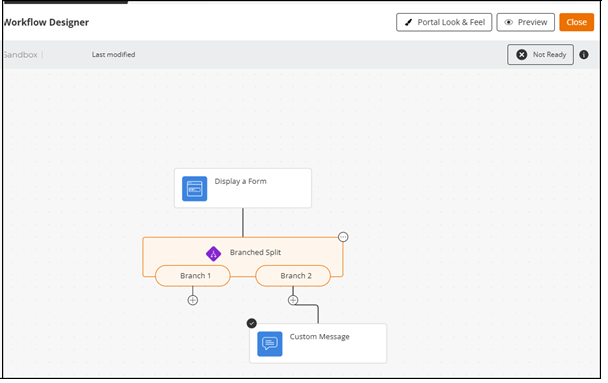
- Click the Configure icon to open the Workflow Designer.
- Click the
 icon to open the sidebar.A sidebar is displayed, defaulting to the Actions Library tab.
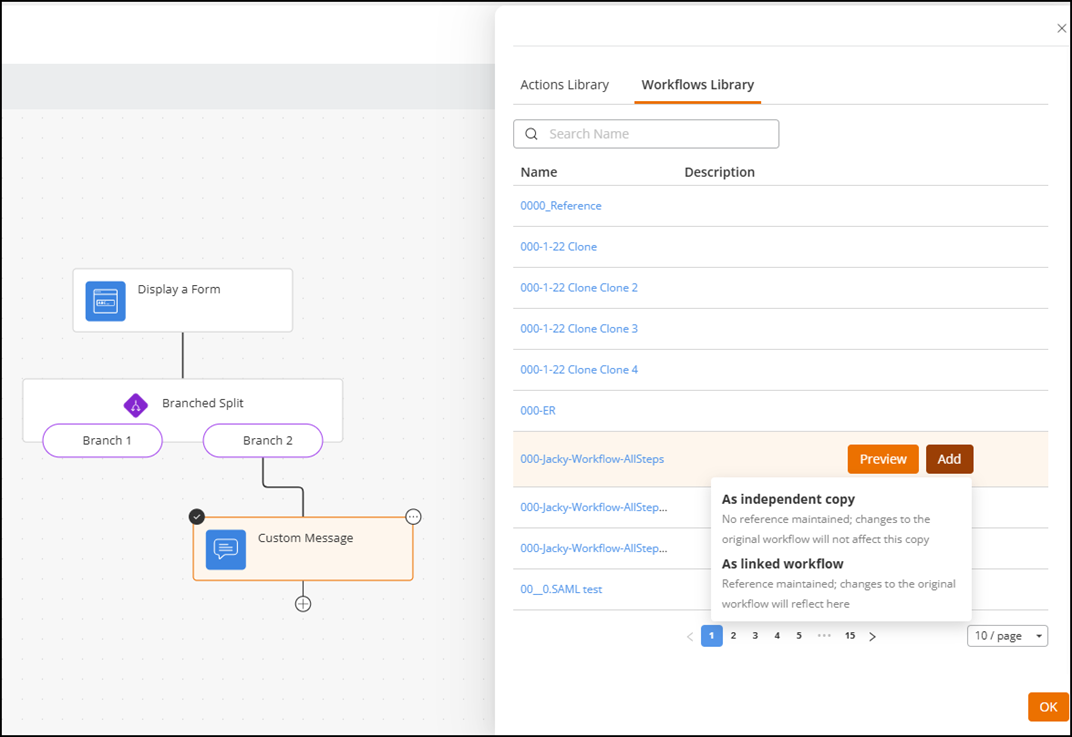
 - Click the Workflows Library tab to view the list of reusable workflows.
- Locate a workflow by scrolling
the list or by using the Search field.You can use the Search option to display only the table entries matching the specified name; enter a minimum of two characters.
- Select the workflow you want to reuse.
- Click
Add, and choose one of the following:
- As independent copy:
- As linked
workflow:
- Inserts the workflow as a reference to the original.
- Continues to reflect updates made to the source workflow until you publish your workflow.
- Converts into a snapshot at publish time.
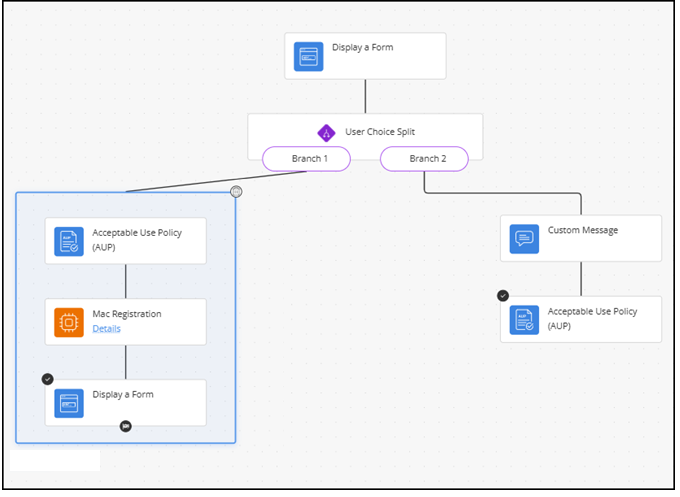
- Appears inside a blue‑bordered block, indicating it is a referenced workflow.
- A
 icon appears at the exit point of
the referenced workflow.
icon appears at the exit point of
the referenced workflow. - Steps inside the referenced workflow cannot be edited individually.
- (Optional) Click Preview to view the workflow before adding it.
- Insert the workflow.
- Position and connect the inserted workflow block with the rest of your workflow as needed.
- Click OK to close the sidebar.
- Note:
- If an end step in the source workflow is deleted, your workflow shows the connection as disconnected.
- If a referenced workflow is deleted, the referencing step in your workflow is automatically removed, and downstream steps become detached.
- Your workflow is marked invalid until these issues are resolved.
- (Optional) Hover over the top
edge of the blue‑bordered block to display the
 icon. Click the icon and choose:
- (Optional) Hover over a step to display the
 icon. Click the
  icon and choose:Note: These delete options apply to steps added manually and to steps inside an independent workflow copy. They also apply to any step that exists outside a referenced workflow block.
 ), preview (
 ), and delete (
 appears when a step is selected. This applies to all steps, not just
referenced workflows.
appears when a step is selected. This applies to all steps, not just
referenced workflows.