ZoneDirector Migration
From the RUCKUS One web interface, you can
migrate APs managed by ZoneDirector to RUCKUS One.
- ZoneDirector AP configuration migration to RUCKUS One is supported only for ZoneDirector versions 10.2.1.0.236 (or later) or 10.5.1.0.265 (or later).
- Available AP licenses on RUCKUS
One must be more than the AP number in ZoneDirector backup file.
Note: Each AP entry in the ZoneDirector backup file consumes one R1 AP license.
- ZoneDirector IP mode must not be configured to use IPv6 format only (RUCKUS One does not support IPv6 format).
- Make sure all APs are connected.
- Make sure all APs have new AP certificates (RUCKUS One does not support old AP certifcates).
- For the APs running firmware
versions later than 6.2.3.103.244 for an Active Device and later than 6.2.0.103.554 for a
Legacy Device:
- If Mesh is enabled on ZoneDirector AP, make sure Mesh is enabled on the 2.4 GHz or 5 GHz radio.
- The Mesh Mode in the AP can be configured as Auto, Root AP, Mesh AP, or Disable.
- The Uplink Selection can be set to Smart (Mesh APs will automatically select the best uplink) or Manual (Only selected APs can be used for uplink).
- To use the Use same channels for indoor and outdoor APs option in RUCKUS One, make sure to enable the Channel Mode Allow indoor channels option from the ZoneDirector web interface. Refer to Channel Mode for more information.
- Domain Name System (DNS) server
settings:
For APs that obtain IP address from the DHCP server:
- DNS server IP addresses must be configured in DHCP server so that APs can get the DNS server information while obtaining the IP address.
- DNS server can handle DNS query properly in time.
For APs that have static IP address:
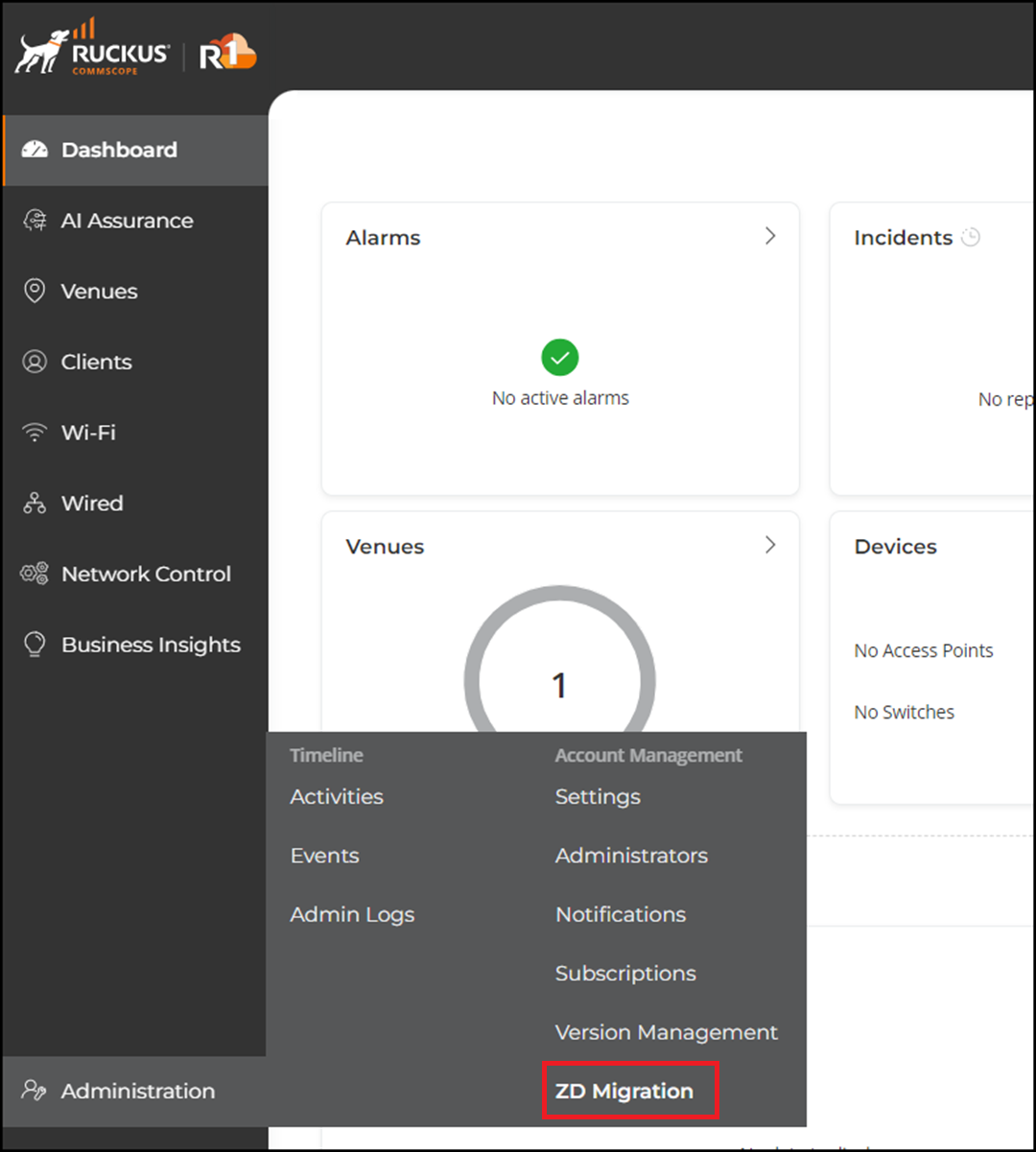
- From the navigation pane, click .
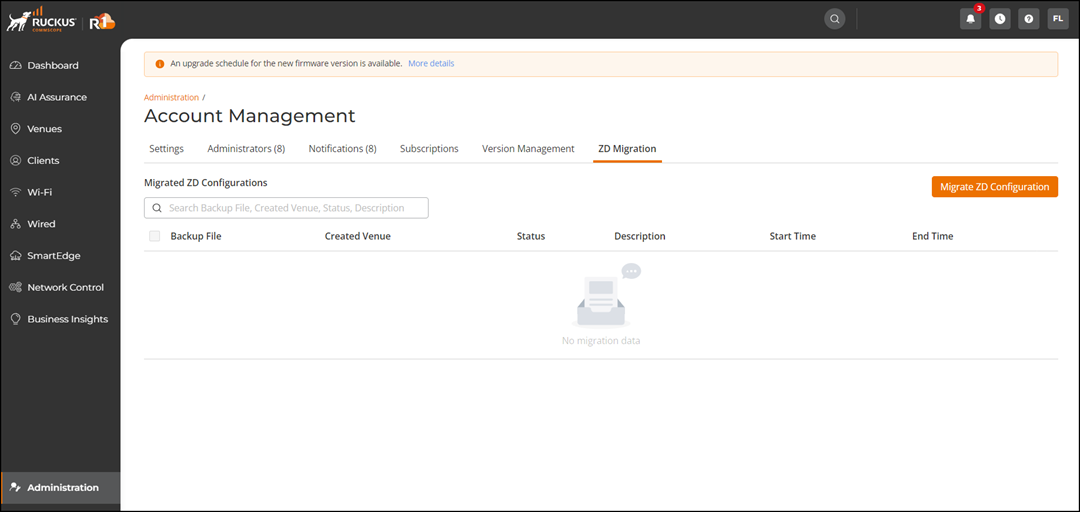
- In the Account Management page, under ZD Migration tab, click Migrate ZD Configuration to migrate ZoneDirector configurations.
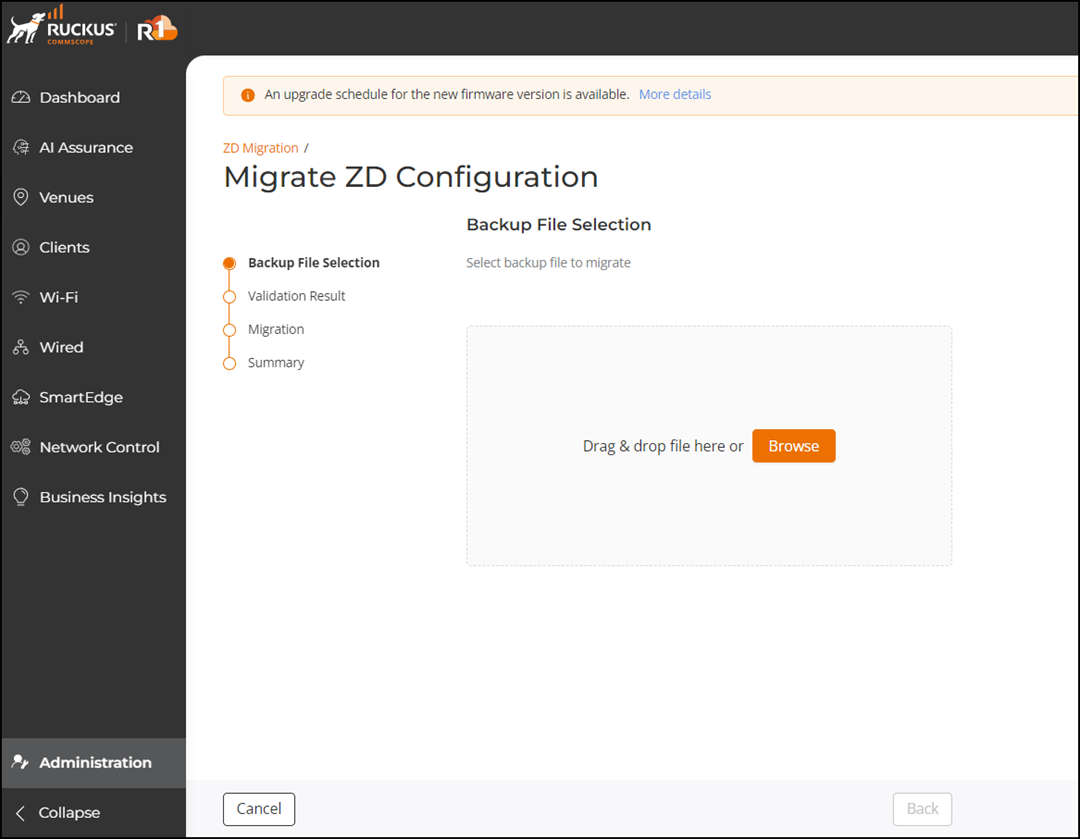
- Under Backup File
Selection, click Browse to select
a backup file. Click Open and then click Validate.
Refer to Backing Up a ZoneDirector Configuration for more information on how to make a backup of a ZoneDirector configuration file.
Note: Make sure the backup filename ends with a .bak extension and the file size must be less than 10 MB. - Under Validation
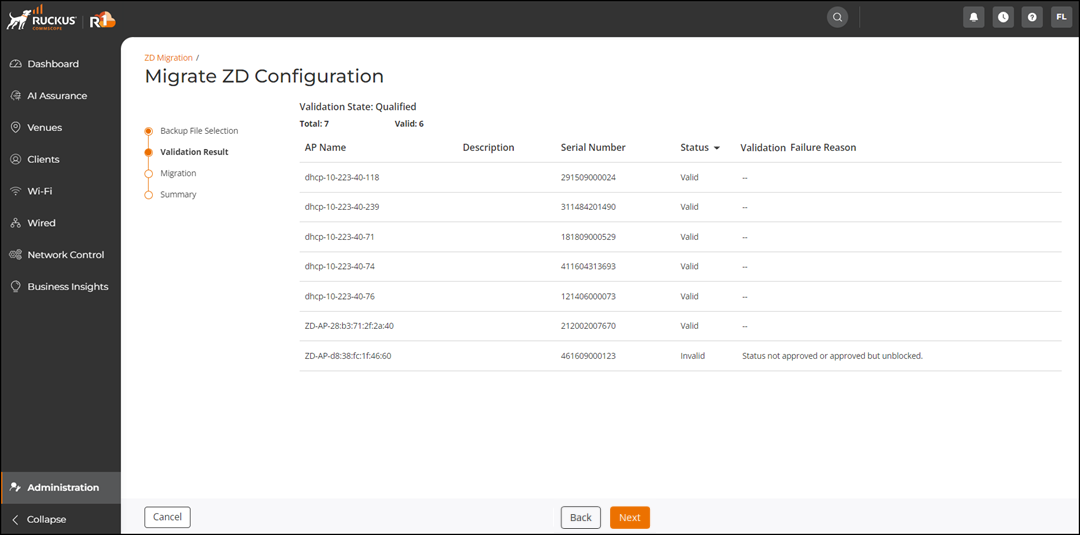
Result, click Next.
In the Validation Status table, you can view the validation status and reason for failure.
The APs become invalid in the following conditions.- The AP is already registered in RUCKUS One.
- The AP model is not supported in RUCKUS One.
- The ZoneDirector AP is configured as IPv6 only mode.
- Duplicated AP name (the duplicated AP name is renamed, however, duplication cannot be completely ruled out).
- The untag VLAN ID of an AP trunk port can be only one (If untag VLAN ID of an AP trunk port is not one, the AP becomes invalid).
- AP approval is pending in ZoneDirector.
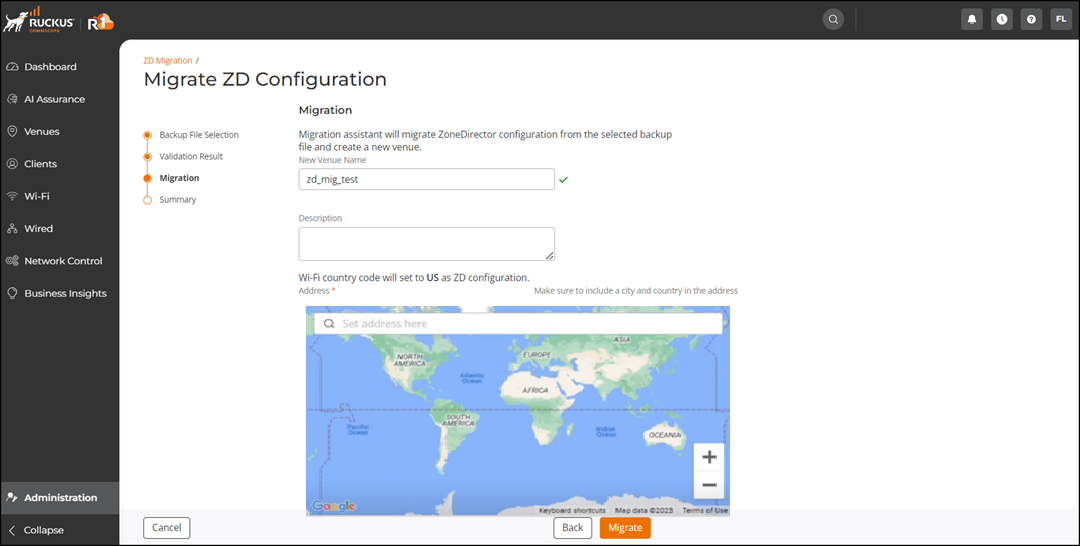
- Under Migration, enter a venue name, description, and address and click Migrate.
- Click Migrate.The new venue is created and the APs are added to the migrated venue.
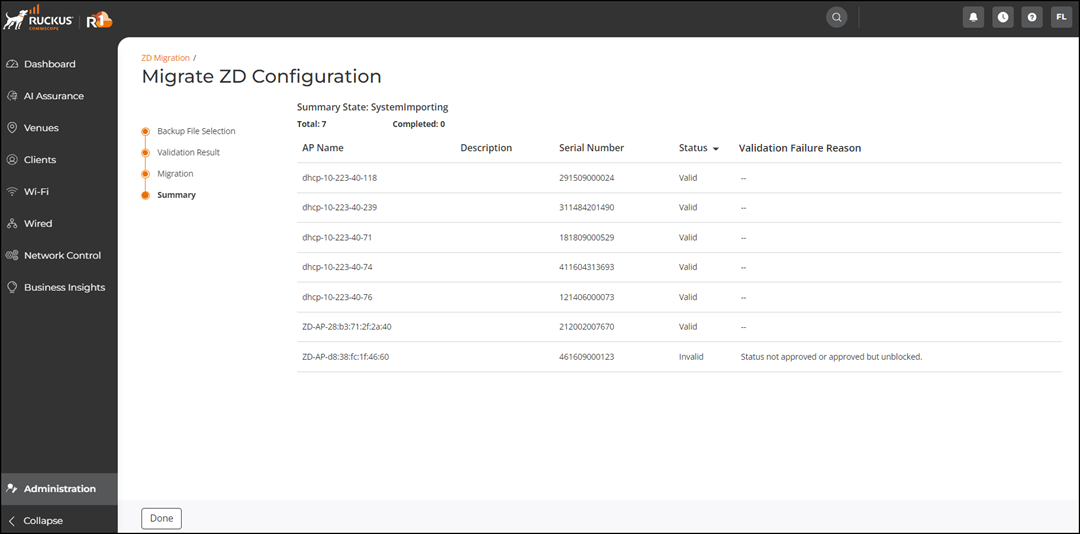
- Under Summary, you can view the migration information.
- Click Done.
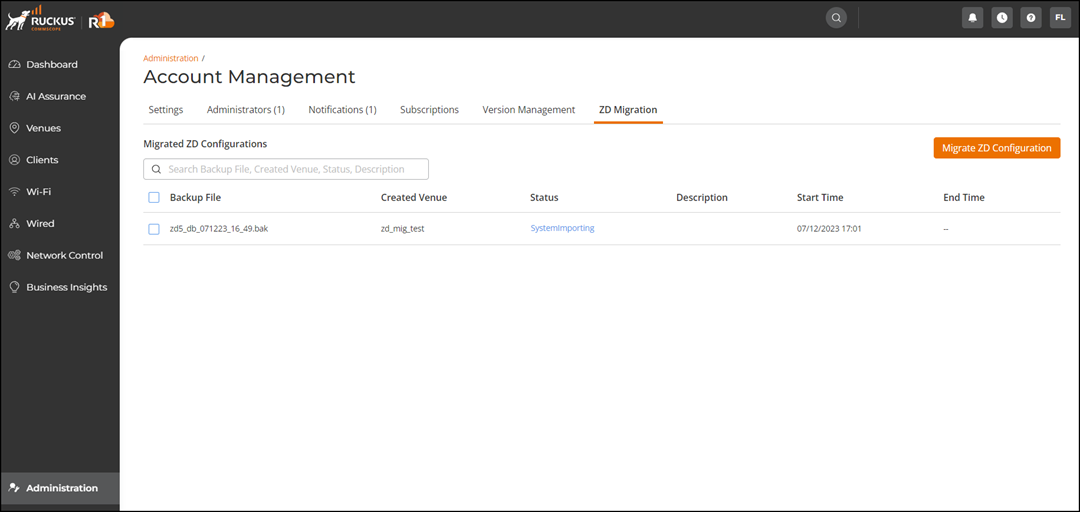
In the Migrated ZD Configurations table, you can view the ZoneDirector AP configuration that has been migrated.
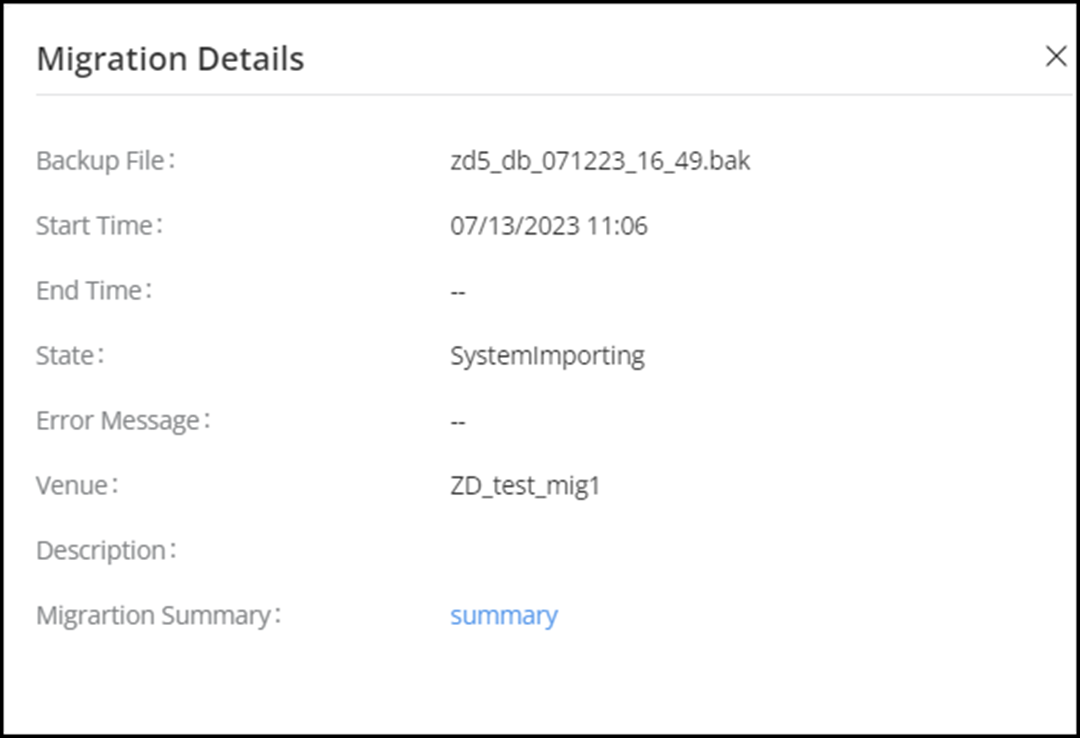
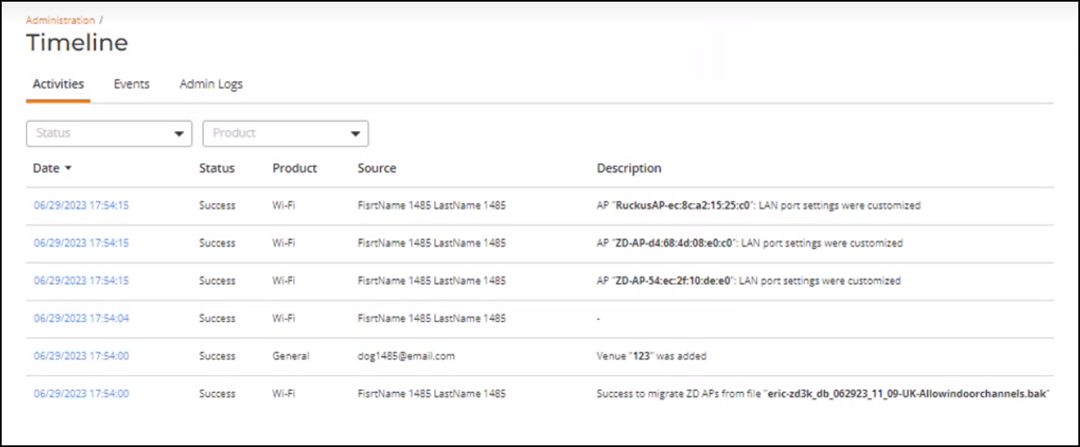
Under Status, you can view whether the migration is successful or failed. When the migration is successful, the status is updated as Completed.Note: To delete a configuration from the Migrated ZD Configurations table, refer to Deleting ZoneDirector Migration History. - From the navigation pane, select to view details about the migration.
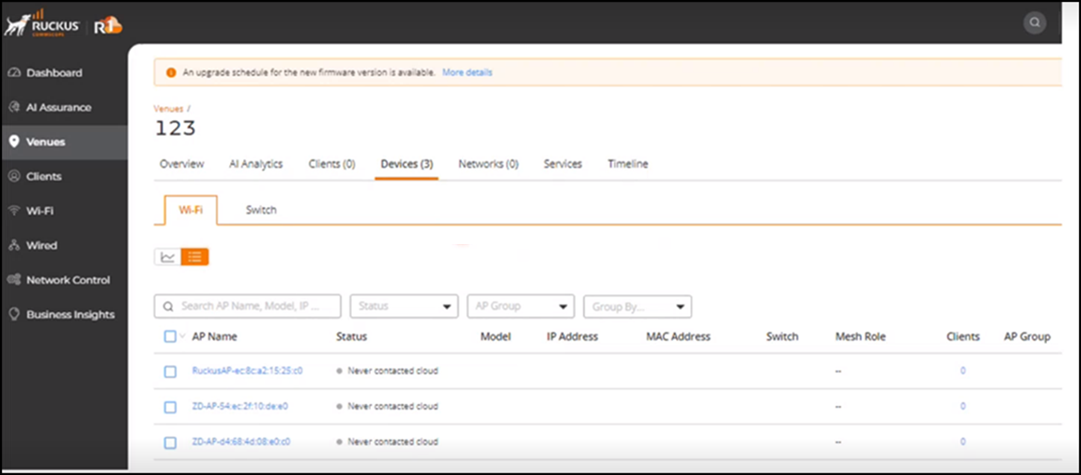
- From the navigation pane, select Venues to view the migrated venue.
- After the configuration is migrated, from the ZoneDirector web interface, go to Access Points page. Use the option to make the ZoneDirector APs join RUCKUS One. For more information, refer to Migrating APs From ZoneDirector to RUCKUS One.
- View the migrated radio and channel configuration from the Venues and menus. Refer to Viewing the Migrated ZoneDirector Radio and Channel Configuration for more information.