Editing or Deleting the RADIUS Server Profile
Complete the following steps to edit or delete the RADIUS Server profile:
- From the navigation bar, select
.The My Services page is displayed.
- In the My Services
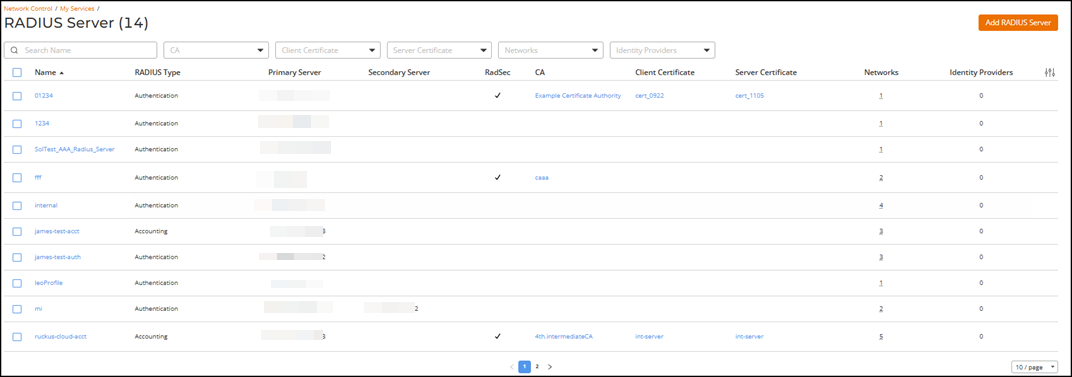
page, click RADIUS Server.The RADIUS Server page is displayed. The page displays the list of all the RADIUS Server profiles defined in the RUCKUS One account:
- Name: Displays the name
of the RADIUS Server profile as a hyperlink. Clicking the hyperlink opens the RADIUS
Server Details page.
The Details page displays Profile Type, Primary Server, RadSec status, SAN identity, Trusted CA, Client Certificate, and Server Certificate. The page also lists the Instances that use this RADIUS Server, indicating where the server is applied. The Configure button allows you to modify the RADIUS Server settings.
RadSec (ACX-71997) - RADIUS Type: Displays the type of RADIUS Server (Authentication or Accounting)
- Primary Server: Displays the IP address of the primary RADIUS Server.
- Secondary Server: Displays the IP address of the secondary RADIUS Server.
- RadSec: Displays a checkmark if RadSec is enabled
- CA: Displays the Certificate Authority (CA) associated with the RADIUS Server profile.
- Client Certificate: Displays the client certificate associated with the RADIUS Server profile. If any warning icon appears next to the client certificate, pause the pointer to view additional details about the client certificate.
- Server Certificate: Displays the server certificate associated with the RADIUS Server profile. If any warning icon appears next to the server certificate, pause the pointer to view additional details about the server certificate.
- Networks: Displays the number of networks that are currently associated with this RADIUS Server profile. Pause the pointer on the network count number to view the network names.
- Identity Provider: Displays how many identity sources are associated with the RADIUS Server.
You can customize which fields appear in the RADIUS Server table by clicking the
 icon and
selecting or deselecting the desired column names. Optionally, you can click Reset to default to restore
the default subset of columns.
icon and
selecting or deselecting the desired column names. Optionally, you can click Reset to default to restore
the default subset of columns. - Name: Displays the name
of the RADIUS Server profile as a hyperlink. Clicking the hyperlink opens the RADIUS
Server Details page.
- Select the checkbox alongside the RADIUS Server profile name to display and access the following options:
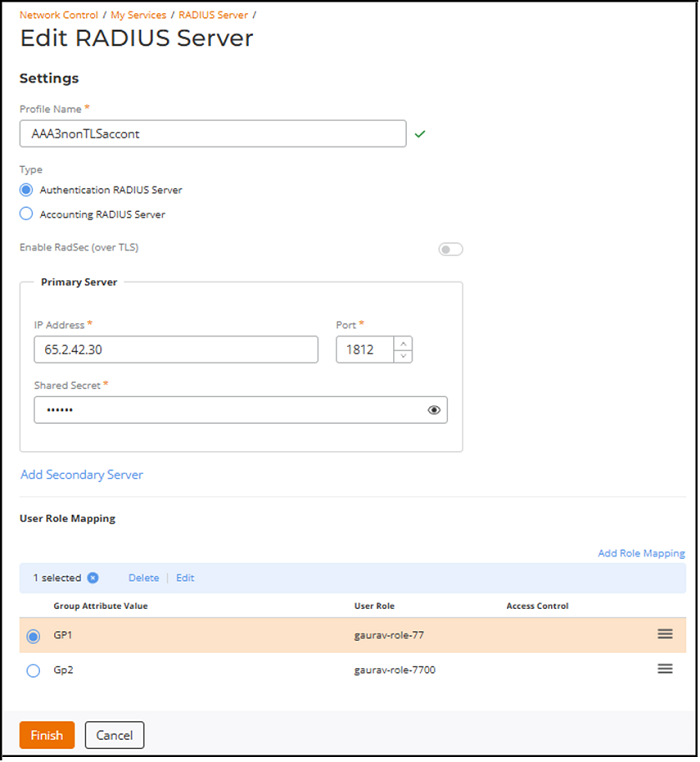
- Click Edit to modify the RADIUS
Server configuration.
- Update the required fields as
needed:
- Profile Name
- Type
- Primary Server
- Secondary Server
- Enable RadSec (over
TLS): RadSec can be enabled only at creation time; therefore, the
Enable RadSec (over
TLS) toggle remains disabled on the Edit RADIUS
Server page:
- RadSec not enabled during creation cannot be enabled later.
- RadSec enabled during RADIUS
Server creation allows editing of the following fields: CN/SAN Identity,
Trusted
Certificate Authority, Client
Certificate, and Server
Certificate.
Enabling RadSec configures the RADIUS Server to communicate over port 2083 by default.
RadSec (ACX-71997)
- User Role Mapping
- Click Add Role Mapping to create a user role mapping.
- Set the priority of user role
mappings by dragging and dropping the user role up or down using the
 icon on the far right side of the table.
 - Select a user role mapping
and click Edit to modify it, or click Delete to remove
it.
ACX-97403 - UG - RBAC Dot1x Group Attribute Mapping
- Click Finish.
Refer to Adding and Managing a RADIUS Server for more information. - Update the required fields as
needed:
- Click Delete to delete a RADIUS Server.