Adding MAC OUI and LLDP TLV Matching Entries
- From the navigation bar, select . Alternatively, You can click on .
- Select Port Profiles tile.
- Select Switch.
- To add a MAC OUI, select the
MAC
OUI sub-tab and complete the following steps:
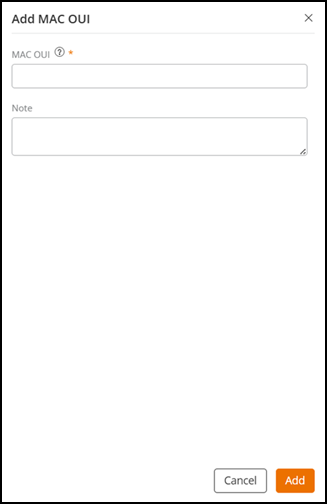
- Click Add MAC OUI.
- In the Add MAC OUI sidebar, enter the MAC OUI and optionally enter a note.
- Click Add.
The new MAC OUI entry is added in the MAC OUI page. You can search for any MAC OUI entries using the MAC OUI. You can sort the list of MAC OUI entries by MAC OUI or by Note by clicking the associated column header.
Pause your pointer on the Profile Name number to view the associated ICX port profile names.
You can edit and delete a MAC OUI entry by selecting the checkbox for a specific MAC OUI and clicking Edit or Delete, respectively.
- To add an LLDP TLV matching
entry, select the LLDP
TLV sub-tab and complete the following steps:
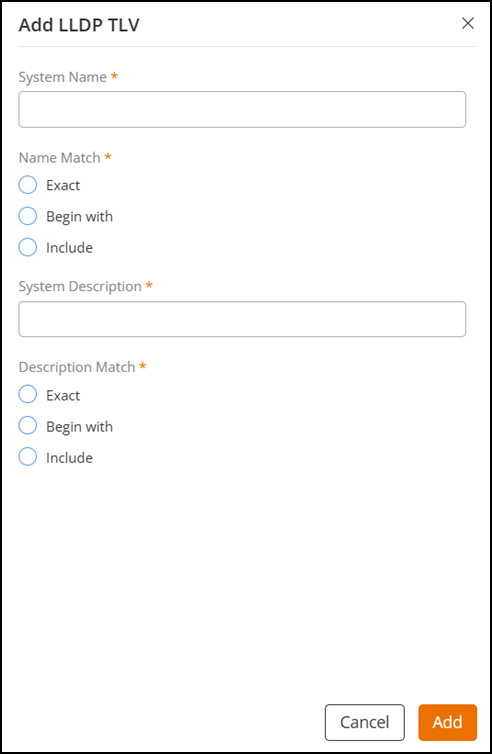
- Click Add LLDP TLV.
- In the Add LLDP TLV sidebar, enter the
following:
- System Name: Enter the assigned system name.
- Name Match: Select a matching criterion for the system name as follows: Exact, Begin with, or Include.
- System Description: Enter the system description, which may include device hardware and operating system information.
- Description Match: Select a matching criterion for the system description as follows: Exact, Begin with, or Include.
- Click Add.
The new LLDP TLV entry is added in the LLDP TLV page. You can search for any LLDP TLV entries using the System Name. You can sort the list of LLDP TLV entries by clicking the System Name column header.
Pause your pointer on the Profile Name number to view the associated ICX port profile names.
You can edit and delete a MAC OUI entry by selecting the checkbox for a specific LLDP TLV and clicking Edit or Delete, respectively.