Adding a Wi-Fi Calling Service
You can add a Wi‑Fi Calling service to
enable Wi‑Fi Calling on selected wireless networks. The service includes predefined
carrier
options that simplify configuration.
- Add the Wi-Fi Calling service to your tenant account. From the navigation bar, select .
- Find the Wi-Fi Calling tile and click Add.
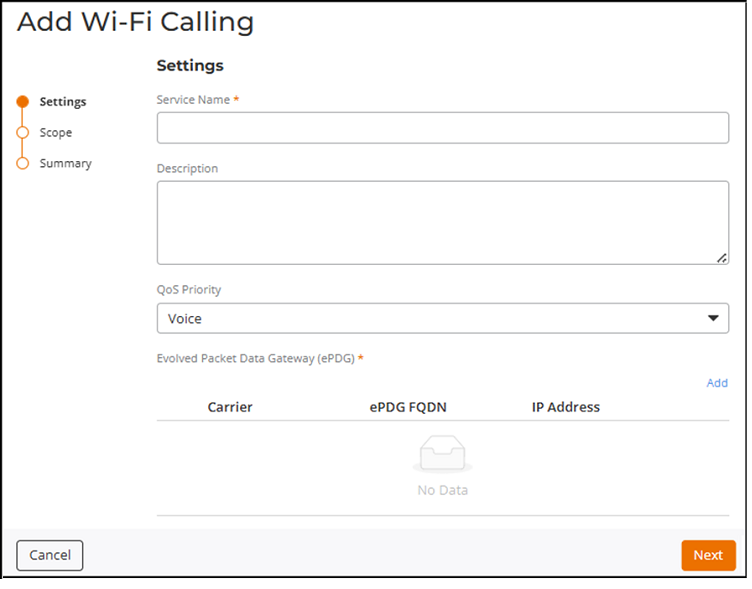
- Enter a Service Name.
- (Optional) Enter a short Description.
- Select a QoS Priority from the drop-down list. The options are Voice (default), Video, Best Effort, and Background.
- Click Add
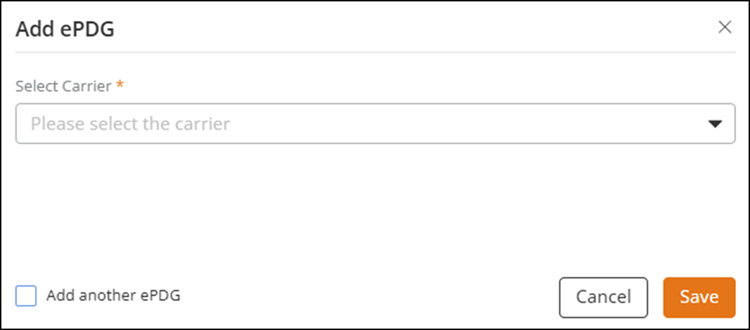
to configure the Evolved Packet Data Gateway (ePDG).The Add ePDG sidebar is displayed.
- Select
Carrier: Select a carrier from the drop-down list.
Note: You can search by carrier name, country, or MCC/MNC (Mobile Country Code and Mobile Network Code).
- (Optional) Click the Add another ePDG checkbox to add more than one ePDG.
- Click Save.
The sidebar closes and the newly added ePDG is listed below the Evolved Packet Data Gateway (ePDG) section.
- (Optional) Modify your ePDG configurations, if necessary, before continuing with service configuration. Select a carrier by clicking the radio button, then click Edit to update and save the ePDG details in the Edit ePDG sidebar, or click Delete to confirm and remove the ePDG.
- Select
Carrier: Select a carrier from the drop-down list.
- Click Next.
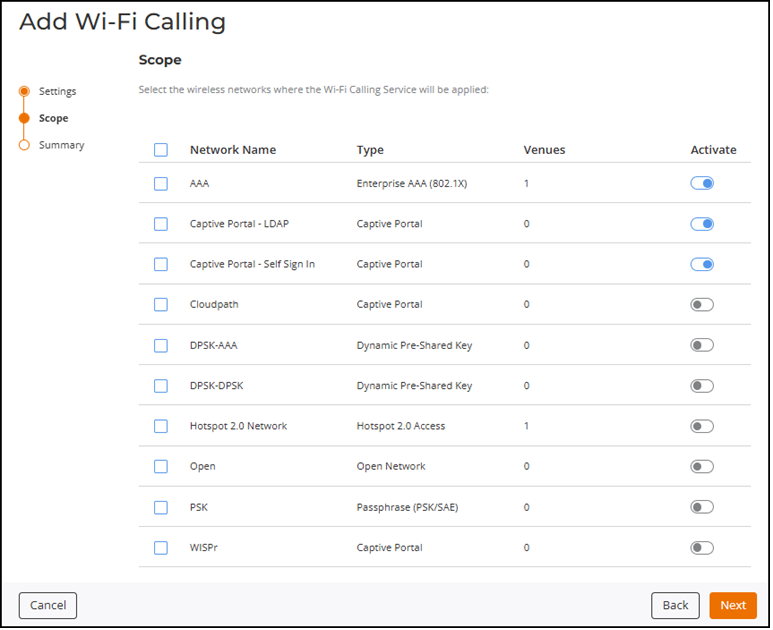
- Activate the Wi‑Fi Calling
service for specific wireless networks by completing the following steps:The Summary page is displayed.
- Review the Summary page and click Add.