Viewing Guest Passes
- From the navigation bar, select. Alternatively, select , then select the Guest Pass Credentials
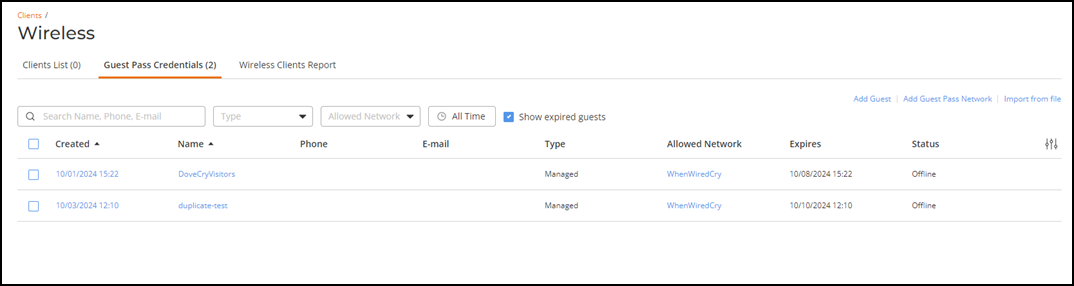
tab.The Guest Pass Credentials page is displayed. The page summarizes all guest passes. Available information for each guest pass includes:
- Created Time: Date and time when the guest pass was created.
- Name: Name of the guest user.
- Phone: Phone number of the guest user.
- E-mail: Email address of the guest user.
- Type: Type of user account.
- Network: SSID of the network to which the guest user has access.
- Expires: Date and time when the guest pass will expire.
- Status: Current connection status of the guest user.
- Full Name: Full name of the guest user.
- Approver: Email address of the host approver (applies to Captive Portal networks that use Host Approval).
- Marketing Communications: Indicates whether the
guest user has consented to receive marketing communications. This
column is hidden by default.
You can customize which fields appear in the table by clicking the
 icon and selecting or deselecting the
desired column names. Drag and drop individual column names up or
down the list to customize the left‑to‑right column display in the
table. Optionally, you can click Reset to
default to have the default subset of columns appear
in the table. Use the Clear Filters
option to remove all applied filters.
icon and selecting or deselecting the
desired column names. Drag and drop individual column names up or
down the list to customize the left‑to‑right column display in the
table. Optionally, you can click Reset to
default to have the default subset of columns appear
in the table. Use the Clear Filters
option to remove all applied filters.You can use the Search option to display only the table entries matching the specified Name, Phone, and E-Mail; enter a minimum of two characters. Additionally, you can filter the list using the Type, Network, and Created Time drop-down menus. You can also select or clear the Show Expired Guests check box.
Note that objects displayed in blue on the RUCKUS One UI (such as the values in the Created, Name, and Network columns) are active links that you may click to view additional detail.
- Click a guest name in the
Name column to view guest pass details.The Guest Details side panel is displayed. For more information, refer to Viewing Guest User Details.
- (Optional) Select the check box for one or more guest passes to display management options:
- (Optional) Click Add Guest to create a guest pass. Refer to Adding a Guest Pass for more details.
- (Optional) Click Add Guest Pass Network to create a guest pass network. Refer to Adding a Guest Pass Network from the Guest Pass Credentials Page for more details.
- (Optional) Click Import from File to import guest pass information from a file. Refer to Importing Guest Accounts in Bulk for more details.