Adding and Managing a DPSK Manager
- From the navigation bar, click .
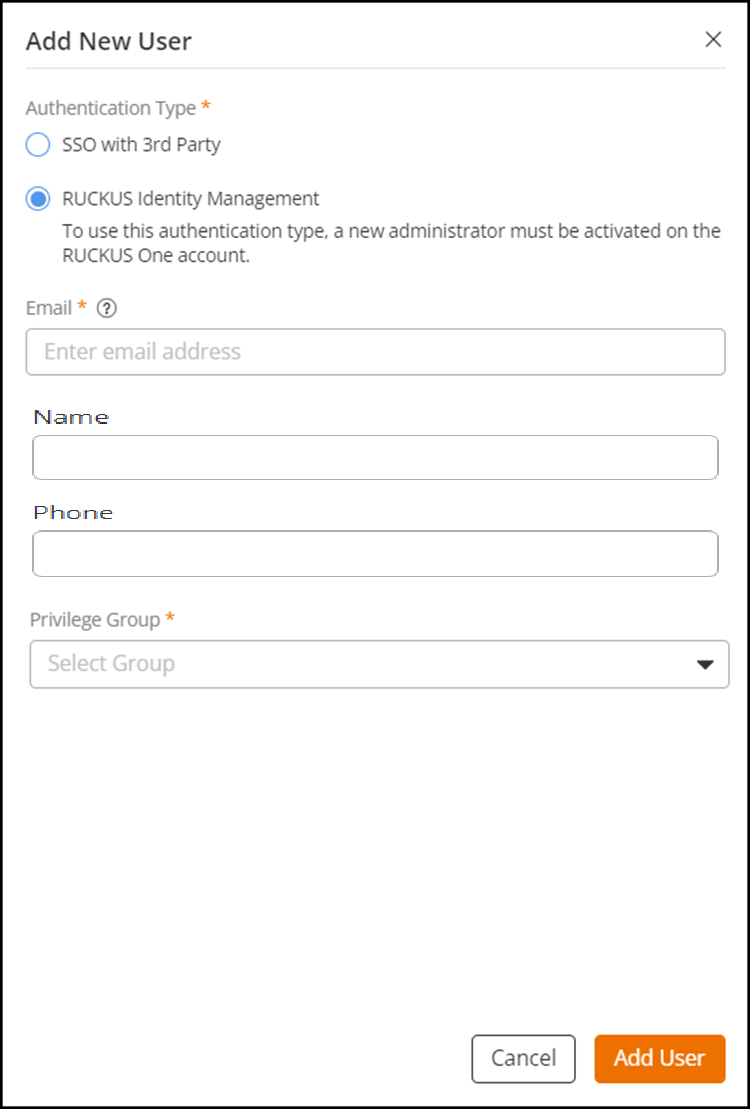
- Select the Users sub-tab and click Add User.
- In the Add New User sidebar, select the appropriate authentication type.
- For Email, enter a valid email address for the administrator that you want to add.
- For Privilege Group, select DPSK Manager from the list.
- Click Add User. You can
see the DPSK Manager added to the Users tab and the count
of members in the Members column is updated in the
Privilege Groups tab for DPSK Manager.
RUCKUS Customer Service sends an invitation to the specified email address. After receiving the email invitation from RUCKUS, the invited DPSK Manager administrator needs to click Accept Invitation or copy and paste the URL in the address bar of the web browser. After the invited DSPK Manager administrator has completed the invitation process, the DPSK Manager can log in to RUCKUS One using their registered email and password.
You can edit and delete the DPSK Manager by selecting the desired username and clicking Edit or Delete, respectively.
- (Optional) Select the checkbox for a specific DPSK manager name to edit or delete a DPSK manager: