Viewing LLDP Neighbors
You can view the Link Layer Discovery
Protocol (LLDP) neighbors of an AP.
- On the navigation bar, click .The Wi-Fi page is displayed.
- From the AP list, click name of the AP.
- Select the Neighbors tab.
- The LLDP
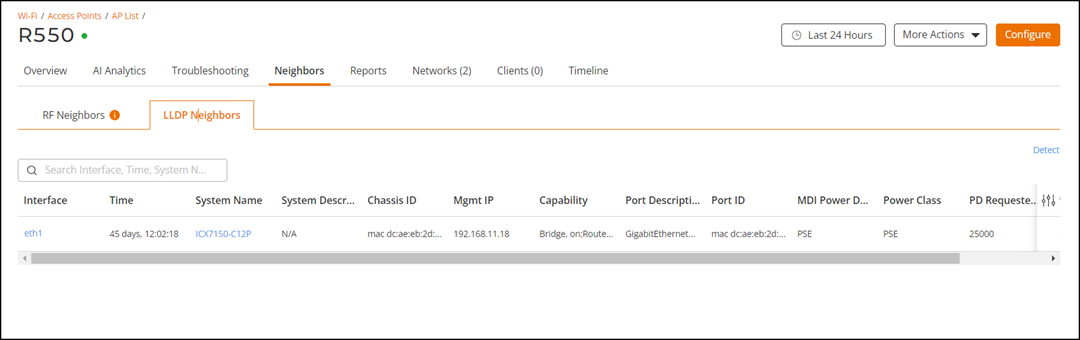
Neighbors page is displayed. The LLDP Neighbors page displayed.
- Interface: Displays the interface on the AP from which the LLDP neighbor is detected.
- Time : Displays the matching time output in current LLDP command.
- System Name: Displays the name of the system such as a switch or router.
- System Description: Displays a short description about the system.
- Chassis ID : Displays the chassis ID of the system
- Mgmt IP: Displays the management IP address of the LLDP neighbor.
- Capability : Displays the capability of the LLDP neighbor such as Bridging or Routing capabilities.
- Port Description: Displays the port type and capacity such as Gigabit Ethernet port.
- Port ID: Displays the port ID.
- MDI Power Device Type: indicates whether the device is a power sourcing equipment (PSE) or a powered device (PD). PSE is the source of the power, or the device that integrates the power onto the network. PD is the Ethernet device that requires power and is situated on the other end of the cable connected to the PSE.
- Power Class: Displays the class value provided by the switch and reported by the AP through LLDP negotiation.
- PD Requested Power: Displays power (in watts) requested by the Powered Device.
- PSE Allocated Power: Displays power (in watts) allocated by the Power Sourcing Equipment to the Powered Device.
Note:
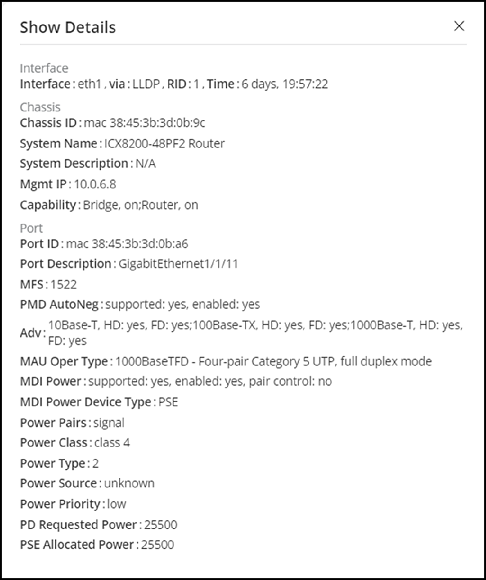
ACX-109474LLDP neighbor information remains available when an AP is offline, provided the LLDP data was previously collected while the AP was online. If LLDP neighbor information was not retrieved while the AP was online, the system cannot display the last known LLDP neighbor after the AP goes offline. - Click the name of the name under Interface to display details about the LLDP neighbor.
- Click Detect to update the LLDP Neighbors information.