Adding and Managing an LBS Server Profile
You can add a Location Based Service (LBS)
server profile and associate it with one or more venues from the RUCKUS One web
interface.
- From the navigation bar, select
. Alternatively, You can click on . The Service Catalog page is displayed.
- Find the Location Based Service Server tile and click Add.
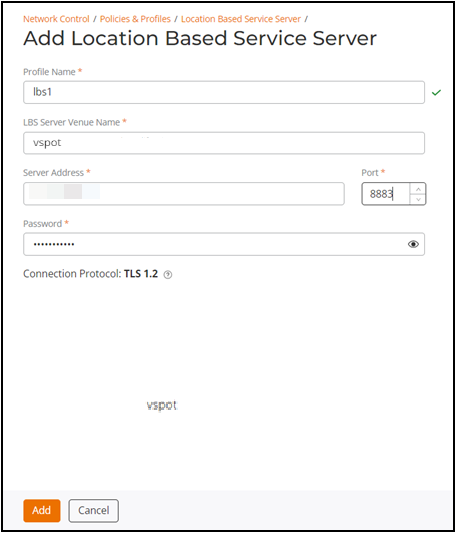
- In the Profile Name field, enter an LBS server profile name ranging from 2 through 32 alphanumeric characters.
- In the LBS Server Venue Name field, enter an LBS server venue name ranging between 2 through 16 characters.
- In the Server Address field, enter a valid domain name or IPV4 address, and for Port, enter a port number. The valid range is from 1 through 65535; the default port number is 8883.
- In the Password field, enter a password for the server. The password must be a minimum of 8 characters and up to 63 characters in length.
- The Connection Protocol field displays the preconfigured connection protocol as TLS 1.2.
- Click Add to add the LBS server profile.
 icon at the upper-right corner of the
 You can edit and delete an LBS Server profile by selecting the checkbox for a specific LBS Server profile in the Location Based Service Server page and clicking Edit or Delete, respectively. Alternatively, you can edit an LBS Server profile by clicking on a specific LBS then click the Configure button.
To configure an LBS Server profile at the venue level, navigate to Venues, select a specific Venue, click Configure, go to the Wi-Fi Configuration tab, select the Network Control sub-tab, and scroll to the Location Based Service Server section.