Managing Intent Settings
To enable or disable AI-driven features
from IntentAI automation, complete the following steps:
- From the navigation bar, select . The IntentAI page is displayed.
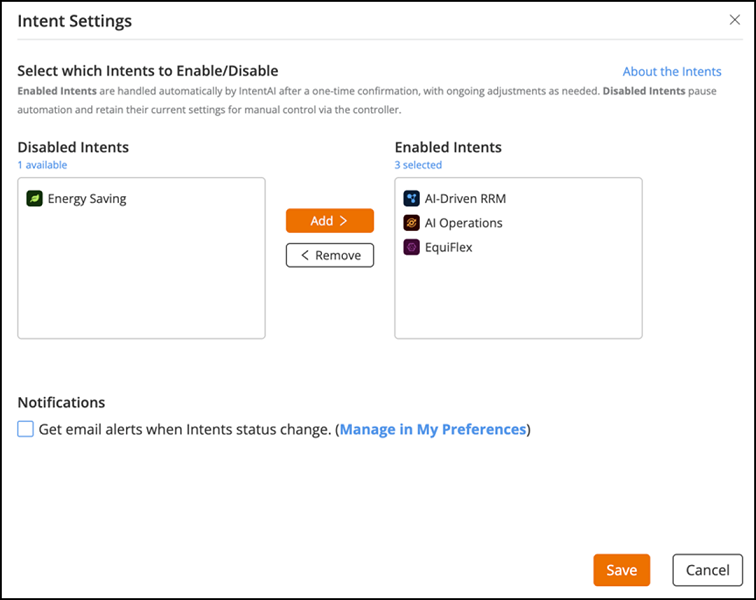
- Click Intent Settings. The Intent Settings sidebar is displayed.
- Select the required Intents and
use the Add or Remove buttons to
move it between the Enabled Intents and Disabled
Intents lists.Note: Access to IntentAI features depends on the license tier. All features are available for selection in the Professional Tier, whereas in the Essentials Tier, features exclusive to the Professional Tier appear greyed out and cannot be selected.
- (Optional) Select the Get email alerts when Intent status
changes checkbox under Notifications to
receive status updates.
You can also manage this setting from the Notifications Preferences sidebar in the Notifications tab of the Account Management page. For quick access, click Manage in My Preferences to open the Notifications Preferences sidebar. For more information, refer to Configuring Global Notifications section.
- Click Save to apply the changes.
All modifications to Intent Settings are audit-logged. Any update, such as enabling or disabling an AI-driven feature, is recorded with the timestamp, user, and action details in the Timeline (Activities).