Troubleshooting AP Connectivity
You can remotely troubleshoot the AP
connectivity using the ping, traceroute utilities, and packet capture.
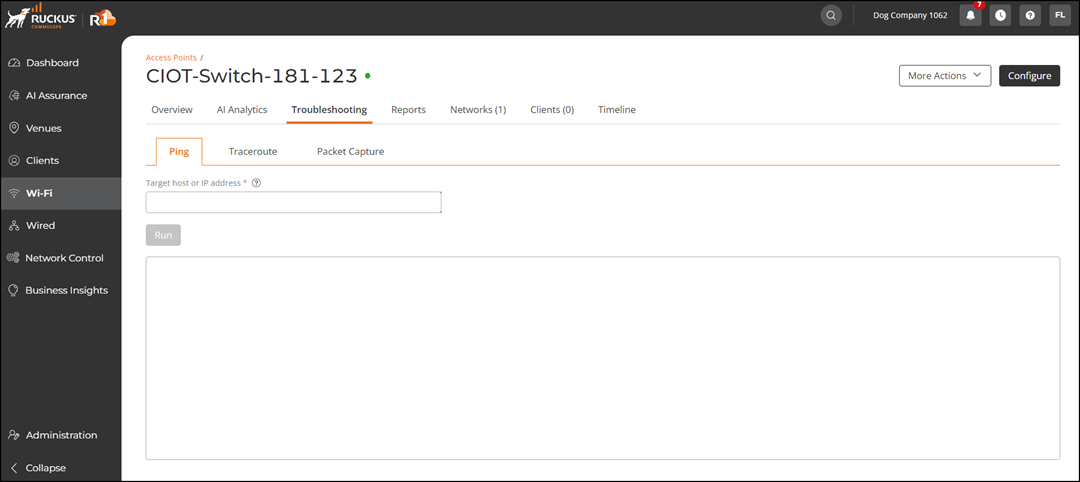
- On the navigation bar, click .The Wi-Fi page is displayed.
- Click the name of the AP that
you want to troubleshoot.The AP Overview page is displayed.
- Select the Troubleshoot AP tab.
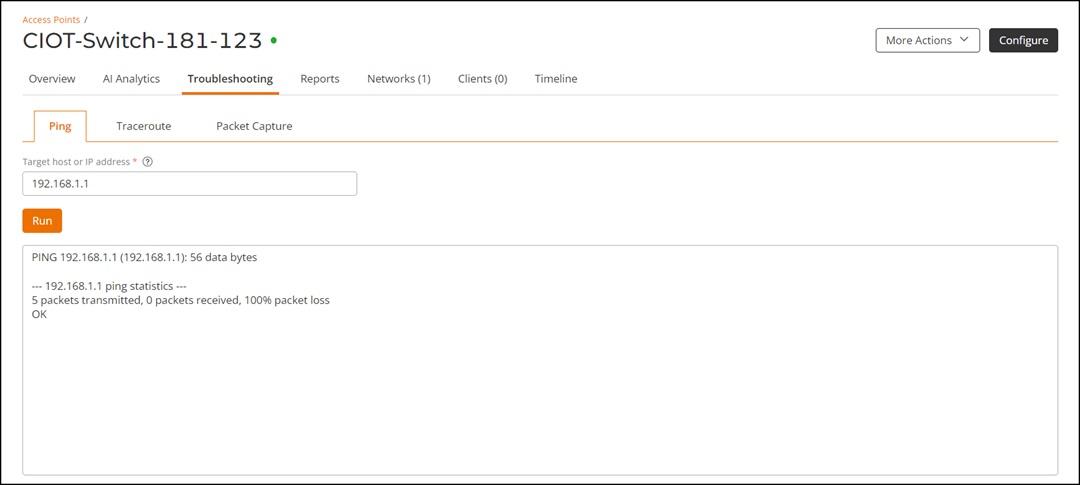
- Enter the host name or a valid
IP address in the Target host or IP address field and click
Run. For example, the IP address must be in the http://www.abc.com or http://192.168.1.1 format.
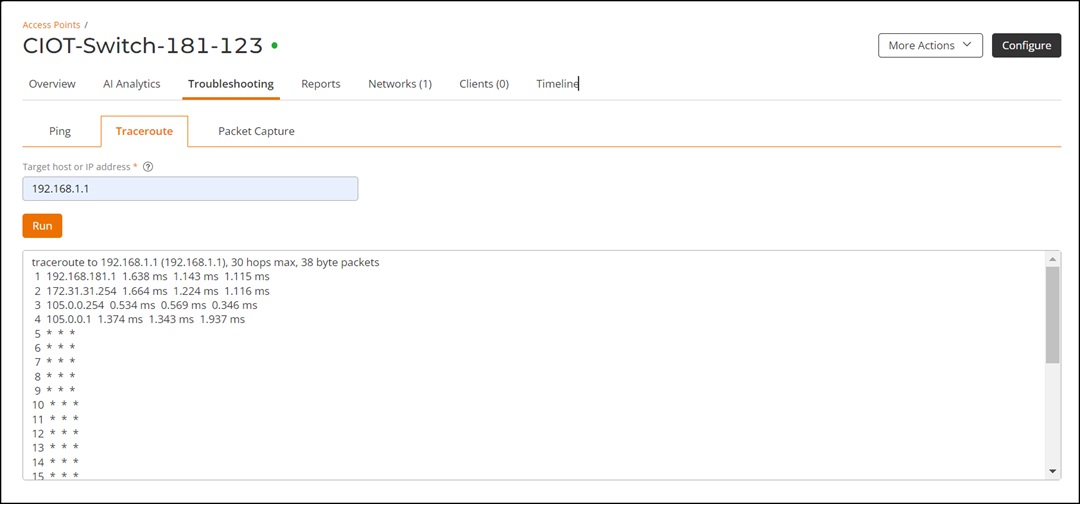
- In the Troubleshooting tab, select the Trace Route tab to view the route to an Internet destination, the number of hops, and the transit delay.
- Enter the host name or a valid IP address or DNS name in the Target host or IP address field and click Run.
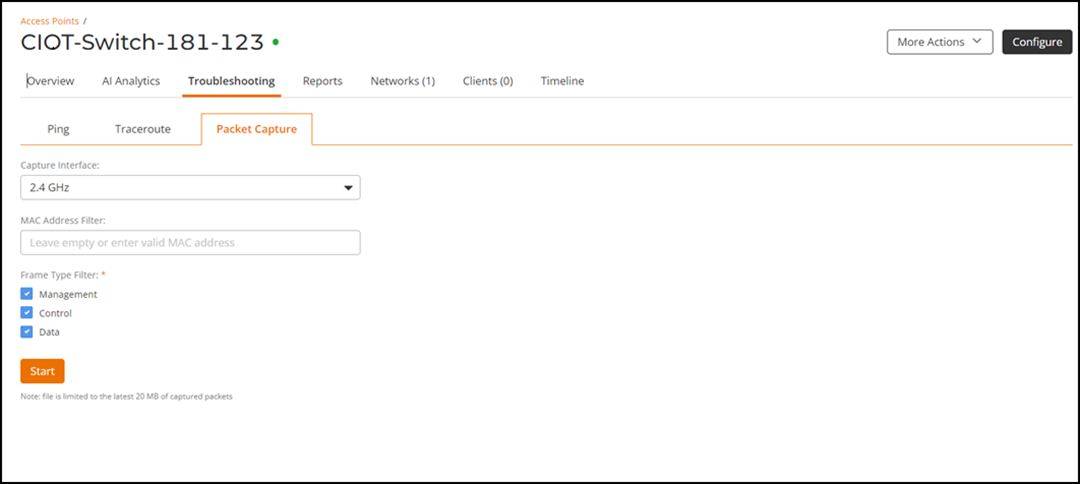
Access points can perform packet captures on their Wi-Fi and wired interfaces. These captures can be filtered for control, management, and data frames, and can be downloaded in the .pcap format for viewing in the capture tool of your choice.
- In the Troubleshooting tab, select the Packet Capture tab.
- For the Capture Interface field, choose a capture interface from the drop-down. You can choose from 2.4 GHz, or 5 GHz or Wired.
- (Optional) Enter valid MAC addresses in the MAC Address Filter field.
- Under the Frame Type Filters section, chose one or all of these:
- Click Start.Captured packets are save in a file.
- Click Close to close the Troubleshooting dialog box and return to the APs page.