Using a Canvas as Your Dashboard Landing Page
- On the RUCKUS One web interface, select
Dashboard.Either the RUCKUS One Default Dashboard or a dashboard configured earlier as the landing page is displayed.
- Click the
 icon. The My Dashboards
sidebar is displayed.
icon. The My Dashboards
sidebar is displayed. - Click Import Dashboard. The Select Canvases
for your Dashboards sidebar is displayed.You can either select a dashboard from the My Canvases tab or the Public Canvases tab. In the Public Canvases tab, you can search the dashboard by its name or its creator.
You can also click Canvas Creator in the Select Canvases for your Dashboards sidebar to create a new dashboard canvas. For more information, refer to Creating Customizable Dashboard Canvases.
- Select the checkbox next to the dashboard name you want to import, and click Import. The dashboard is added to the My Dashboards sidebar.
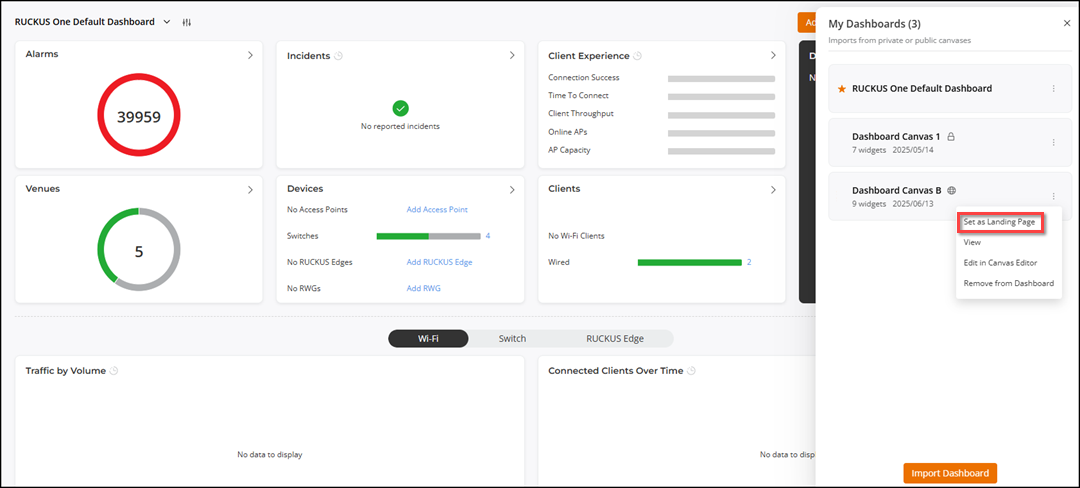
- Click the
 icon and select Set as a Landing
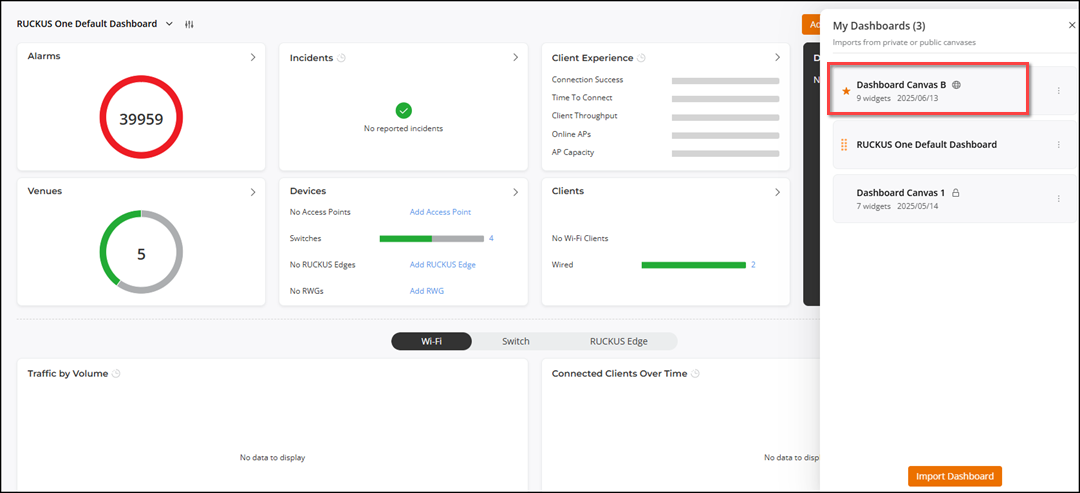
Page. The dashboard name reorders as the first item in the
My Dashboards sidebar with a
icon and select Set as a Landing
Page. The dashboard name reorders as the first item in the
My Dashboards sidebar with a  icon beside it confirming
that the dashboard is set as the landing page.
icon beside it confirming
that the dashboard is set as the landing page.
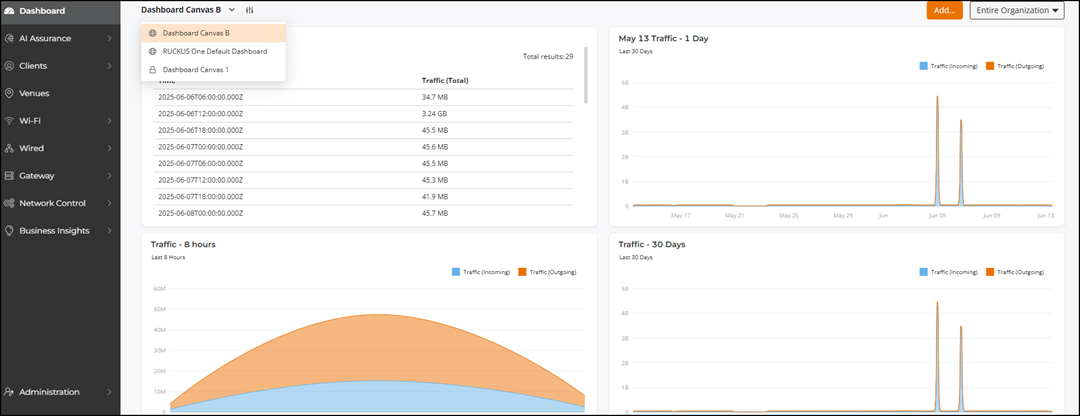
- View a different dashboard by clicking Dashboard on the RUCKUS One web interface and selecting the dashboard (Dashboard Canvas B in this example) from the drop-down menu.