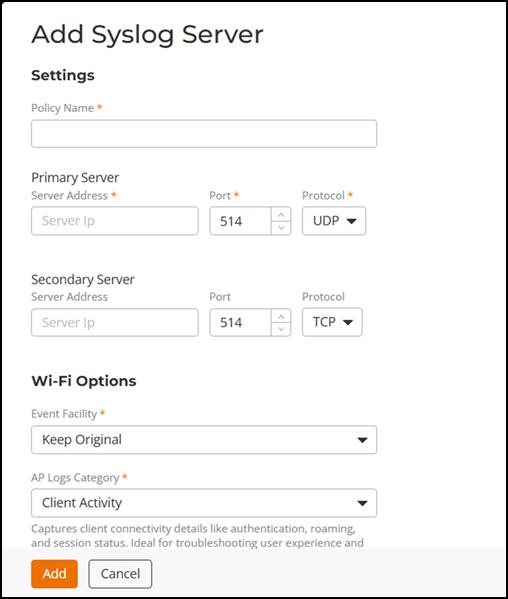
Creating a Syslog Server Policy
You can configure primary and
secondary syslog servers to log the syslog messages; defining two servers ensures
that the
messages are not lost due to the temporary unavailability of one syslog server.
- On the RUCKUS One navigation
bar, select . This displays the Service Catalog page.
- Find the Syslog Server tile and click Add. The Add Syslog Server page is displayed.
- Complete the following
fields:
- Policy Name: Enter a unique, descriptive name for the Syslog Server policy.
- Primary Server
- Secondary Server
- Event Facility: Select the facility level for the outgoing syslog messages. The event facility refers to a part of the syslog message header that identifies the type or source of the event being logged, providing categorization or classification for the messages being generated.
- AP Logs
Category: Select the category of AP logs to forward. The
default option is Client Activity.
- General Logs: Displays system events such as configuration updates, firmware upgrades, and administrator actions.
- Client Activity: Displays client connection events such as authentication, roaming activity, and session status.
- All Logs: Combines all available log types for comprehensive monitoring. Recommended only if your Syslog Server can handle high log volume.
- Click Add.The Syslog Server is created and is displayed on the Syslog Server page.