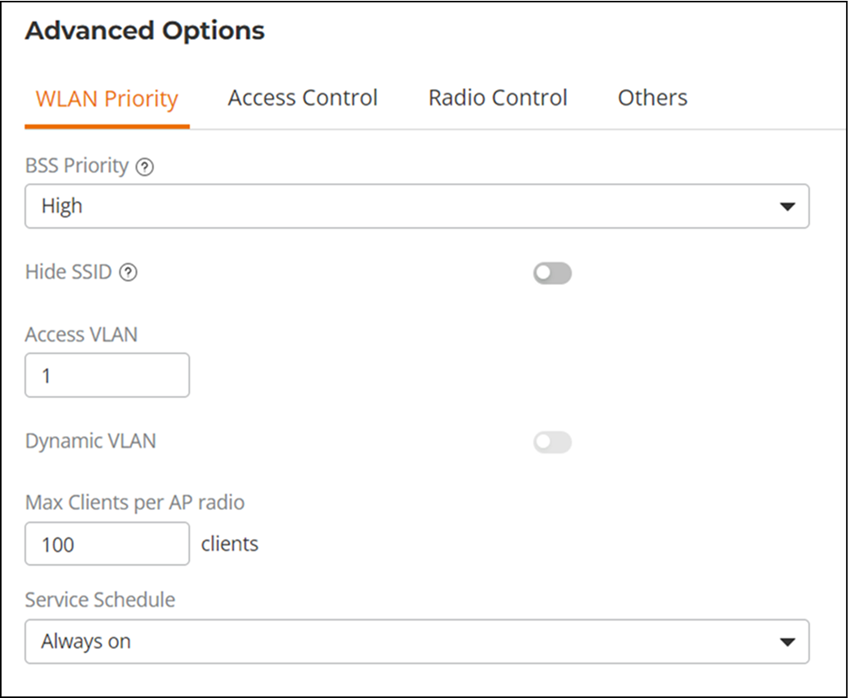
WLAN Priority Settings
From the WLAN
Priority tab, you can set a WLAN's priority level, visibility, VLAN, maximum
number of clients allowed per AP radio, and service schedule.
- BSS Priority: Set the priority of this WLAN to Low if you would prefer that other WLAN traffic takes priority. For example, if you want to prioritize internal traffic over guest WLAN traffic, you can set the priority in the guest WLAN configuration settings to Low. By default, all WLANs are set to High.
- Hide SSID: Select this option if you do not want the ID of this WLAN advertised at any time. This will not affect performance or force the WLAN user to perform any unnecessary tasks.
- Access VLAN: By default, all wireless clients are placed into a single VLAN (with VLAN ID 1). If you want to tag this WLAN traffic with a different VLAN ID, enter a valid VLAN ID (from 2 through 4094) in the field.
- Dynamic VLAN: Dynamic VLAN can be used to automatically and dynamically assign wireless clients to different VLANs based on the RADIUS attributes. Dynamic VLAN option is only available for 802.1X EAP WLANs with a RADIUS server configured.
- Max Clients: Limit the number of clients that can associate with this WLAN per AP radio (default is 100 clients, and the maximum is 256 clients).
- Service Schedule: Use
the Service Schedule tool to control which hours of the day or days of the week
to
enable or disable the WLAN service. For example, a WLAN used for students at a
school can be configured to provide wireless access only during school hours.
Click
a day of the week to enable or disable this WLAN for the entire day. Colored cells
indicate when the WLAN is enabled. Click and drag to select specific times of
day.
You can also disable a WLAN temporarily, for example, for testing purposes.
Note: The Service Schedule tool will not work properly if the RUCKUS Unleashed network does not have the correct time. To ensure the correct time is always maintained, configure an NTP server and point the RUCKUS Unleashed Master AP to the NTP server's IP address, as described in Configuring the System Time.