Creating a Layer 2/MAC Address Access Control List
You can define Layer 2/MAC address ACLs, which can then be applied to one or more WLANs (upon the creation or editing of a WLAN). ACLs are either allow-only or deny-only; that is, an ACL can be set up to allow only specified clients or to deny only specified clients. MAC addresses that are in the deny list are blocked at the AP, not necessarily at the Master AP.
Complete the following steps to configure a Layer 2/MAC ACL.
-
UI path for UnleashedFrom the main menu, select .
- In the Wireless Access Control page, click .
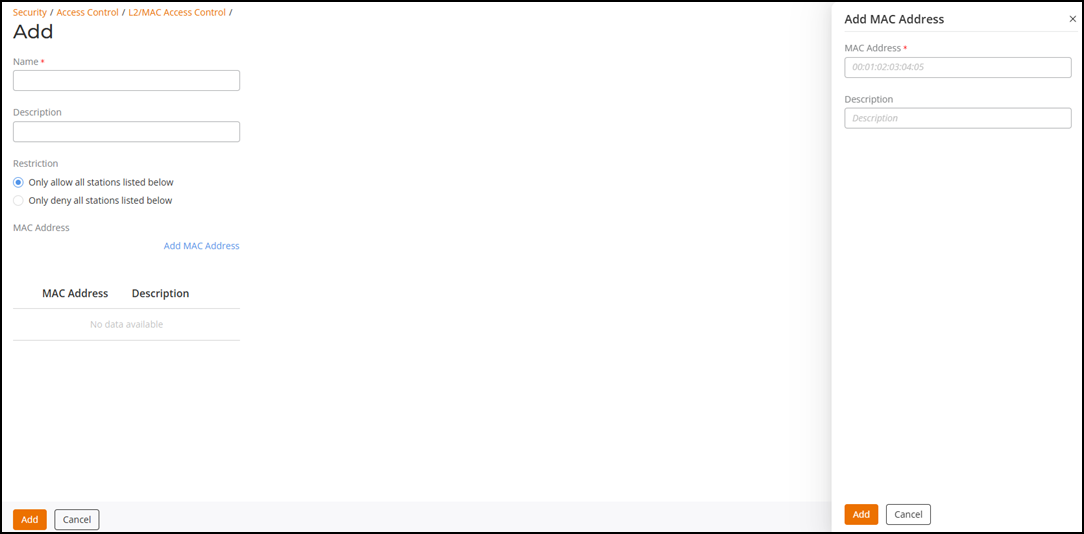
- In the Add page, enter a name for the ACL, and (optionally) enter a description.
- Under Restriction, select either Only allow all stations listed below or Only deny all stations listed below.
- Click Add MAC Address. In the Add MAC Address page, enter a MAC address and description (optional), and click Add to save the MAC address. The new MAC address is displayed under MAC Address section. You can enter up to 128 MAC addresses per ACL.
- Click Add to add the Layer 2/MAC address-based ACL to the list.
Note: You can create up to 32 Layer 2/MAC address ACL rules and each rule can contain up
to 128 MAC addresses. Each WLAN can be configured with one Layer 2 ACL.