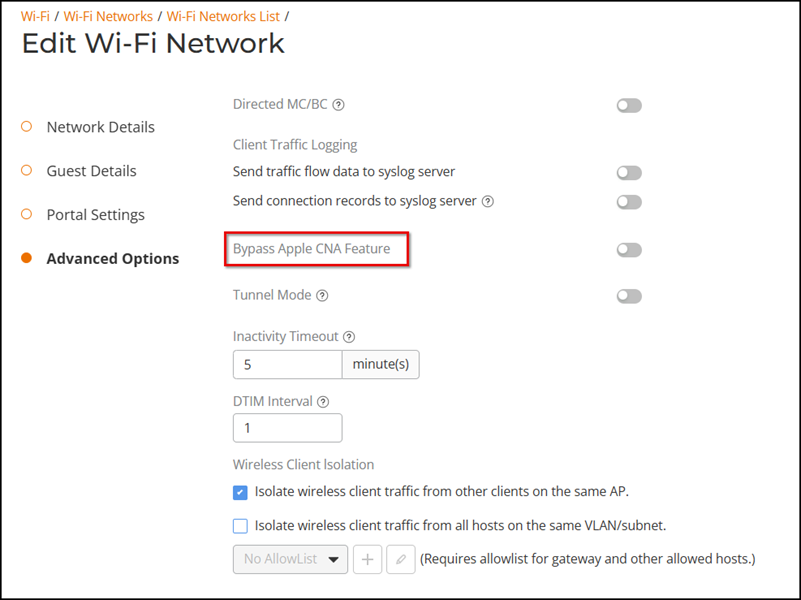
Bypass Apple CNA
When a client connects to a wireless network, Apple CNA launches a pre-browser login utility and it sends a request to a success page on the Apple website. If the success page is returned, the device assumes it has network connectivity and no action is taken. However, this login utility is not a fully functional browser, and does not support HTML, HTML5, PHP, or other embedded video. In some situations, the ability to skip the login page for open WLANs is a benefit. However, for other guest or public access designs, the lack of ability to control the entire web authentication process is not desirable.
RUCKUS Unleashed provides an option to work around the Apple CNA if it is not desirable for your specific deployment. With Bypass Apple CNA enabled, captive portal (web-based authentication) login must be performed by opening a browser to any unauthenticated page (HTTP) to get redirected to the login page.
Complete the following steps to enable Bypass Apple CNA.