Enabling Automated Frequency Coordination from Unleashed
Automated Frequency Coordination (AFC)
ensures that Wi-Fi access points operating in the 6 GHz band do not interfere with
existing
licensed services. AFC dynamically adjusts frequencies and power levels to optimize
performance and comply with regulatory standards.
This
topic is reused between Unleashed 200.18 and the AFC User Guides. Please check with
the
product writer and use appropriate platform-specific conditions when adding new
content.
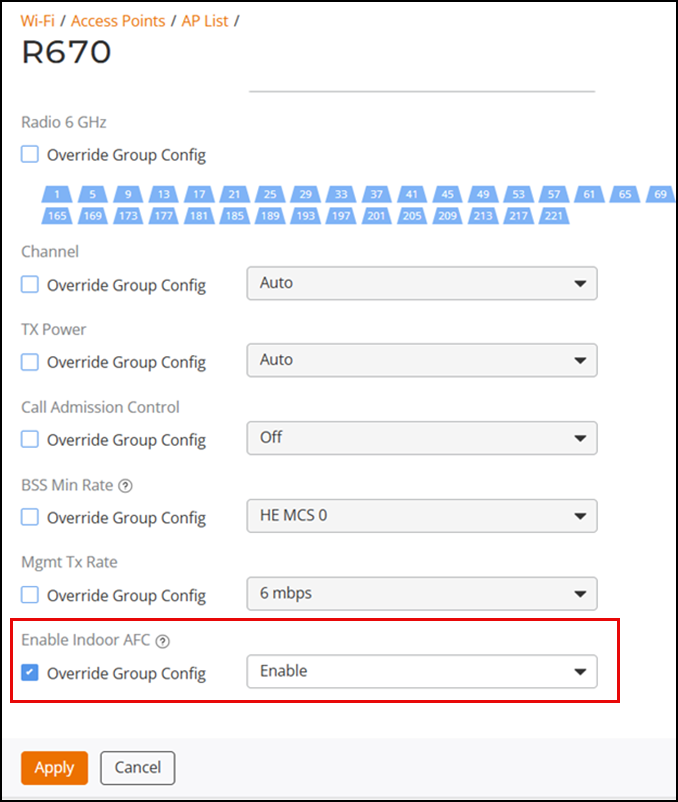
Note that AFC is automatically enforced on outdoor APs and cannot be disabled. For indoor APs, AFC is disabled by default, ensuring the indoor AP operates in low power mode to eliminate the potential for interference. When enabled, the indoor AP will operate in standard power mode on a channel designated to not cause interference.
- From the main menu, select (or AP Group List).
- Select a specific AP (or AP Group) and then click Edit. The applicable Edit page is displayed. For an AP Group, you can also enable AFC when adding a new AP group.
- Click the Radio 6 GHz or (Radio (6G)) tab.
- For Enable Indoor
AFC, configure the following setting as applicable:
- For an AP, select the Override Group Config checkbox, then select Enable from the drop-down list.
- For an AP Group, select Enable from the drop-down list.
- Click Apply.