Configuring User Roles
RUCKUS Unleashed provides a Default role that is automatically applied to all new user accounts.
The Default role links all users to the internal WLAN and permits access to all WLANs by default. As an alternative, you can create additional roles that you can assign to selected wireless network users, to limit their access to certain WLANs, to allow them to log in with non-standard client devices, or to grant permission to generate Guest Passes. (You can then edit the Default role to disable the Guest Pass generation option.)
Complete the following steps to create a new user role.
-
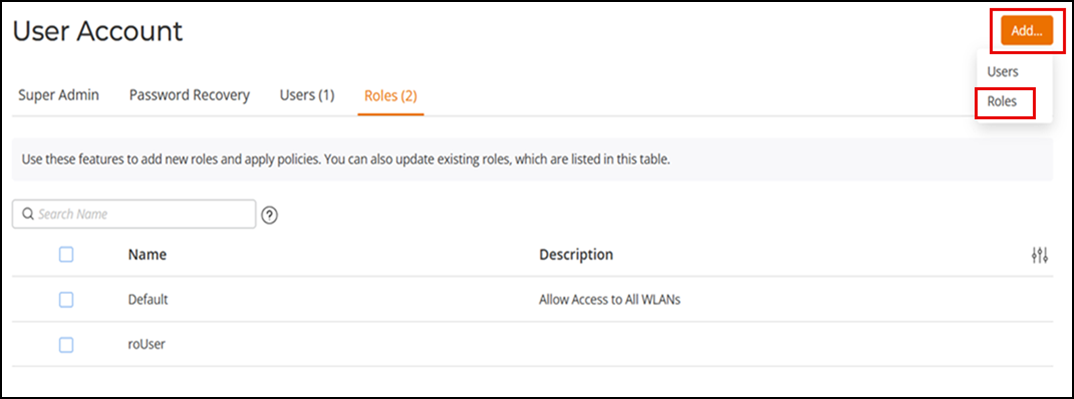
UI path for UnleashedFrom the main menu, select . The Roles sub-tab appears, displaying a Default role with description in the Roles table.
- Click .
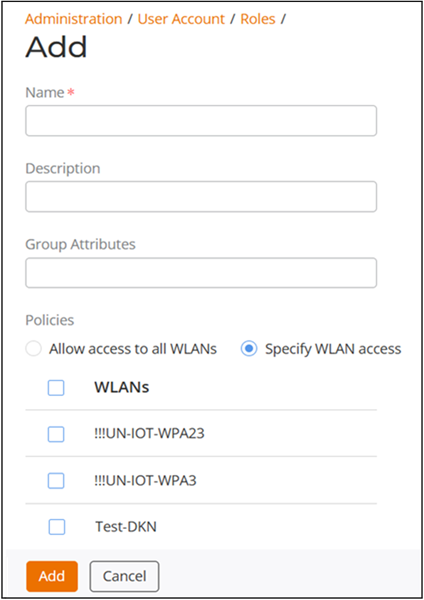
- Enter a name and optionally enter a short description for this role.
- Complete the following options
for this role:
- Group Attributes: Enter the user group name here only if you are creating a user role based on group attributes, which are extracted from an Active Directory server. Active Directory/LDAP users with the same group attributes are mapped to this user role automatically.
- Policies: Select one of the two options: Allow access to all WLANs or Specify WLAN access. If you select Specify WLAN access, you must specify the WLANs by selecting the checkbox next to each WLAN.
- Guest
Password: If you want users with this role to have the
permission to generate Guest Passes, enable this option.
Note: When creating a Guest Pass generator role, you must ensure that this role is given access to the guest WLANs. If you create a role and allow Guest Pass generation, but do not allow the role access to the relevant WLANs, members of the Guest Pass generator role will be unable to generate Guest Passes for the guest WLAN.
- Administration: Select the Allow Unleashed Administration checkbox to allow this user role admin privileges. Admin privileges are divided into these levels:
- Click Add to save your settings.