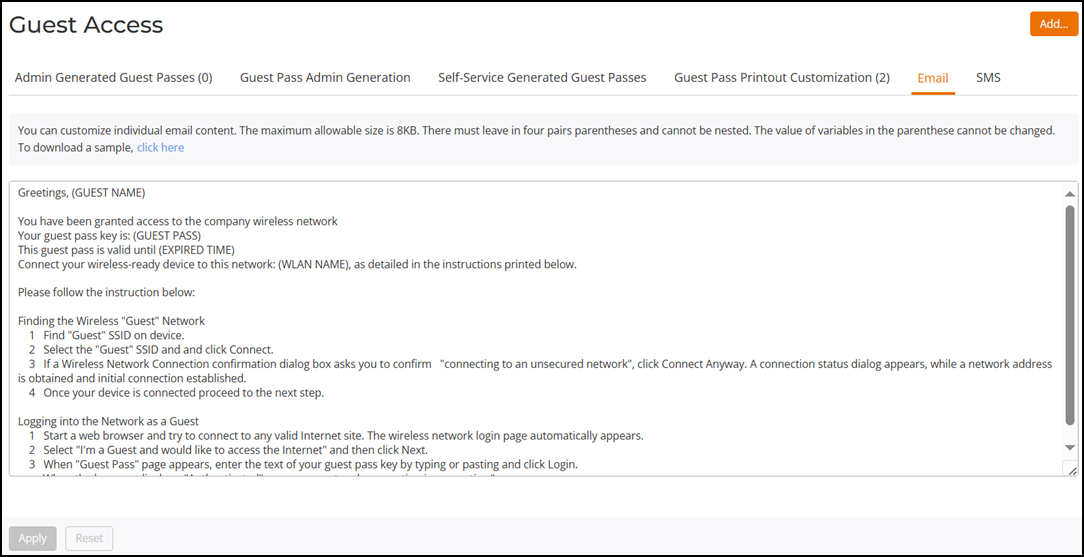
Customizing the Guest Pass Email Content
The Guest Pass email content can be
customized to suit your preferences.
Note: To allow RUCKUS
Unleashed to deliver Guest Passes through email, you must first configure
an email account (and its SMTP settings) from which RUCKUS Unleashed will send
the email messages. For information on configuring the email server, refer to
Configuring Email Server Settings.
Complete the following procedure to customize the content of the email in which the Guest Pass keys are delivered.
Difference in UI label for Uunleashed and RUCKUS
Blue
- From the main menu, click . In the Guest Access page, click Email.
- Customize the content in the text box, while ensuring that the following variables remain intact and unchanged:
- To download a sample of the email message, click the click here link to download a sample.
- Click Apply to save your changes.