Instagram (Facebook)
Instagram (Facebook) social media login
complies with the OAuth 2.0 specification (the industry-standard protocol for
authorization). To configure a WLAN that supports guest authentication using Instagram
(Facebook) social media credentials, you need an OAuth 2.0 client ID and client
secret.
- Create a new Guest WLAN and step through the Create Wi-Fi Network wizard until you reach the Portal Settings page. Alternatively, you can edit an existing Guest WLAN and step through the Edit Network wizard.
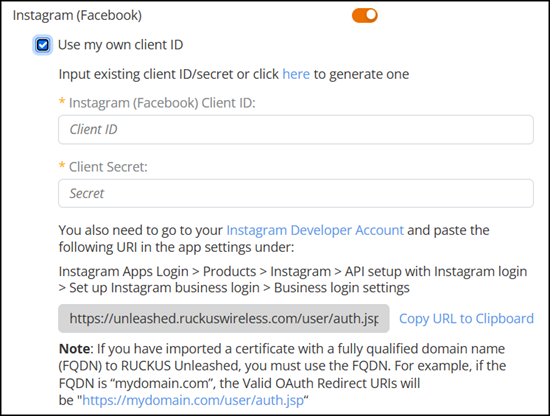
- In the Portal Settings page, for Social Media Logins, toggle the Instagram (Facebook) switch to on and the Use my own client ID option appears.
- You have two options for
configuring the Instagram client ID:
- Leave the Use my own client ID option cleared if you want the system to use the default, built-in Instagram (Facebook) client ID.
- Select the Use my own client
ID checkbox and enter your Instagram Client
ID and Client
Secret (refer to Setting up the
OAuth Client ID for Instagram (Facebook)) and then click
Apply.
Note: If you do not already have an Instagram Client ID and Client Secret, click the here link to generate the client ID and client secret.
The user is prompted to log in to their Instagram (Facebook) account (if not already logged in) and grant the application access to specific data or actions (such as profile info, email, and so on).