Requiring Sponsor Approval for Self-Service Guest Pass Authentication
The Sponsor receives the email request and clicks a link to allow this user access to the guest WLAN. After the registration is approved, RUCKUS Unleashed generates a Guest Pass and sends it to the user through email or SMS (or both) using the contact information the user provided.
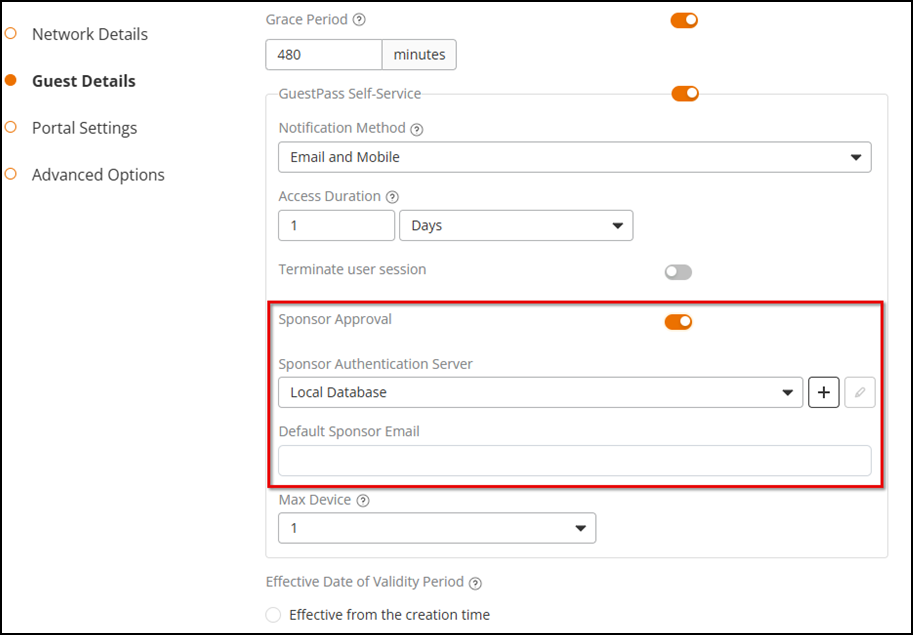
To configure sponsor approval, select the Sponsor Approval checkbox, select a sponsor authentication server (default is local database), and optionally, enter a default sponsor email address.
Requesting a Sponsor-Approved Guest Pass
Complete the following steps to request, approve, and activate a sponsor-approved Guest Pass:
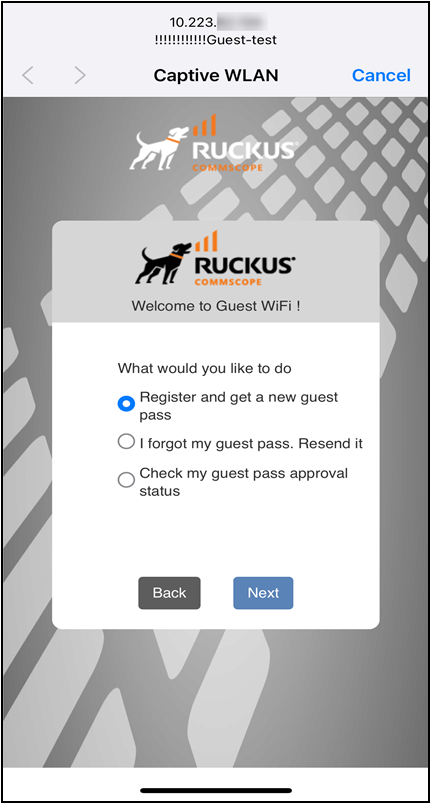
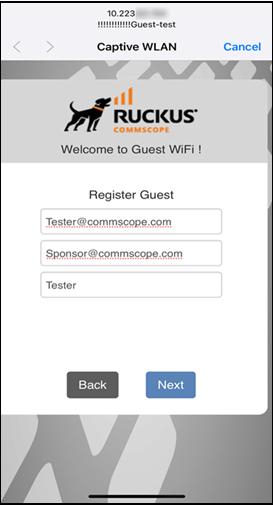
- On the What would you like to do screen, select Register and get a new Guest Pass, and click Next.
- Enter a username, an email address or phone number to which the Guest Pass key
will be sent, and the sponsor's email address, and click
Next.
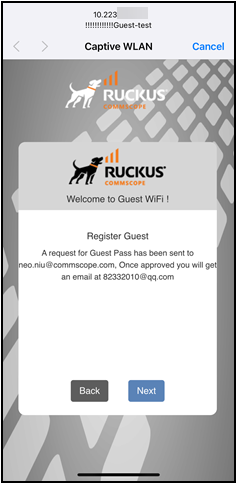
A Guest Pass request email is sent to the sponsor's address, and a message that the guest access request has been submitted is displayed.
Approving Guest Pass by a Sponsor
A sponsor has to complete the following steps to approve a Guest Pass email request.
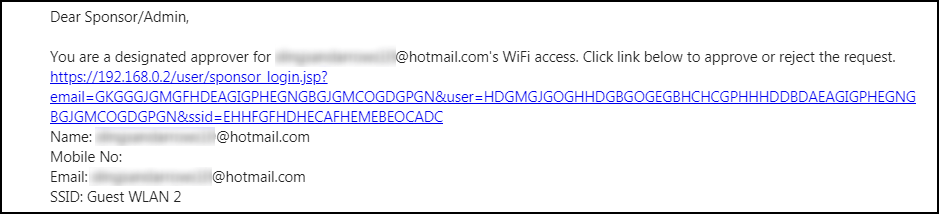
- Click the link in the Guest Pass approval mail.
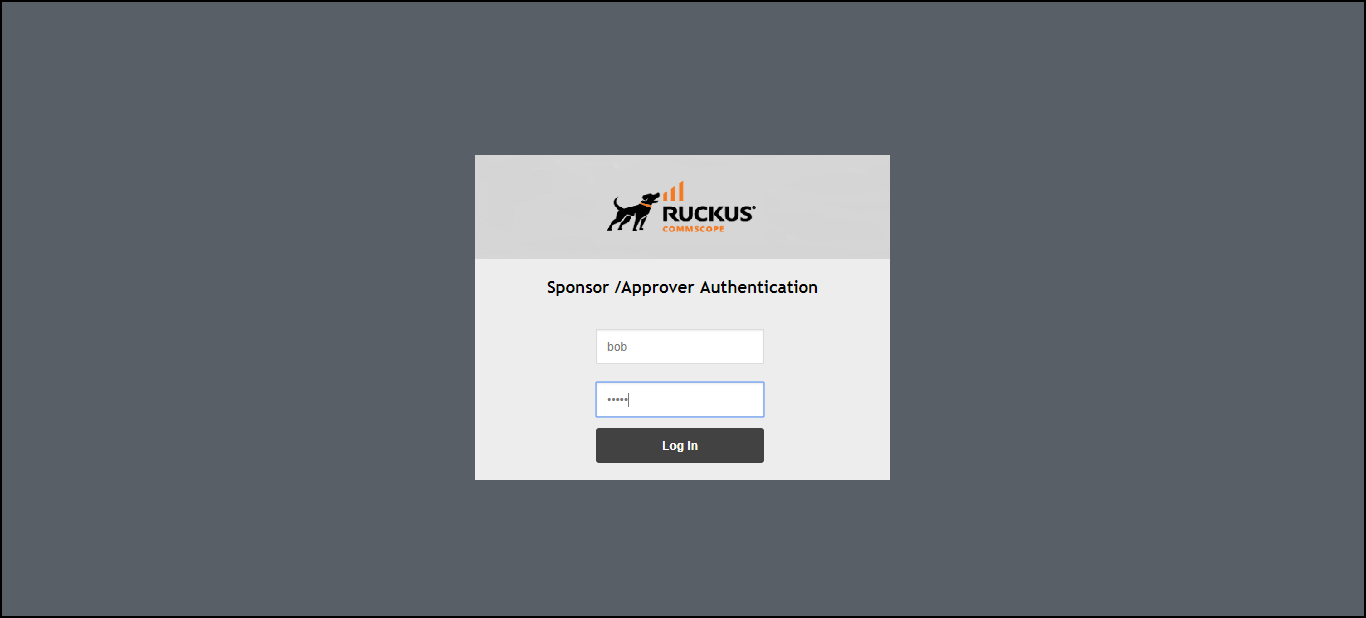
The Sponsor/Approver Authentication page is displayed.
- On the Sponsor/Approver Authentication page,
enter a valid user name and password, and click Log in.
Note: This username and password must exist on the authentication server (Local Database, Active Directory, or RADIUS) configured for this guest access service.
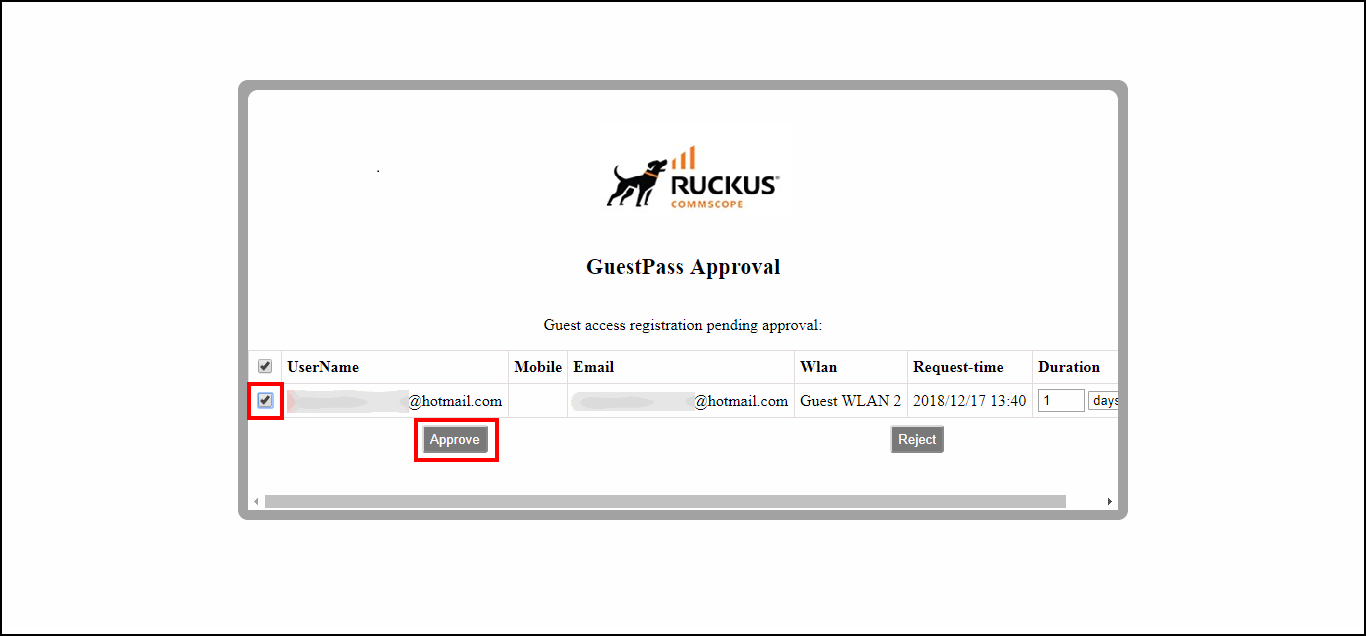
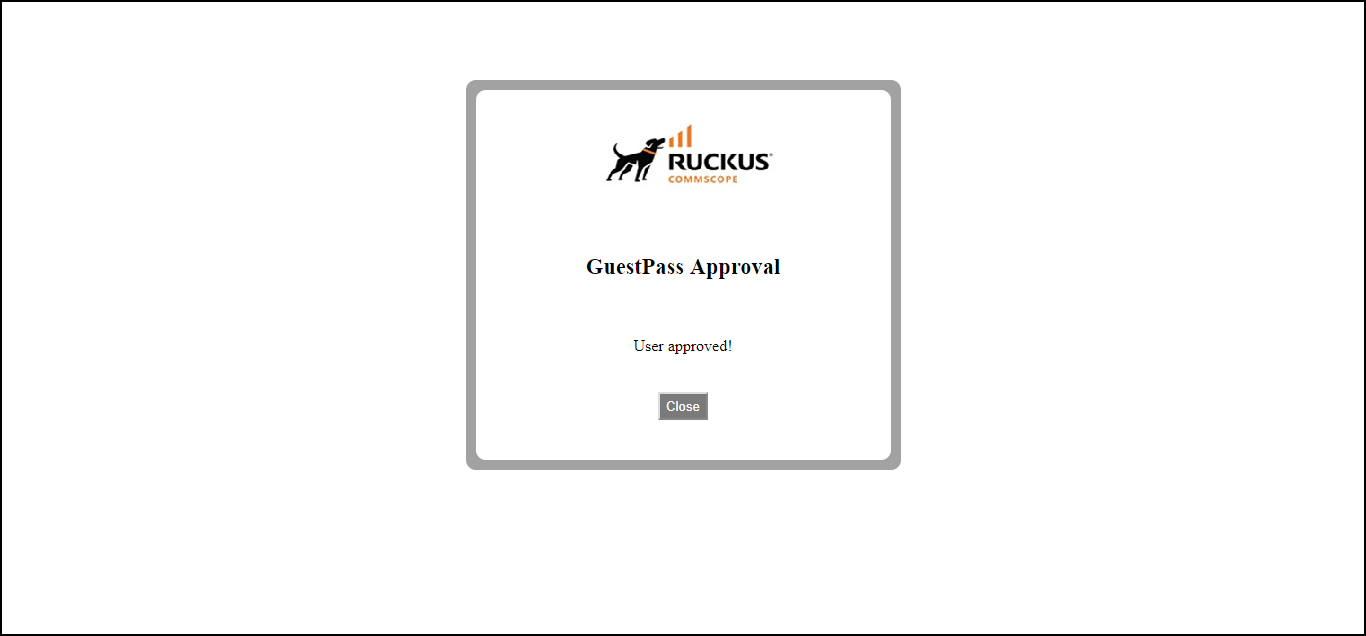
- Upon successful login, the Guest Pass Approval page displays the name, phone number, and email addresses of all pending Guest Pass requests. Select the checkboxes next to each Guest Pass you wish to approve, set the duration period for each, and click Approve. Approving a Guest Pass triggers delivery of an email or SMS (or both) message containing the Guest Pass code to the guest.
Activating the Guest Pass Code as a Guest User
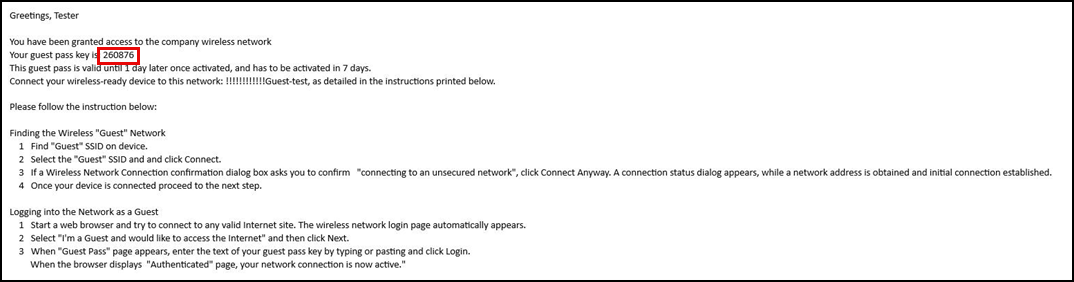
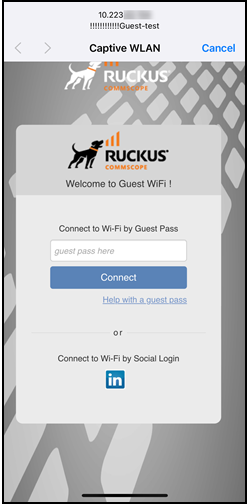
Complete the following steps as a guest user receiving Guest Pass approval.