OAuth Setup Procedure for Meta (Facebook) Social Media Login
Meta (Facebook) social media WLANs require
an OAuth 2.0 client ID and password, which can be generated using the following
procedure.
Complete the following steps to create a project ID in the Meta (Facebook) Developers Console.
- Go to the Facebook Developers Apps website (https://developers.facebook.com/apps) and select Log In.
- Log in using your facebook credentials and click My Apps.
- Click Create App to create a Facebook application.
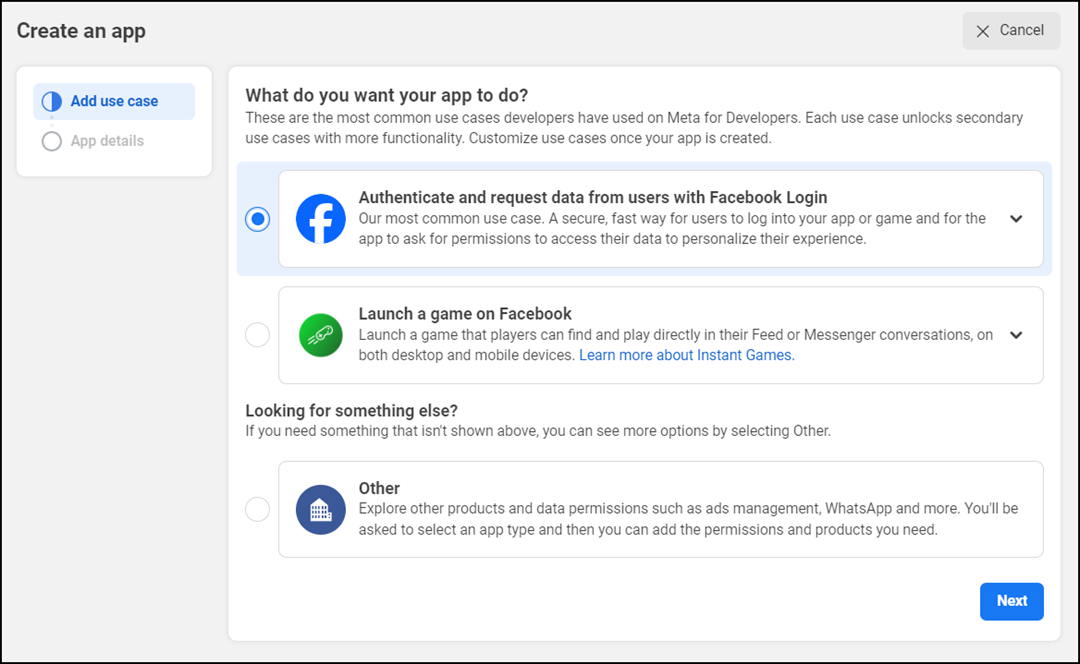
- In the Create an App window, select Authenticate and request data from users with Facebook Login and click Next.
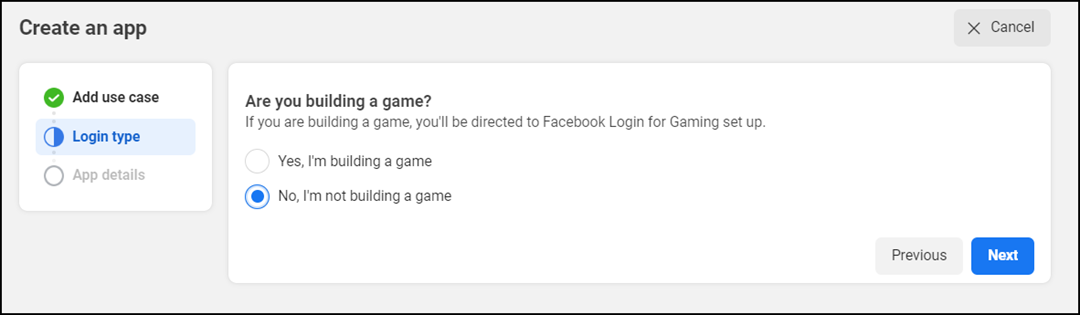
- Under Login type, for Are you building a game?, select No and click Next.
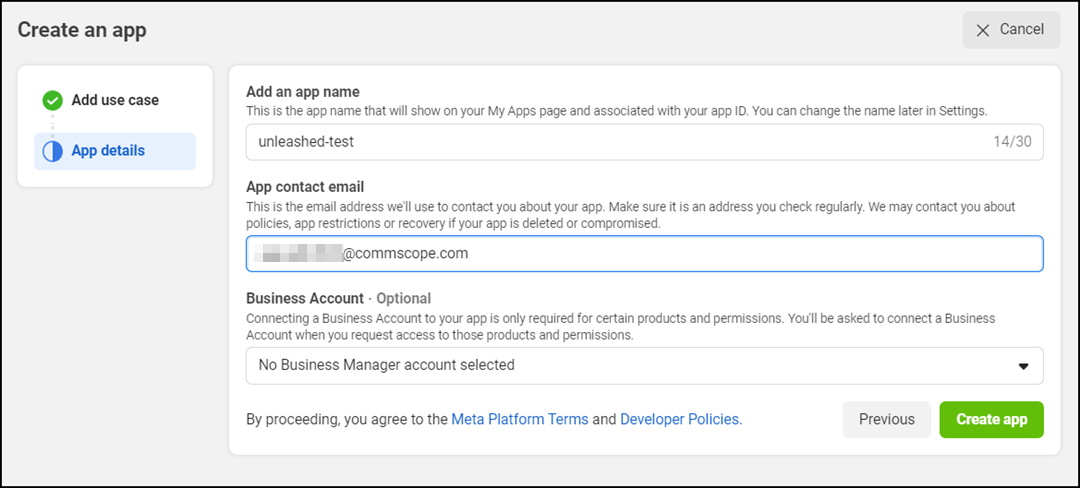
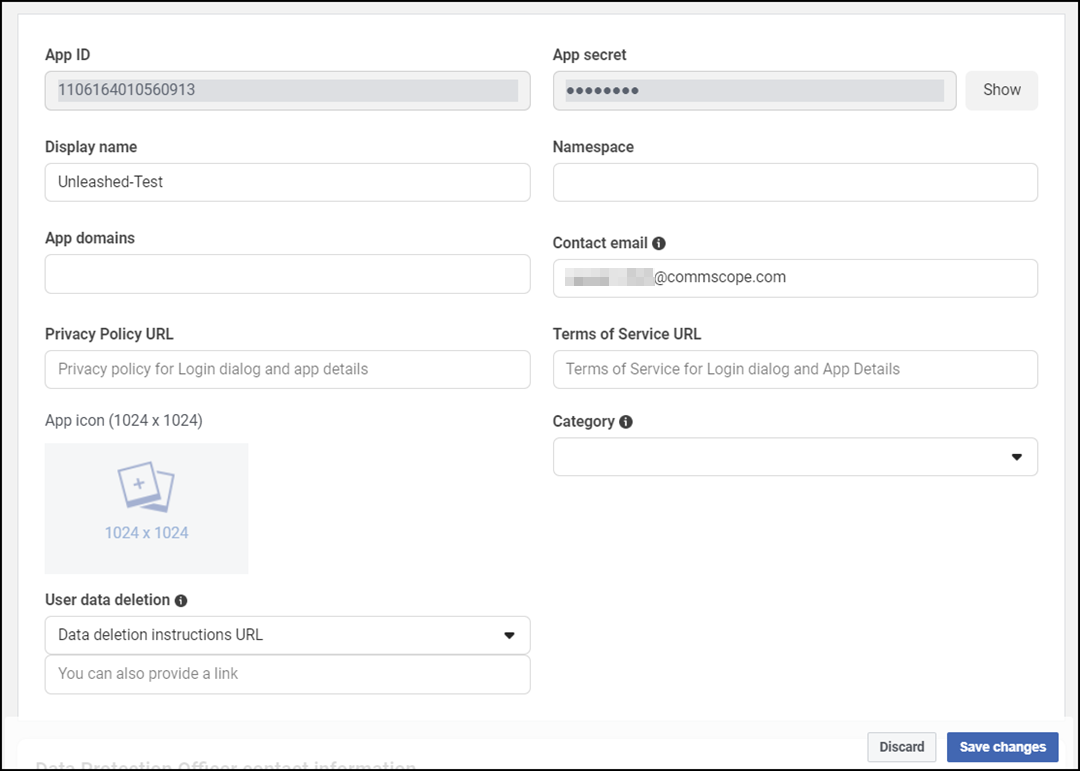
- Under App Details, enter the application name, application contact email address, and optionally select a business account from the list.
- Click Create App, if prompted for security purposes, enter your Facebook login credentials.
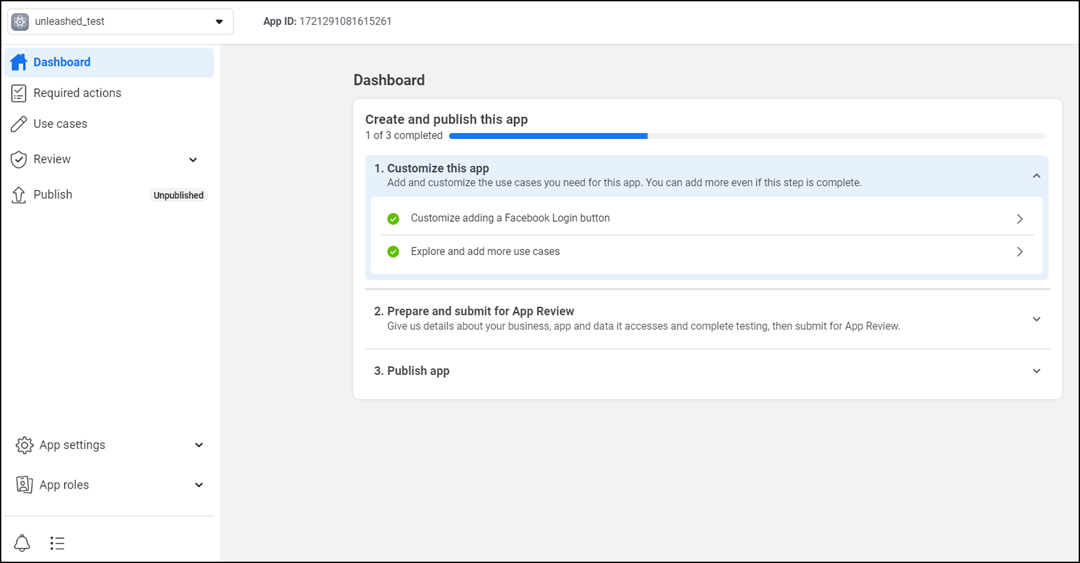
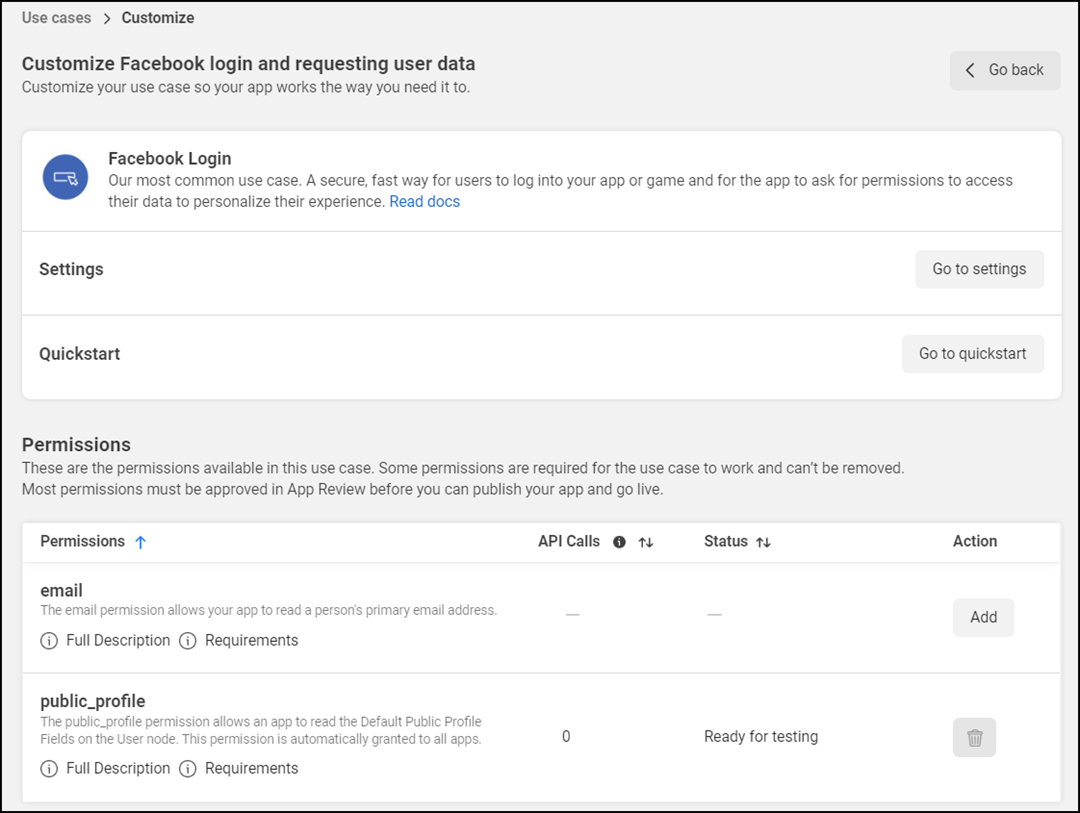
- Under Customize this app, click Customize adding a Facebook Login button.
- Under Facebook Login, for Settings, click Go to settings.
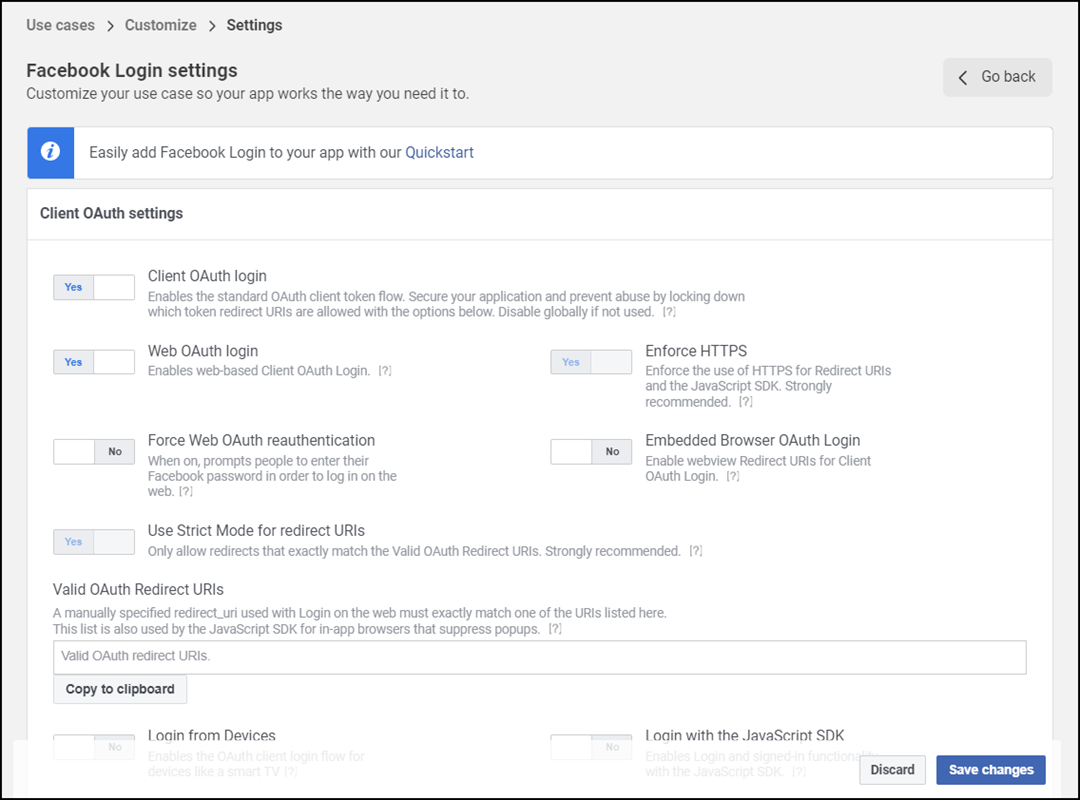
- In the Facebook Login
Settings page, configure the Client OAuth
settings as follows:
- For Client OAuth login and Web OAuth login, toggle the switch to Yes.
- For Valid OAuth Redirect
URIs, enter the URL https://unleashed.ruckuswireless.com/user/auth.jsp.Note: If you have imported a certificate with a fully qualified domain name (FQDN) to RUCKUS Unleashed, you must use the FQDN. For example, if the FQDN is “mydomain.com”, the Valid OAuth Redirect URIs will be “https://mydomain.com/user/auth.jsp”.
- Click Save Changes.
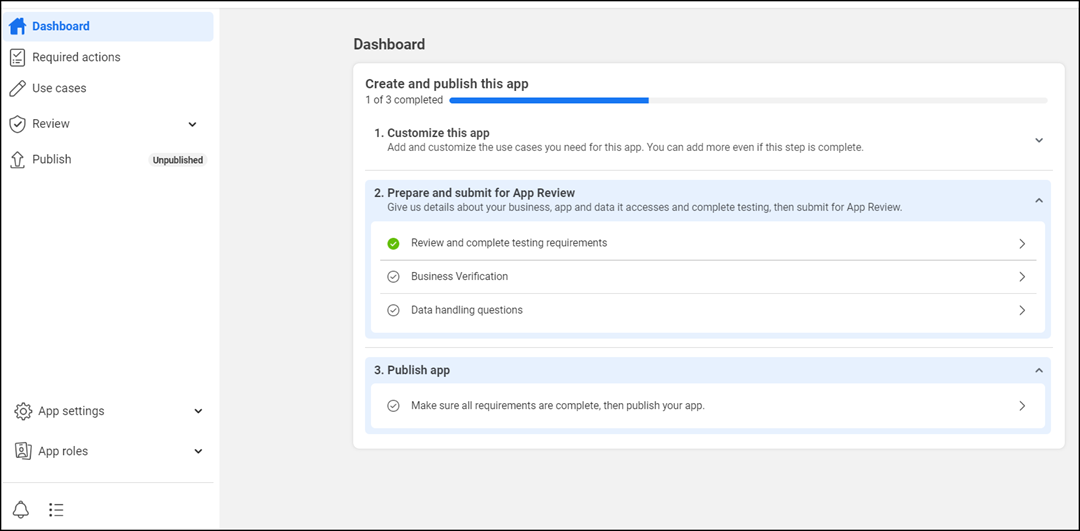
- Use the Go back option to return to the Dashboard page.
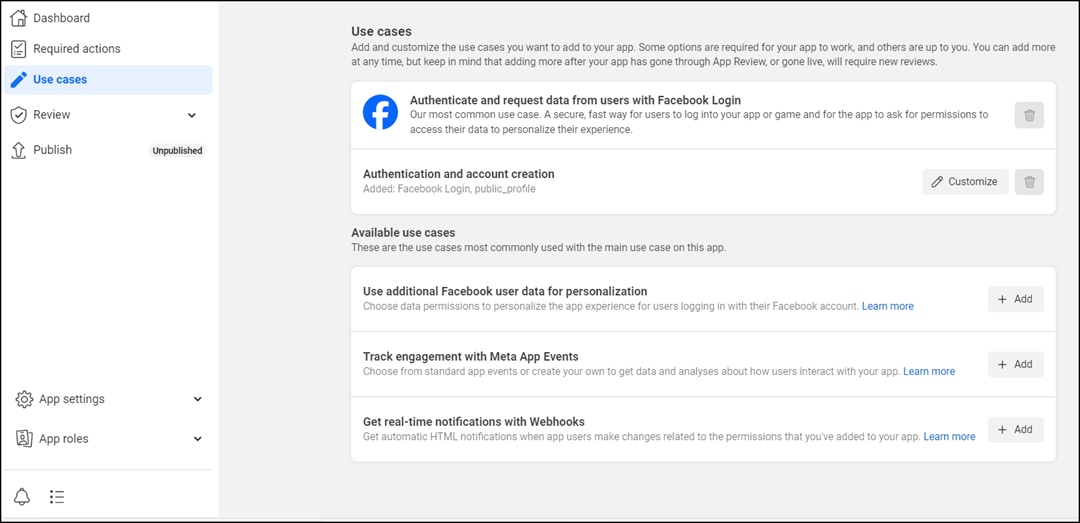
- Under Customize this app, click Explore and add more use cases to add additional available use cases as needed. Alternately, you can also click Use cases from the menu.
- From the menu, click Dashboard and select Prepare and submit for app review, and complete the following steps. Alternately, you can click Review from the menu.
- Under Publish App, click Make sure all requirements are complete, then publish your app. Review the use cases you have added to your app. Ensure that all the required settings are completed.
- Click Publish.Note: If the app is not published, "App is not activated" message is displayed whenever a Facebook account tries to log in to this Facebook OAuth SSID.
- From the menu, click and note the App ID and App secret because you must enter these values in the RUCKUS Unleashed web interface as the client ID and client secret. Refer to Facebook for more information.