Modifying the System Default AP Group
If you want to configure global settings
for default behavior for all access points, modify the System Default AP Group and
apply
settings to all APs at once.
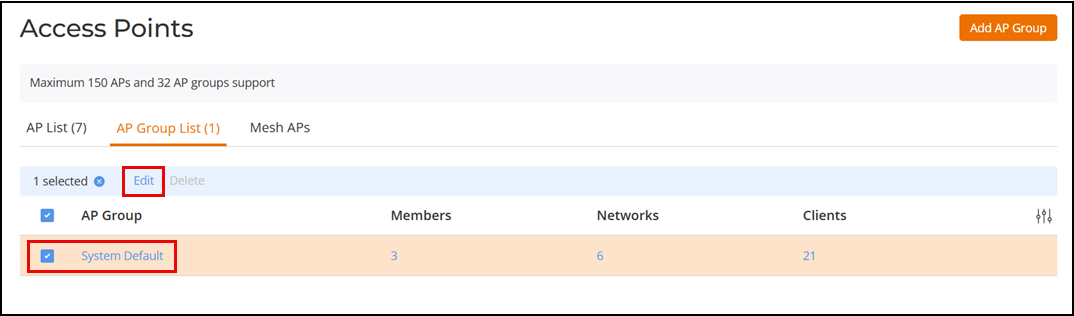
- Select .
- Select the System Default
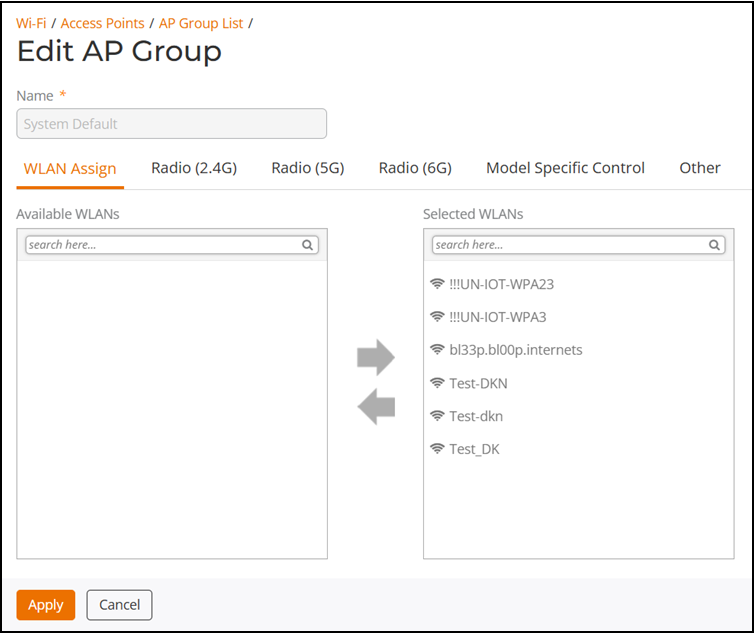
access point group and click the Edit button. The Edit AP Group page appears.
- Assign WLANs to or from this AP Group using the left and right arrows on the WLAN Assign tab.
- On the Radio (2.4G),
Radio
(5G), and Radio (6G) tabs,
enable the 2.4 GHz, 5 GHz, and 6 GHz bands as required and modify any of the
following settings that you want to apply to the System Default AP Group.
- Channel
Range: To limit the available channels for 2.4 GHz, 5 GHz indoor
(lower and upper) and 5 GHz outdoor (lower and upper), and 6 GHz (indoor and
outdoor) channel selection, cancel the channel selection by clicking on any
channels that you do not want the APs to use.
Note: For country codes "US", "UK", and "JP", channel 144 is supported if DFS channel is enabled.
- Channelization: Select Auto, 20MHz or 40MHz channel width for the 2.4 GHz radio. Select Auto, 20, 40, or 80 MHz channel width for the 5 GHz radio. Select Auto, 20, 40, 80, 160, or 320 MHz channel width for the 6 GHz radio.
- Channel: Select Auto or manually assign a channel for the 2.4 GHz, 5 GHz, or 6 GHz radio.
- TX Power:
Allows you to manually set the transmit power on all 2.4 GHz, 5 GHz, or 6
GHz radios (default is Auto), where
Full is the maximum allowable Tx power according to country regulations.
Min is the 0dBm per chain for 11n APs, 2dBm per chain for 11ac APs.
- Call Admission Control: (Disabled by default). Enable Wi-Fi Multimedia Admission Control (WMM-AC) to support Polycom/Spectralink VIEW certification.
- WLAN Service: This option allows users to disable WLAN service on the 2.4, 5, or 6 GHz radios on all APs in the AP Group.
- Protection
Mode: If you activate Protection Mode, you control how
802.11 devices know when they should communicate with another device. The
use of RTS/CTS (Request to Send/Clear to Send) reduces collisions and
increases the performance of the network if hidden stations are present.
However, RTS/CTS (and CTS-only) introduce overhead and may in fact reduce
overall performance in some situations. Through the proper use of RTS/CTS
and CTS-only, you can fine-tune the operation of your wireless LAN depending
on the physical operating environment.
- CTS-only: Choose this option to force all destination devices to acknowledge their ability to receive data when a transmission is initiated. Use this option for compliance with the Wi-Fi Alliance certification.
- RTS/CTS: Choose this option to force both sending and receiving devices to confirm a data exchange on both ends before proceeding.
- None: Choose this option to disable both RTS and CTS acknowledgment.
- Channel
Range: To limit the available channels for 2.4 GHz, 5 GHz indoor
(lower and upper) and 5 GHz outdoor (lower and upper), and 6 GHz (indoor and
outdoor) channel selection, cancel the channel selection by clicking on any
channels that you do not want the APs to use.
- On the Model Specific
Control tab, modify settings for all APs of a specific model in
the System Default AP Group. For more information on model-specific controls,
see Modifying Model-Specific Controls.
- Model Specific
Control: Select the AP model to which the settings will
apply.
- Max Clients: Set the maximum number of clients that can associate per AP. Note that different AP models have different maximum client limitations.
- Status LEDs: When managed by ZoneDirector, you can disable the external LEDs on certain AP models. This can be useful if your APs are installed in a public location and you don't want to draw attention to them.
- PoE Operating Mode: Options vary depending on AP model selected from the Model Specific Control list. For a list of PoE operating modes by AP model, refer to Access Point Power Supply Considerations.
- Port Setting: Refer to Configuring AP Ethernet Ports for more information on configuring AP-specific Ethernet port settings.
- Band Operation
Mode: The two supported modes are:
- Dual-band: Supports two radios: 2x2:2 in 2.4GHz and 4x4 in 5GHz
- Tri-band: Supports three radios: 2x2:2 in 2.4 GHz, 2x2:2 in 5GHz and 6GHz
Note: The default setting is dependent on the country code associated with the AP; for example, an AP in a country that does not support 6GHz defaults to Dual-band mode.Note: Modifying the Band Operation Mode will cause the AP to reboot, which will also temporarily disconnect the Mesh connection.Note: Band Operation Mode is supported only in R670 AP and T670 AP.
- Model Specific
Control: Select the AP model to which the settings will
apply.
- On the Other tab, select
a Bonjour Fencing policy from the drop-down list or click
 to
create a new Bonjour Fencing policy. Refer to Creating Bonjour Fencing Policies for more
information.
to
create a new Bonjour Fencing policy. Refer to Creating Bonjour Fencing Policies for more
information. - Click Apply to save your changes.