Monitoring an Individual AP
You can edit, restart, or remove an AP
from the network from the individual AP monitoring page. The individual AP monitoring
page
also includes client information and status, system information, and traffic
information.
Complete the following steps to monitor an individual AP.
- Select the page to monitor and configure that specific AP
individually.
Unleashed
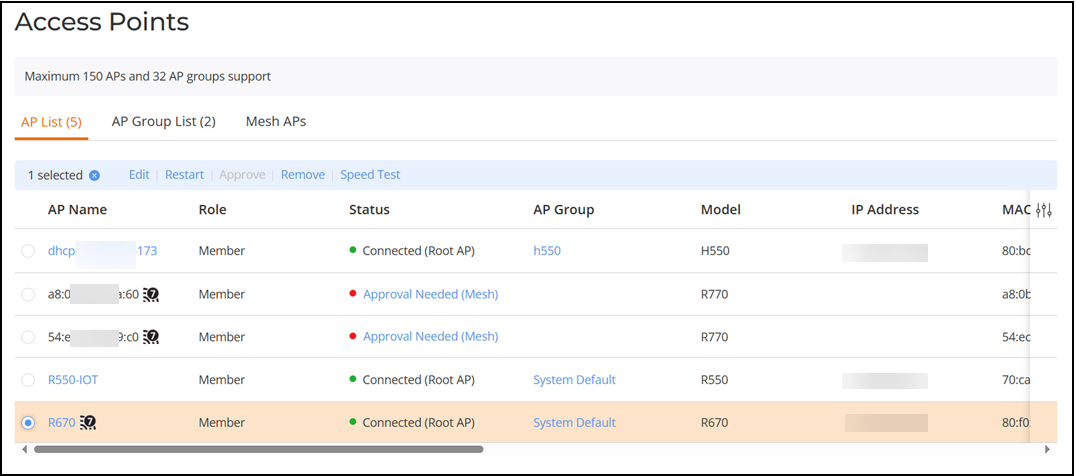
- Select a specific AP and the AP List screen displays the following options:
- Edit: Click Edit to configure an AP individually. Alternatively, click on a specific AP name, then in the Overview page, click Configure.
- Restart: Click Restart to restart the AP.
- Approve: To approve the AP and allow it to join the network if auto-approval is disabled. After a member AP is removed from the network, the Approve option becomes available.
- Remove: Click Remove to remove a member AP from the network. After a member AP is removed from the network, the Approve option becomes available. Click Approve to allow the AP to rejoin the RUCKUS Unleashed network.
- Speed Test: Click Speed Test to measure the data transfer rates between an AP and its client device. Wi-Fi service will be interrupted during the speed testing. In the Speed Test sidebar that appears, click Start. When the test is completed, the average downlink and uplink speed results are displayed along with packet loss percentages. Click Test Again to rerun the test.
- Click a specific AP to view AP details. The following sub-tabs are displayed:
- Overview:
Displays detailed information about wireless clients associated with an AP,
networks that are active on an AP, and events that have occurred on the AP,
active alarms, radio types, AP uptime.
- Traffic Trend: Displays the total traffic (Tx + Rx) on the AP radio in one-minute intervals.
- AP Properties: Displays the AP information including name, serial number, MAC address, IP address, firmware version, and so on.
- Radio Properties: Displays the information about 2.4, 5, and 6 GHz (if available) radios such as AP name, current channel, configured channel, channelization, status of WLAN service and Background Scanning, and TX power.
- Client Status: Displays a breakdown of client numbers by signal quality (Excellent, Moderate, or Poor) over time, in one-minute intervals.
- Packet Capture: Captures wireless packets during normal operation and save them in local files or stream them to Wireshark. Refer to Capturing Remote Packets for more information.
- Clients: Displays all the connected clients. Refer to AP Clients for more information.
- WLAN List: Displays the list of WLANs in the network. Details for each WLAN include name (or ESSID), BSSID, Radio Type, and State (Up, Down).
- Neighbor APs: Displays the neighbor APs in the network. Details include AP name, channel, and SNR.
- Overview:
Displays detailed information about wireless clients associated with an AP,
networks that are active on an AP, and events that have occurred on the AP,
active alarms, radio types, AP uptime.