Creating a Custom Guest Pass Printout
The Guest Pass printout is a printable
HTML page that contains instructions for the Guest Pass user on how to connect to
the wireless
network.
The authenticated user who is generating the Guest Pass will need to print out this HTML page and provide it to the Guest Pass user. A Guest Pass in English and one in French are included by default.
As an administrator, you can create custom Guest Pass printouts. For example, if your organization receives visitors who speak different languages, you can create Guest Pass printouts in other languages.
Complete to following steps to create a custom Guest Pass printout.
- From the main menu, select .
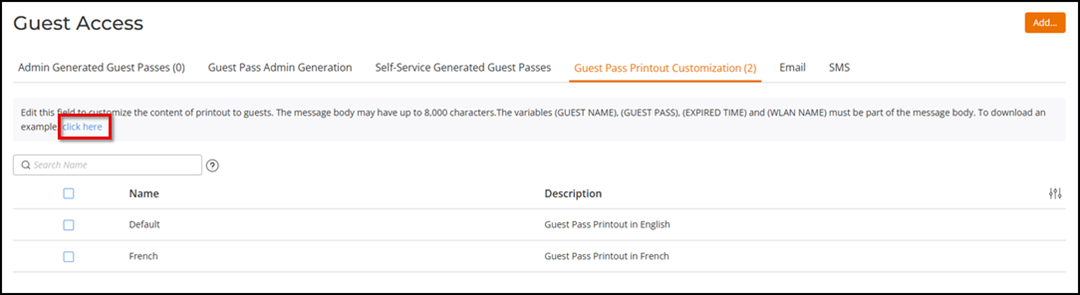
- Select the Guest Pass Printout Customization tab.
- Click the click here link to download an example of an existing printout.
- Save the HTML file to your computer.
- Using a text or HTML editor, customize
the Guest Pass printout. Note that only ASCII characters can be used. You can do any
or
all of the following:
- Reword the instructions
- Translate the instructions to another language
- Customize the HTML formatting
Note: The Guest Pass printout contains several tokens or variables that are substituted with actual data when the Guest Pass is generated. When you customize the Guest Pass printout, make sure that these tokens are not deleted. For more information on these tokens, refer to Guest Pass Printout Tokens.
- Go back to the Guest Pass Printout Customization tab and complete the following steps.
- Click Add. From the Add drop-down list,
select Guest Pass Printout Customization.
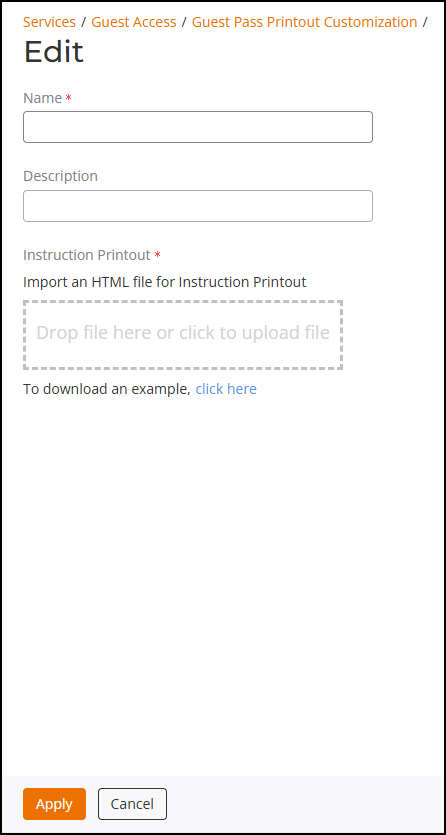
- For Name, type a name for the Guest Pass printout that you are creating. For example, if this Guest Pass printout is in Spanish, you can type Spanish.
- (Optional) For Description, add a brief description about the Guest Pass printout.
- Drag and drop or click inside the box to import the HTML file that you customized earlier. RUCKUS Unleashed copies the HTML file to its database.
- Click Apply to create a custom Guest Pass printout.