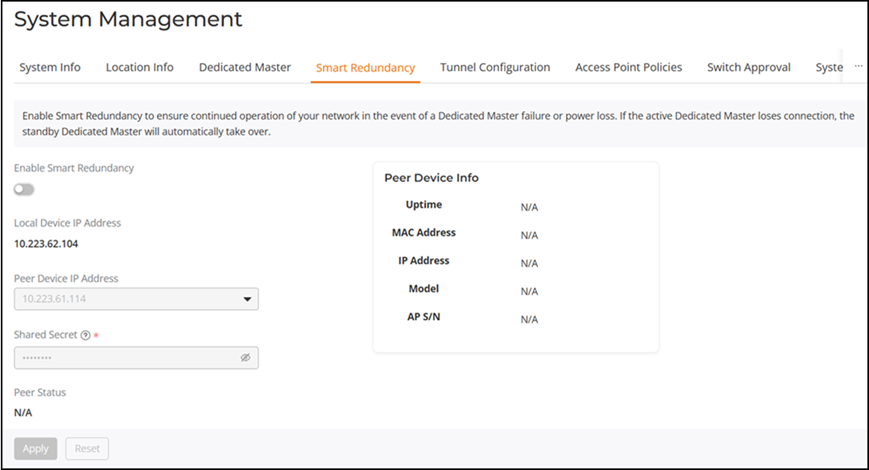
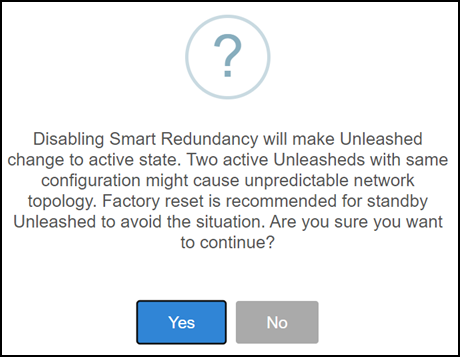
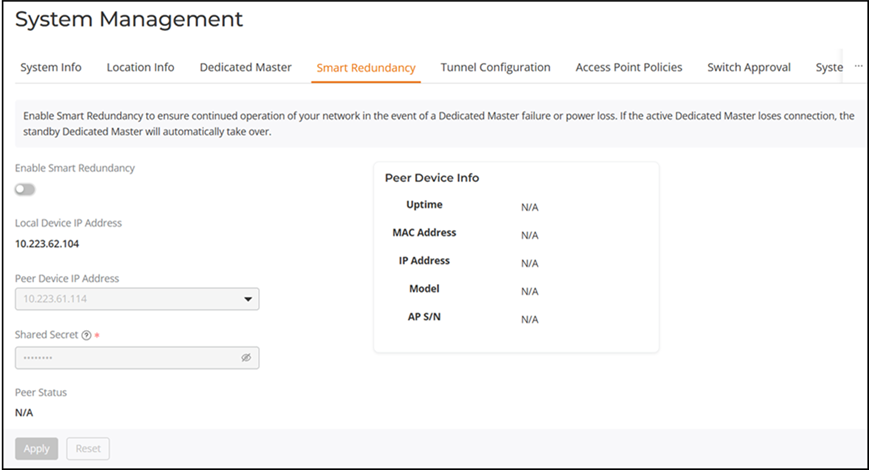
Disabling Smart Redundancy from the Primary Dedicated Master Complete the following steps to disable Smart Redundancy from the primary Dedicated Master.Select System Settings > System Management > Smart Redundancy.Clear the Enable Smart Redundancy checkbox. Disabling Smart Redundancy from the Primary Dedicated Master Click Apply to save the changes. A confirmation message is displayed.Confirmation Message: Disabling Smart Redundancy Click Yes to confirm.Check the Smart Redundancy status. Checking Smart Redundancy Status After Disabling Parent topic: Disabling Smart Redundancy