Configuring Email Server Settings
An email server must be configured for RUCKUS Unleashed to send Guest Pass codes to guest users by way of email.
Complete the following steps to configure email server SMTP settings:
- From the main menu, select .
- In the Email Server
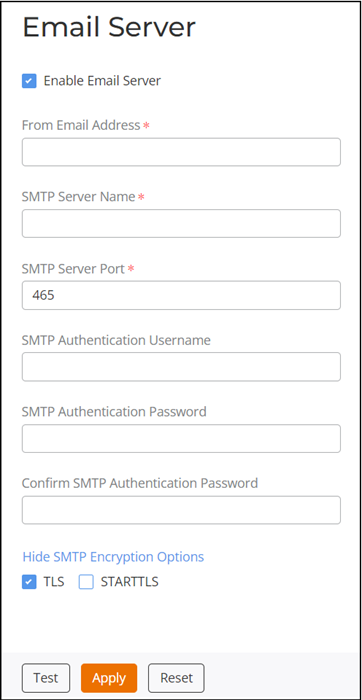
page, select the Enable Email Server option and complete the following settings:
- From Email Address: Enter the email address from which RUCKUS Unleashed will send email messages.
- SMTP Server Name: Enter the full name of the server provided by your ISP or mail administrator. Often, the SMTP server name is in the format smtp.company.com.
- SMTP Server Port: Enter the SMTP port number (1 through 65535) provided by your ISP or mail administrator. The default SMTP port number is 587.
- (Optional) SMTP Authentication Username: Enter the user name provided by your ISP or mail administrator. This may be part of your email address before the @ symbol, or it may be your complete email address. If you are using a free email service (such as Gmail), you typically must enter your complete email address.
- (Optional) SMTP Authentication Password: Enter the password associated with the SMTP authentication user name.
- (Optional) Confirm SMTP Authentication Password: Re-enter the password you entered in SMTP Authentication Password to confirm.
- (Optional) Show SMTP Encryption Options: Click Show SMTP Encryption Options and then select TLS checkbox if your mail server uses TLS encryption. Additionally, select the STARTTLS checkbox that is displayed after you select the TLS checkbox. Check with your ISP or mail administrator for the correct encryption settings that you must set.
- To verify that RUCKUS Unleashed can send email messages using the SMTP settings you configured, click Test.
- Click Apply. The email server settings you configured become active immediately.
- (Optional) Click Reset to clear the settings and restore the default email server settings.