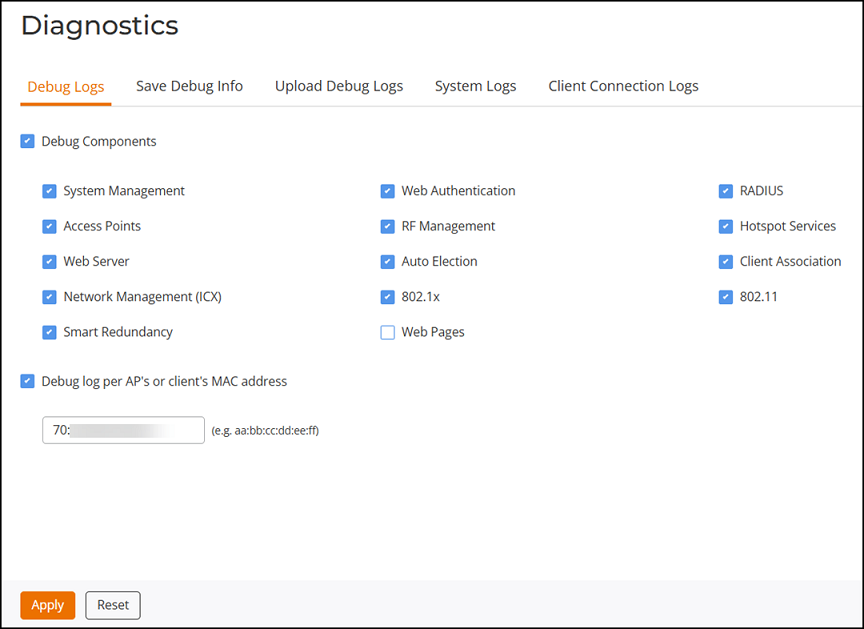
Configuring Debug Logs
You can use the Tools > Diagnostics > Debug Logs page to configure which debug components to include in log files and on the Events page.
You can also save the log files using the Save Debug Info button. If you request assistance from RUCKUS technical support, you may be asked to provide detailed debug information from RUCKUS Unleashed.
Click the Save Debug Info button, and then save the file to your computer. You can then email this file to RUCKUS Support to assist with troubleshooting.
You can also allow the Master AP to automatically save log files to a specified FTP or TFTP server in the event of a controller process failure. By default, this feature is disabled. You can enable this feature by navigating to Tools > Diagnostics > Upload Debug Logs and select the Enable upload debug logs to remote server checkbox. After you enable, the Master will send the core, dump, and debug files to an FTP/TFTP server before restart. This information can be very useful in debugging controller reboot issues. To enable this feature, select the checkbox next to Enable upload debug logs to remote server, select FTP or TFTP, and enter the server address only (for TFTP) or Host, Port, Username and Password (for FTP). Click Apply.