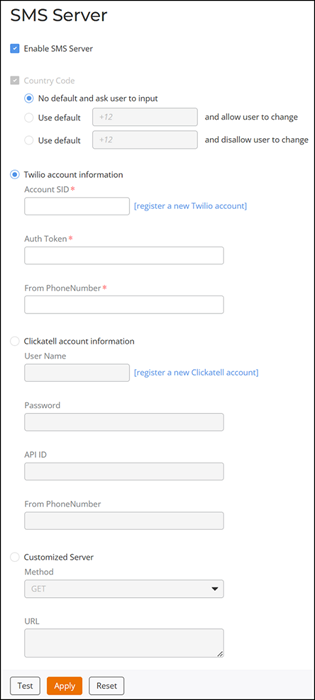
Configuring SMS Server Settings
An SMS server must be configured for RUCKUS Unleashed to send Guest Pass codes to guest users by way of SMS.
Complete the following steps to configure SMS server settings:
- From the main menu, select .
- In the SMS Settings page, click the Enable SMS Server checkbox.
- In Country Code,
select one of the following options:
- Country Code: This option is only available with the Customized Server SMS server type (for Twilio and Clickatell, the country code is mandatory and cannot be unselected). When Country Code is disabled and greyed out, the guest registration page does not support country code input.
- No default and ask user to input: The guest registration page does not provide a default country code and the guest user is asked to input one.
- Use default and allow user to change: The guest registration page provides a default country code and allows the guest user to change it.
- Use default and disallow user to change: The guest registration page provides a default country code and the guest user is not allowed to change it.
- Select one of the following
options:
- Twilio account information (default): Select this option and enter the Account SID, Auth Token, and Phone Number. If you do not have a Twilio account, click the register
- Clickatell account information: Select this option and enter the User Name, Password, API ID, and Phone Number.
- Customized Server: Select this option and enter the Method (GET or POST) and the URL for a custom SMS service provider.
- Click Test to test your settings.
- Click Apply to save your changes.
- (Optional) Click Reset to clear the settings and restore the default SMS server settings.