Changing User Password
Users can change their account passwords
without the aid of the administrator. Syslog maintains a record of the users who have
changed
their passwords, which reduces the workload of the administrator.
- From the Unleashed web interface header,
click the
 icon (located in the upper-right corner
of the web interface) and select Change Password.
icon (located in the upper-right corner
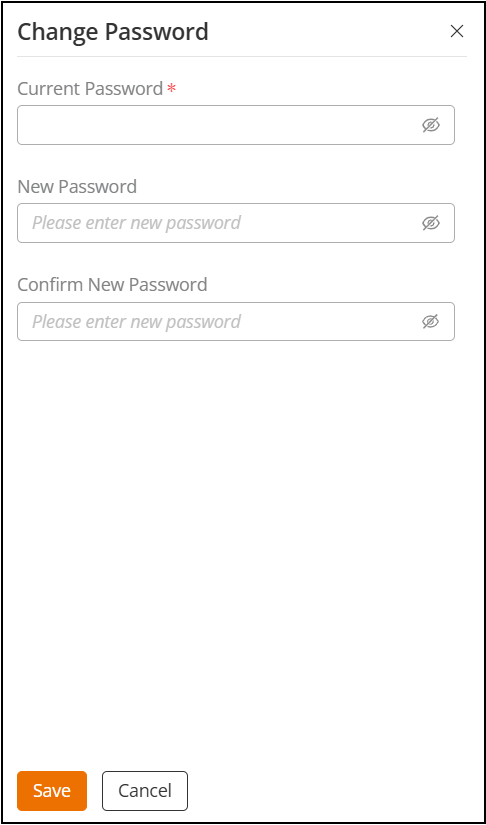
of the web interface) and select Change Password. - In the Change
Password dialog box, enter the following information:
- For Current Password, enter your current password.
- For New Password, enter your
new password that fulfils the following criteria:
- The password must be at least 8 characters in length (maximum is 32 characters).
- Must include at least one lowercase letter and one uppercase letter.
- Must include at least one number.
- Must include at least one special character including ASCII characters from char 33 (!) to char 126 (~). The password cannot include the special characters char 96 (`) or chars 36 and 40 ($() in succession, but char 36 ($ and char 40 (() can be used separately in the password.
- For Confirm New Password, enter your new password again.
- Click Save to save the
changes.Note: If the authentication failed three times within five minutes, the login is disabled for three minutes.