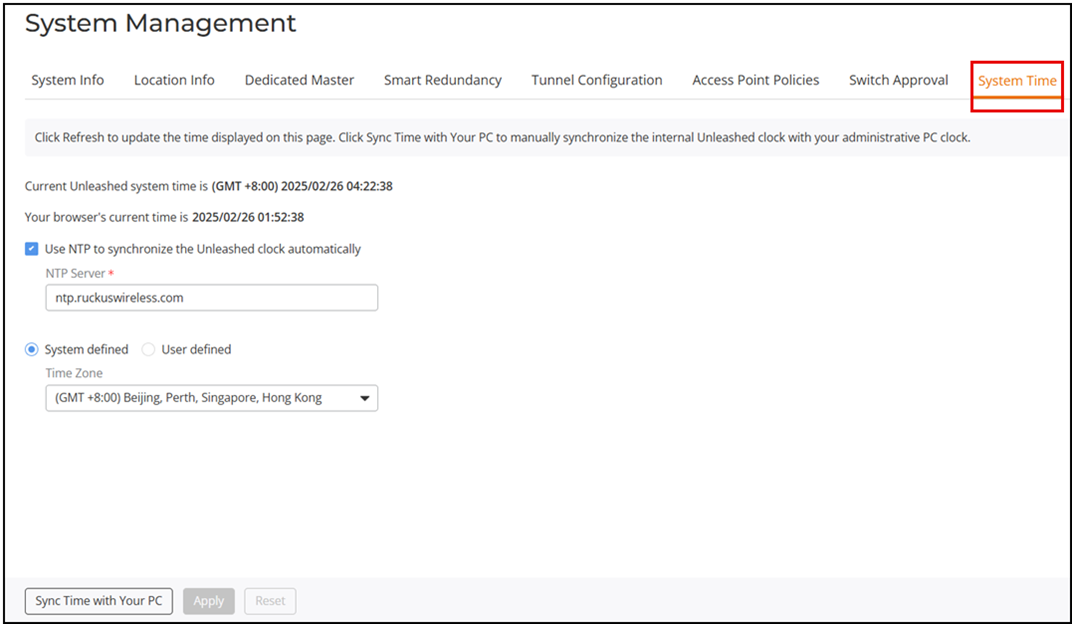
Configuring the System Time
Many RUCKUS Unleashed features require that the Master AP maintains the proper system time.
Maintaining the proper time relies on periodically retrieving the time from a Network Time Protocol (NTP) server on the Internet. By default, the RUCKUS Unleashed network automatically updates its system time using the Network Time Protocol (NTP), which periodically polls an NTP server and synchronizes its time with the NTP server.
You can also sync time with your PC to manually synchronize the internal clock with the clock of your administration PC.
Complete the following steps to configure the system time:
-
Reuse content for UnleashedFrom the main menu, select .
- Refresh the browser to update the current time of the browser.
-
Reuse content for UnleashedClick the Use NTP to synchronize the Unleashed clock automatically checkbox.
-
Reuse content for UnleashedConfigure the NTP Server: The default NTP server is maintained by RUCKUS, and is located at ntp.ruckuswireless.com. If you would like to use a different NTP server, enter the DNS name or IP address from which RUCKUS Unleashed will sync its clock.
- Select System defined or User defined for the time zone. By default, the system-defined time zones are listed in the Select time zone for your location list. For information on the user-defined time zone option, refer to Configuring a User-Defined Time Zone.
- From the Select time zone for your location list, select your time zone. Setting the proper time zone ensures that time stamps on log files are in the proper time zone.
- Click Sync Time with Your PC to update the internal clock with the current time settings from your administration PC if needed.
- Click Apply to save the results of any re-synchronization or NTP server settings changes.