Viewing AP Information
From the main menu, select and click on an AP.
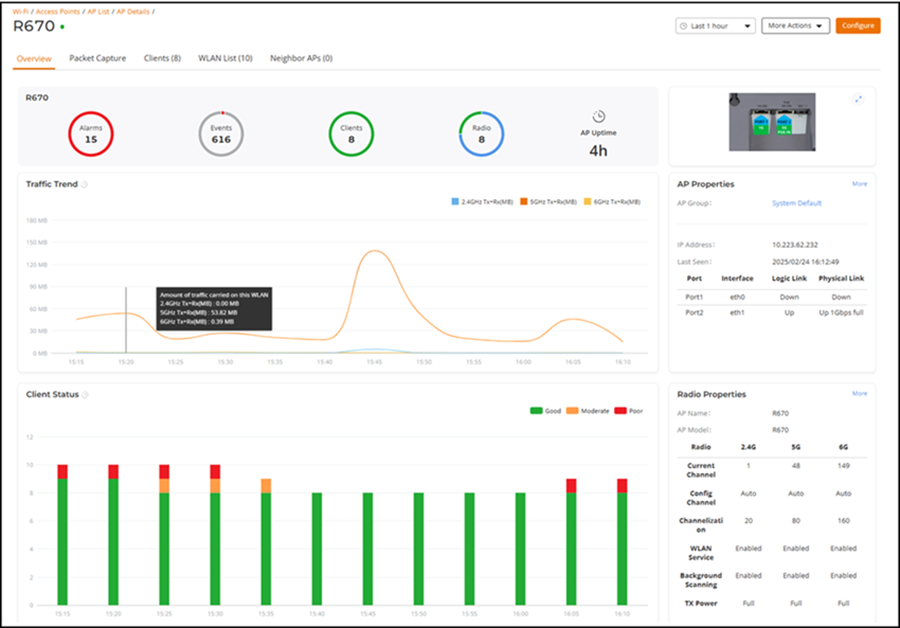
By default, the Overview page is displayed, which shows detailed AP information including general information about the AP such as the radio channels in use, Mesh type, maximum number of clients, and firmware version.
The time interval and More Actions menus are available regardless of the sub-tab you are viewing. Click More Actions to perform the following actions:
- Reboot: Reboots the AP.
- Download Logs: Saves
the AP support log as a .txt file on your computer.
Note: Download Logs and Download AP Dump Logs options are displayed only when an AP reboots unexpectedly.
- Download AP Dump Logs: Saves the AP dump log as a .tar file on your computer.
- Remove AP: Removes the AP.
- Alarms: Displays the total number of alarms raised for the AP. Pause the pointer over the donot chart to view the alarm severity type. Click on the donot chart to view detailed information in the Alarms sidebar.
- Events: Displays the total number of events triggered for the AP. Pause the pointer over the donot chart to view the event severity type. Click on the donot chart to view detailed information in the Events sidebar.
- Clients: Displays the total number of connected clients. Pause the pointer over the donot chart to view the connection status.
- Radio: Displays the total number of radio channels in use. Pause the pointer over the donot chart to view the radio band (5 or 6 GHz) along with the number of connected clients for each radio band.
- AP uptime: Displays the total time the AP has been active in minutes.
- Ethernet Ports:
Displays an illustration of the physical port locations on the AP. Click the
 icon
to enlarge the image.
icon
to enlarge the image. - AP Properties:
Displays the AP Group name, IP address, last seen, and the current link status
of
the Ethernet ports on the AP. Click More to view
information about the AP including name, state, serial number, MAC address, IP
address, Unleashed firmware version, and so on.
Note: The maximum number of clients (Max Clients) displayed for the Master AP may be lower than the configured maximum because the Master must perform additional tasks other than serving clients. The Master AP maximum client load varies by AP model. These limits apply only to the current Master AP. All other member APs honor the maximum number of clients set from the global AP model-specific controls page (Access Points > Summary > Edit > Others > Max Clients).
- Radio Properties: Displays the AP name, AP model, channel, and transmission details on the 2.4 GHz, 5 GHz, and 6 GHz radios of the AP. Click More to view AP radio-specific information including the channel, channelization, WLAN service, background scanning, transmitted power, transmitted and received packets/bytes, and so on.
- Traffic Trend and Client Status: Graphs showing the traffic volume (downstream traffic and upstream traffic) and signal quality of the connected clients. To change the time period, select the time interval from the drop-down list in the top-right corner of the screen.
The Packet Capture tab displays radio channels and capture modes. For more information, refer to Capturing Remote Packets.
The Clients tab displays the number of connected clients. Refer to AP Clients for more information.
The WLAN List tab displays the number of WLANs deployed on this AP. Refer to WLANs Deployed on an AP for more information.
The Neighbor APs tab displays channel, path score, and SNR of nearby APs.
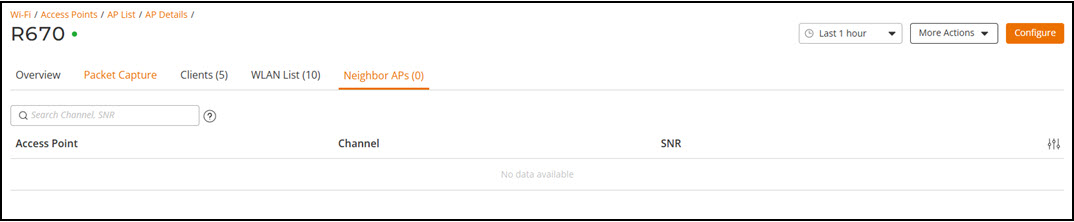
You can search the table by Channel or SNR.