Additionally, you can disable WLAN service for
this radio entirely by selecting the Enable 5 GHz band checkbox and enabling the Overide Group Config toggle
switch to on.
Navigating to the Radio (5G) tab for the System
Default AP Group allows you to view and manage the following information:
| Enable 5 GHz
band |
Allows you to enable or disable 5 GHz radio settings on the third radio in these
APs (default is Enabled). |
| Channelization |
Allows selection of channel width for the 5 GHz radios (Auto, 20, 40, 80 or 160).
Default setting is Auto (which is 80 MHz). |
| Radio 5
GHz |
Allows selection of the spectrum-specific channels from which to choose during
the automatic channel selection process. |
| Channel |
Allows you to select a specific channel on which to operate. (Auto allows the system to
choose the best available channel). |
| TX
Power |
Allows you to manually set the transmit power on all 5 GHz radios.- Auto: Default setting
that dynamically adjusts the transmit power of an AP based on real-time
conditions
- Full: Maximum
allowable transmit power according to country regulations
- Min: Minimum
allowable transmit power according to country regulations
|
| Call Admission
Control |
Allows you to enable or disable Wi-Fi Multimedia Admission Control (WMM-AC) to
support Polycom/Spectralink Voice Interoperability for Enterprise Wireless (VIEW)
certification (disabled by default). |
System Default AP Group: 5 GHz Radio
Configuration
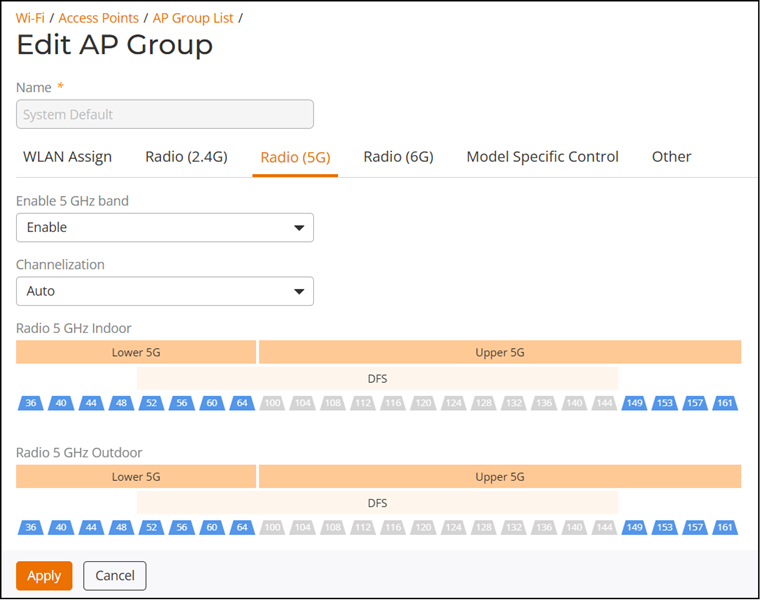
If you select the Enable 5 GHz band checkbox, the 5
GHz radio is disabled.