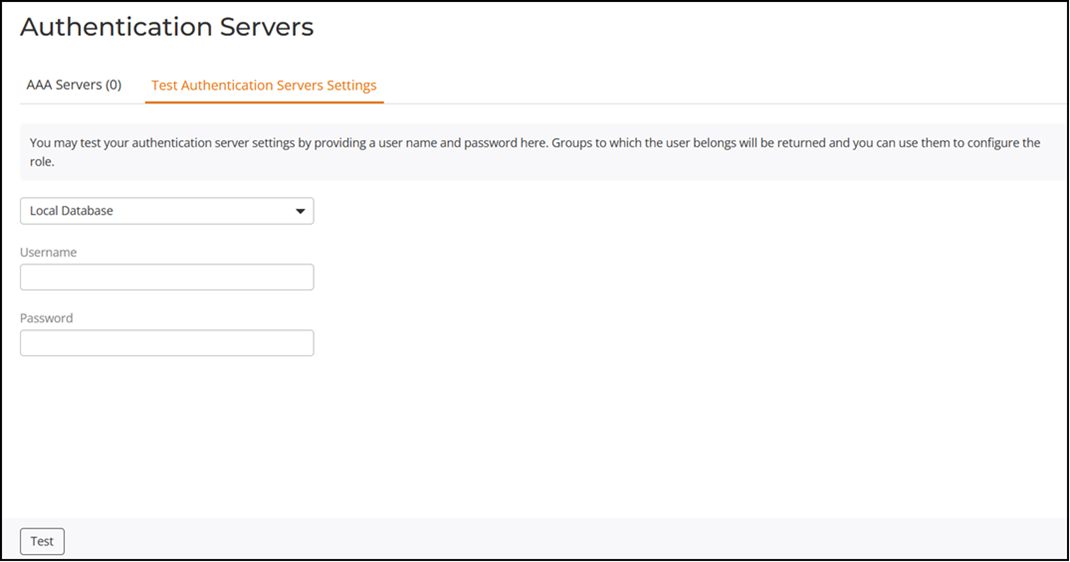
Testing Authentication Settings
The Test Authentication Servers Settings tab allows you to query an AAA server for a known authorized user, and return groups associated with the user that can be used for configuring roles within RUCKUS Unleashed.
After you have configured one or more authentication servers in RUCKUS Unleashed, complete the following steps to ensure that RUCKUS Unleashed can connect to the authentication server and retrieve the groups or attributes that you have configured for each user account.
Complete the following steps to test the connection to the authentication server:
-
UI path for UnleashedFrom the main menu, select .
- Select the authentication server that you want to use from the drop-down list.
- Enter the username and password of the Active Directory, RADIUS, or RADIUS Accounting server.
- Click Test.
If the test is successful, RUCKUS Unleashed connects to the authentication server, retrieves the configured groups or attributes, and displays a success message. The following example message is displayed when RUCKUS Unleashed authenticates successfully with the server.
Success! Groups associated with this user are “{group_name}”. This user will be assigned a role of {role}.
If the test is unsuccessful, several other possible results are displayed to inform you that the information has been entered incorrectly:
These results can be used to troubleshoot the reasons for failure to authenticate users to an AAA server.