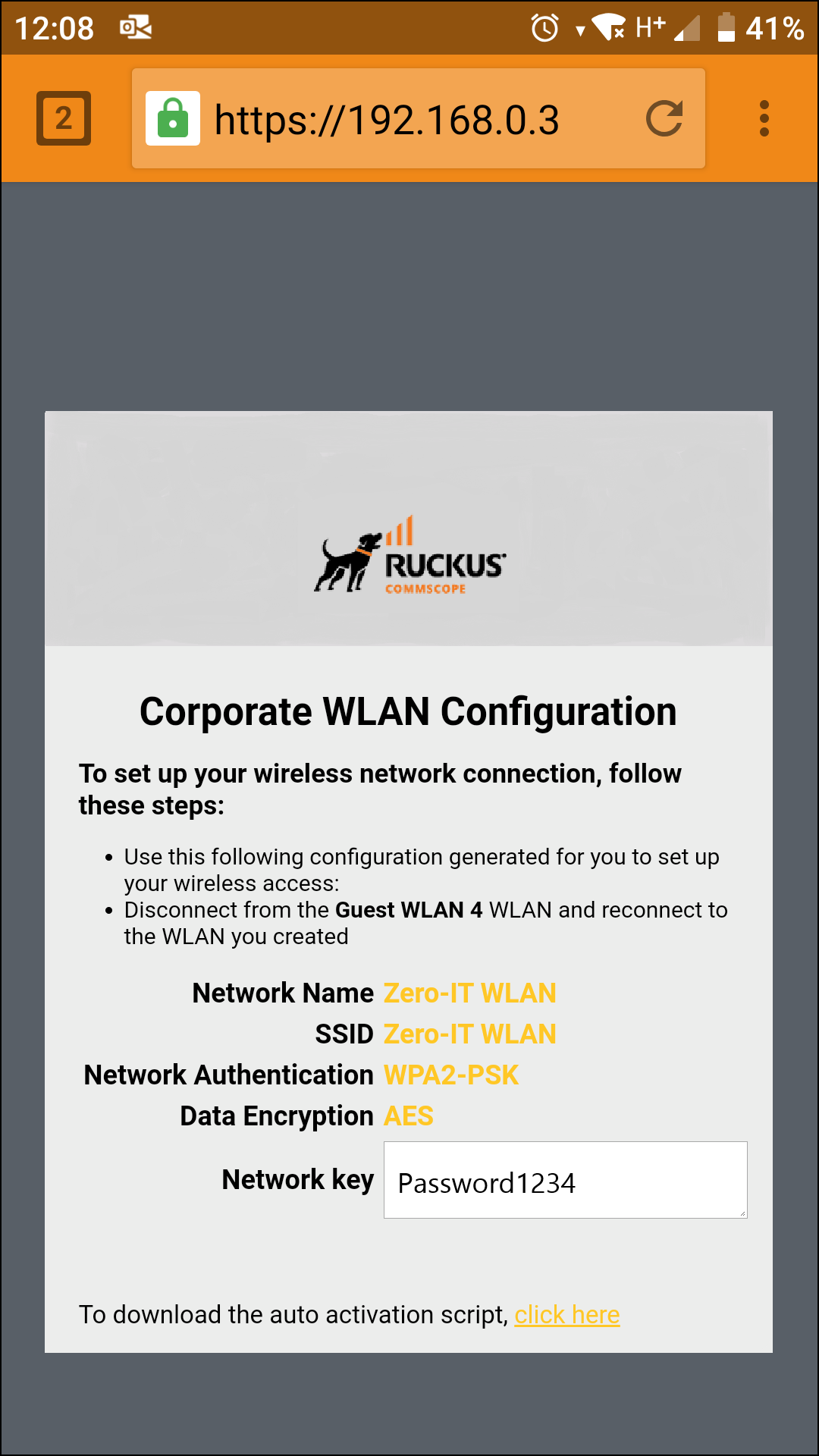
Using the BYOD Onboarding Portal
Complete the following steps to enable the Onboarding Portal for mobile devices.
- From the main menu, select .
- Select an existing guest WLAN and click Edit or click Add to configure a new guest WLAN.
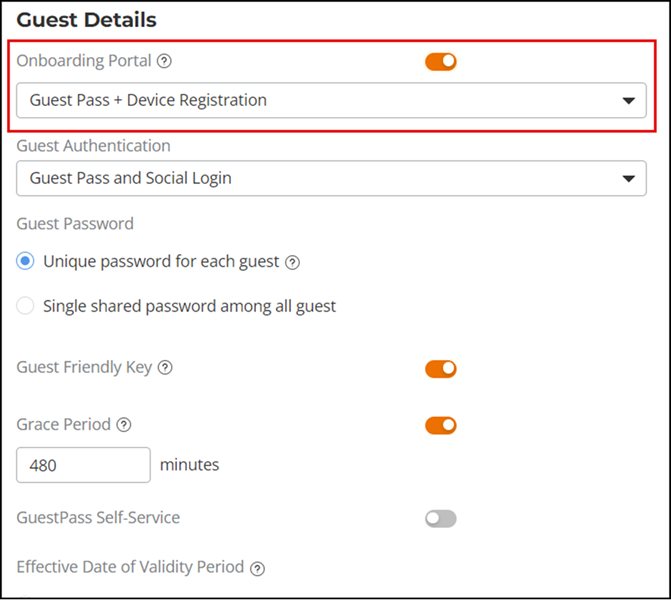
- Step through to the Guest Details page.
- Toggle the Onboarding Portal switch to on to enable Zero-IT device registration from the Guest Portal.
- Select one of the following options to display when connecting to the Onboarding Portal:
- If Guest Pass is enabled, configure Guest Pass options as described in Working with Guest Passes.
- Click Next to continue to the next guest WLAN configuration page.
- Optionally, configure additional
guest WLAN settings, and click Apply to save the
changes.Note: For information on these settings, see Deploying a Guest WLAN.
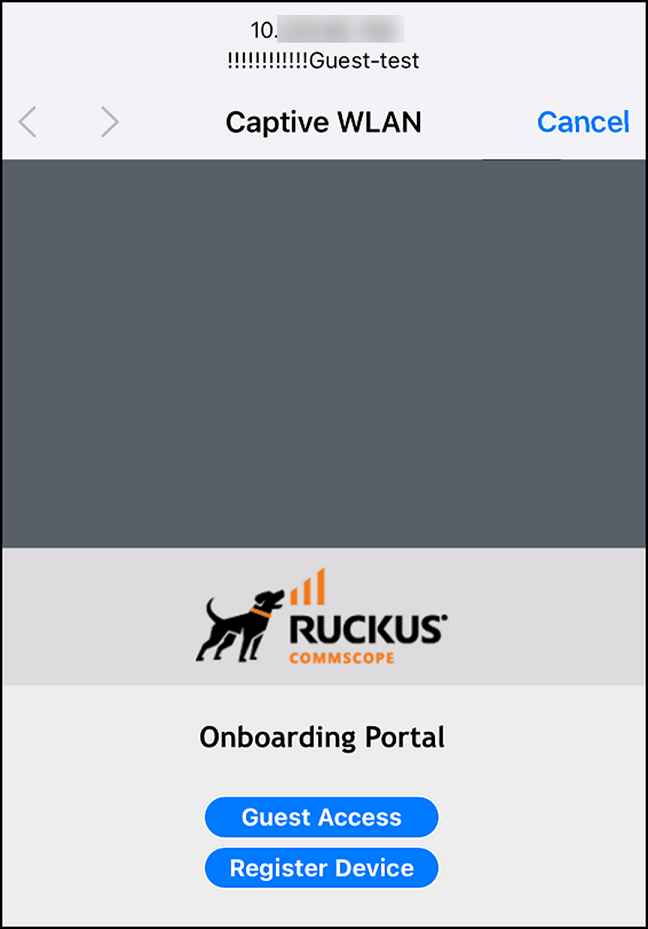
- Guest Access: Connect this device to a guest WLAN.
- Register Device: Download a Zero-IT activation file to register this device for access to one or more internal WLANs.
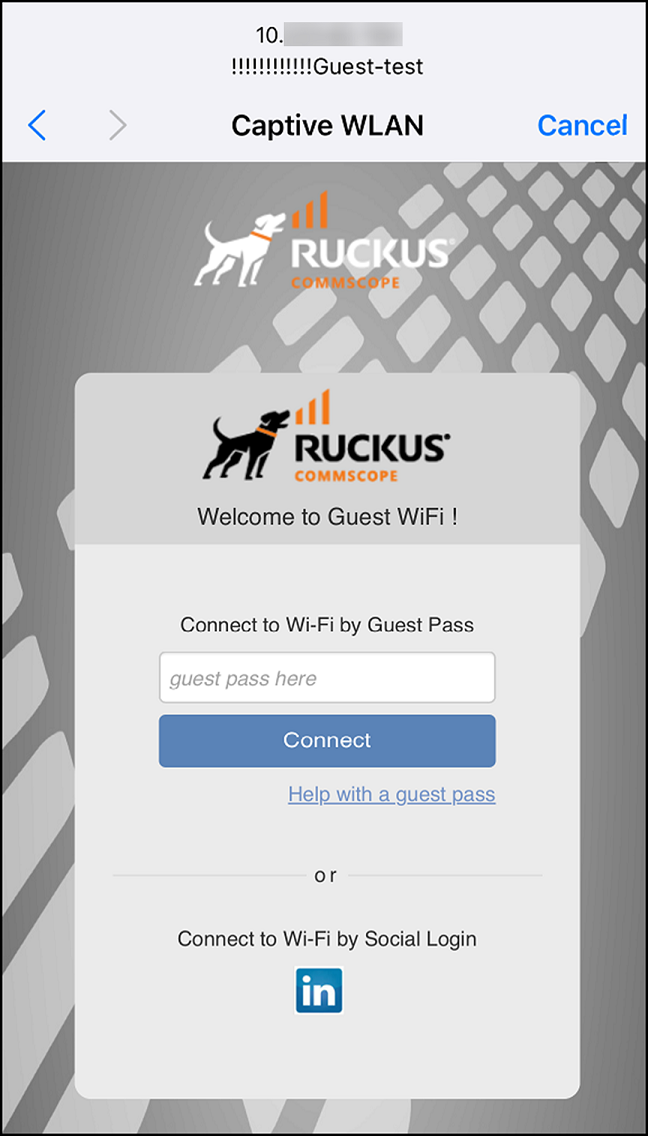
If the user clicks the Guest Access button, the process is the same as when connecting to a Guest WLAN and all settings on the Guest Access configuration page will become effective.
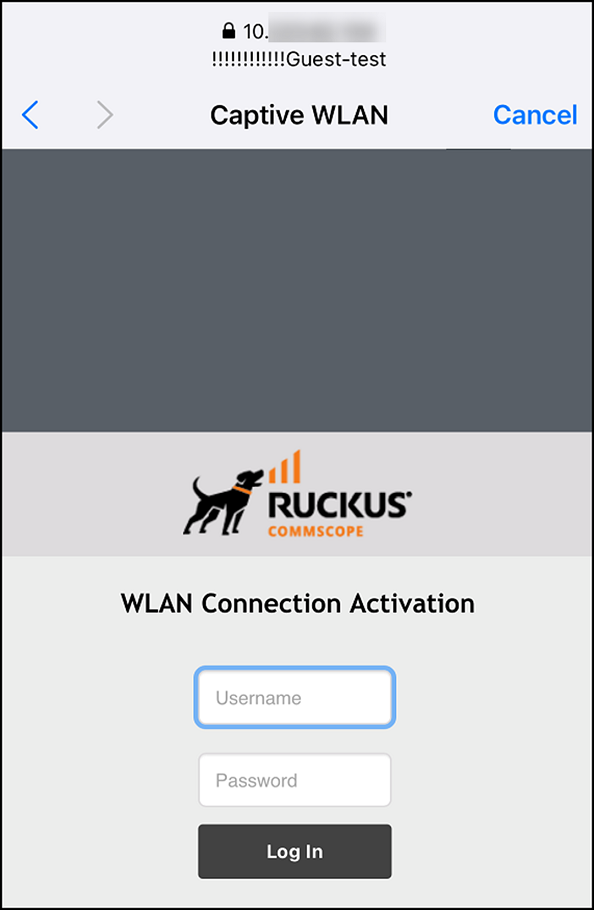
If the user clicks the Register Device button, the web page will be redirected to the WLAN Connection Activation page, from which the user can enter user name and password to activate this device. A Zero-IT activation file is generated for download after the client device is registered with Unleashed.
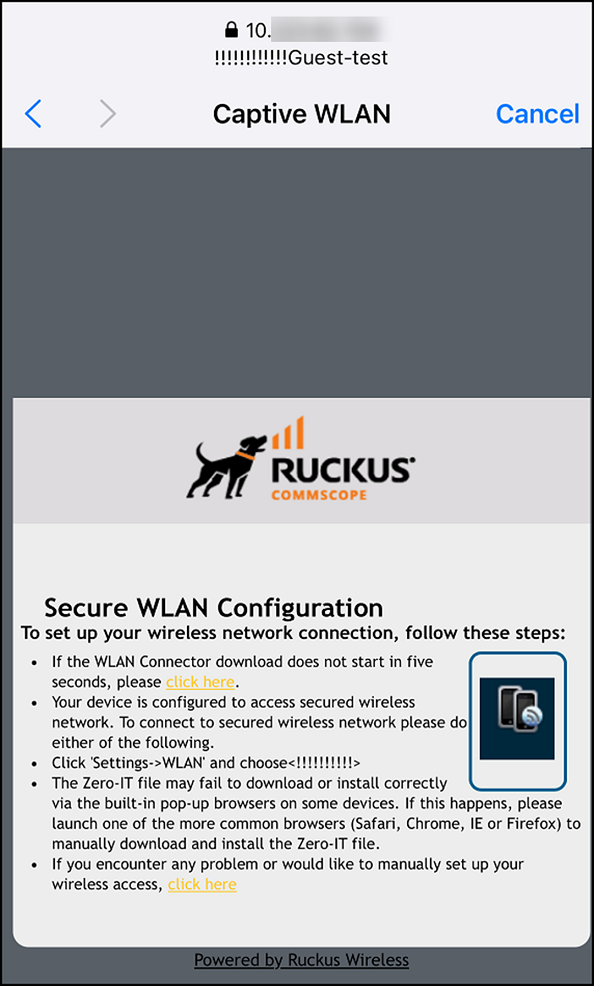
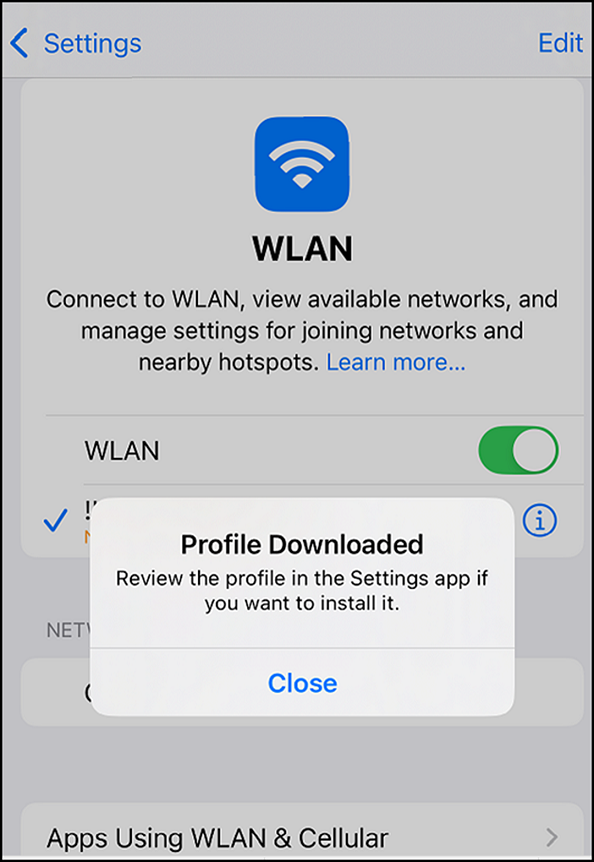
After running the downloaded Zero-IT file, the device will be configured with the settings to automatically connect to the secure internal or corporate WLAN.