Applying an On-Demand CLI Configuration Profile
An on-demand Command Line Interface (CLI)
configuration profile streamlines and automates the configuration of RUCKUS ICX switches
by
allowing you to define CLI commands and variables. It is a saved set of configuration
settings used to manage these switches efficiently. The configuration applied using
the
on-demand CLI configuration profile gets appended to the existing configuration of
the
selected switches.
Note: FastIron CLI commands may be added,
modified, or deprecated in any FastIron release version. To ensure that the CLI
commands you intend to include in your configuration file are supported, refer to
the release-specific RUCKUS FastIron Command Reference Guide and
RUCKUS ICX FastIron Release Notes documentation supporting the
FastIron software release(s) running on your switches.
Note: You can apply the on-demand CLI configuration to Operational switches only.
- From the main menu, select .
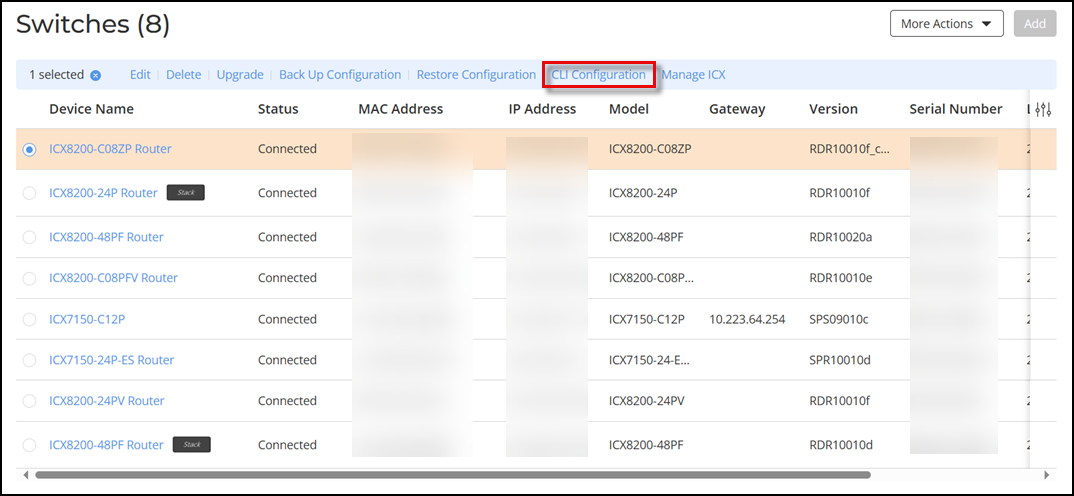
- Click the radio button for a specific switch or stack and click the CLI Configuration option. Alternatively, click on a specific switch or stack, then in the Overview page, click .
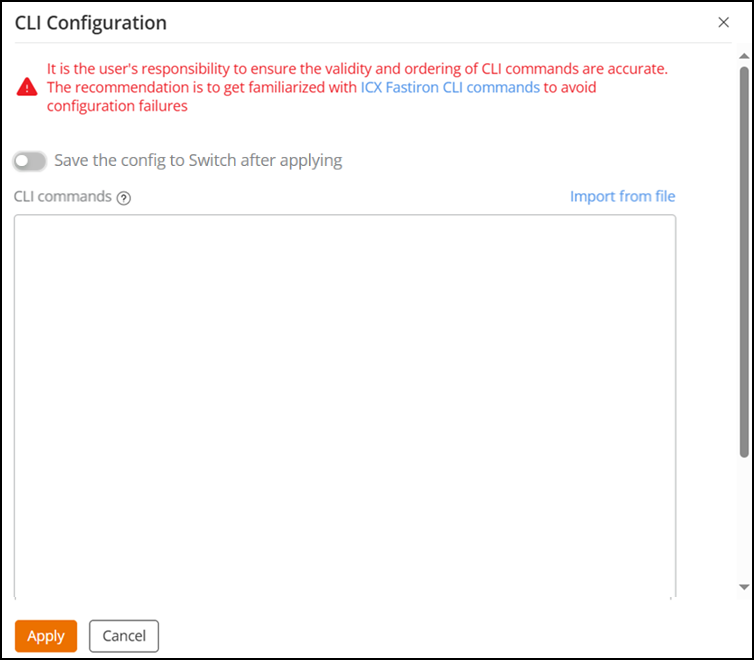
- In the CLI Configuration sidebar, enter the CLI commands you wish to include. You can type the commands or copy and paste the commands. Alternatively, click Import from file to import a .txt file (not exceeding 10 KB in size) consisting of the CLI commands and click Apply.
- (Optional) Toggle the Save the config to Switch after applying option to on if you want to retain the configuration changes after the switch reboots, preventing any loss of configuration settings.
- Click
Apply.A success or failure notification is displayed in the Events page, located at the upper-right corner of the web interface.