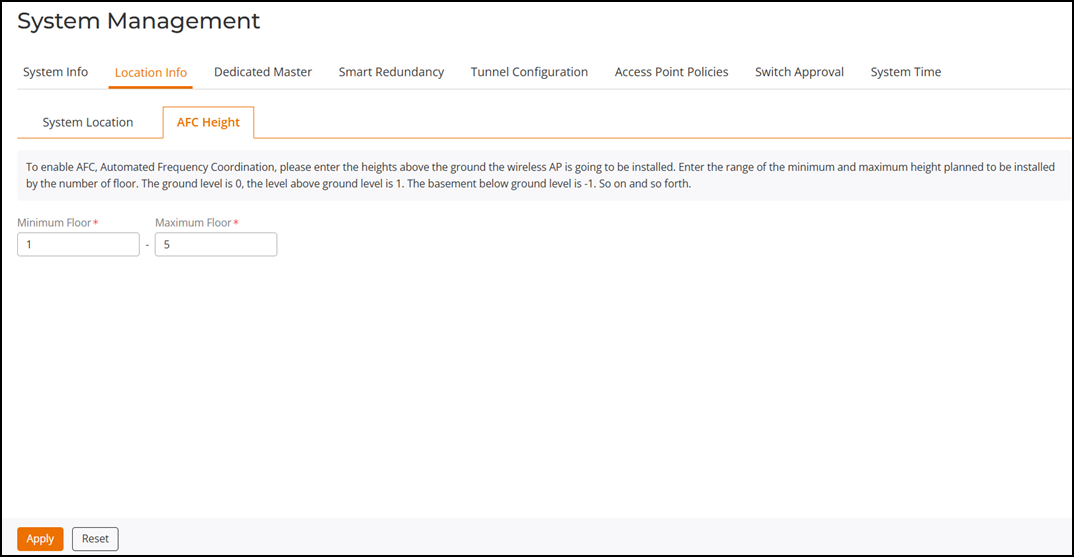
Configuring the AFC Height

After you have enabled the Enable Indoor AFC option for any indoor AP or AP Group (refer to Enabling Automated Frequency Coordination from Unleashed), then you must also configure the range of heights at which the indoor APs are installed. Providing the height of APs at a specific location helps AFC to ensure accurate geolocation and optimal interference management by determining the potential interference footprint.
This topic is reused between Unleashed 200.18 and the AFC User Guides. Please check with the product writer and use appropriate platform-specific conditions when adding new content.
Complete the following steps to configure the installation height range on an indoor AP or AP Group.
  1. From the main menu, select System Settings > System Management > Location Info, then click the AFC Height tab.

    Configuring the AFC Height

  2. For Minimum Floor, enter the floor number. Minimum floor number must be from -999 through 999.
  3. For Maximum Floor, enter the floor number. Maximum floor number must be from -999 through 999.
    Note: If both Minimum Floor and Maximum Floor are set to zero, then AFC is disabled.
  4. Click Apply.
Next steps: The US FCC mandates the AFC geolocation to determine the permissibility of transitioning to substitution-permutation in specific channels. The identification of the geographic location of a device is based on various data collected from different areas of the same place. Therefore, after enabling the AFC feature and configuring the AFC height, set the GPS coordinates (for APs such as R670 without a GPS module) using the RUCKUS Unleashed mobile app (refer to the RUCKUS Automated Frequency Coordination (AFC) Support on RUCKUS Wi-Fi Network Devices User Guide for more information). The RUCKUS Unleashed mobile app is available for download from Apple App Store and Google Play Store. For detailed information about the AFC feature, refer to the RUCKUS Automated Frequency Coordination (AFC) Support on RUCKUS Wi-Fi Network Devices User Guide.