Configuring Global AP Settings
Global
AP settings are applied to all members of the RUCKUS Unleashed network, unless
overridden by AP Group or individual AP settings.
Complete the following steps to configure settings for all APs connected to the RUCKUS Unleashed network in the "System Default" AP Group.
Difference in UI label for Unleashed and RUCKUS
Blue
- From the main menu, select .
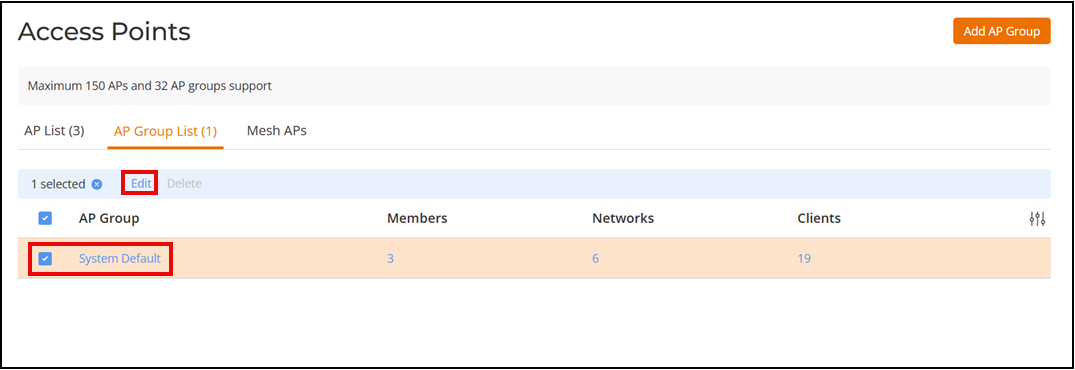
- Select the System Default checkbox and click Edit.
- In the Edit AP
Group page, configure the global AP settings from the following
tabs:
- WLAN Assign: Assign WLANs to or from the System Default AP Group. Use the arrows to move WLANs to or from the list of Available WLANs to Selected WLANs and click Apply.
- Radio (2.4G): Configure options for the 2.4 GHz radio on all APs. Refer to Radio (2.4G) for more information.
- Radio (5G): Configure options for the 5 GHz radio on all APs. Refer to Radio (5G) for more information.
- Radio (6G): Configure options for the 6 GHz radio on all APs. Refer to Radio (6G) for more information.
- Model Specific Control: Select the AP model to configure from the drop-down list. The other options on the tab can be configured independently for each RUCKUS Unleashed AP model. Refer to Modifying Model-Specific Controls for more information.
- Other: Configure Bonjour Fencing settings on all APs. Refer to Creating Bonjour Fencing Policies for more information.
- Click Apply to save your changes.